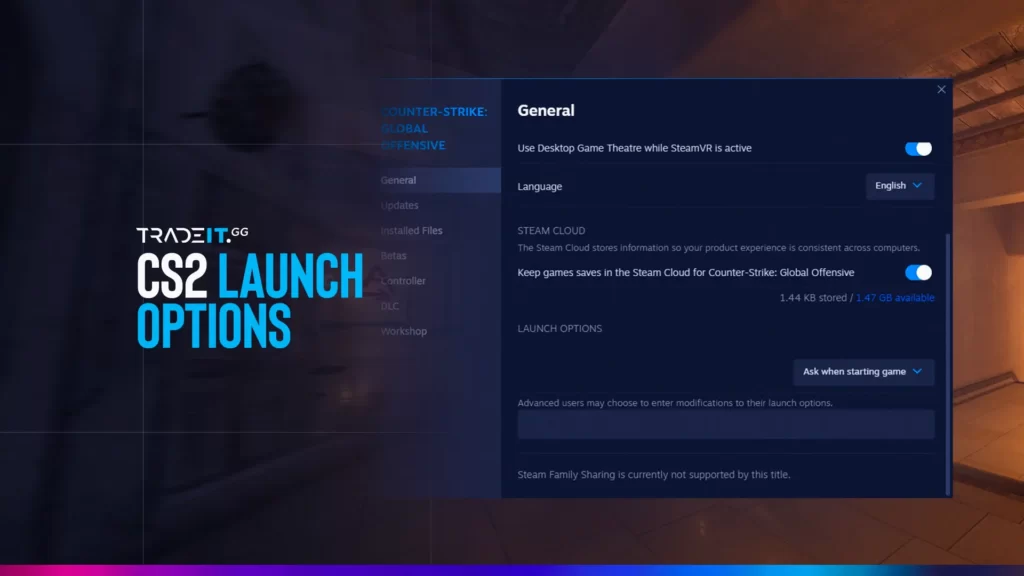

Start with an empty Launch Options field. Add only what you need: -console to open the console, +exec autoexec.cfg to run your config, or +fps_max 300 for an example frame cap. There isn’t a universal “best FPS” launch string.
A copied bundle can contain old CS:GO commands alongside useful CS2 options. If you change ten things together, you won’t know which one helped or which caused a crash. We prefer a short string you can explain.
How to Set Launch Options for CS2
- Close CS2.
- In Steam Library, right-click Counter-Strike 2.
- Choose Properties > General.
- Find Launch Options.
- Save a copy of the old string, then clear the field.
- Add the option you need and start CS2.
Separate arguments with spaces. A minus sign normally introduces a launch flag, such as -console. A plus sign runs a console command at startup, such as +fps_max 300.
For +exec autoexec.cfg, you need a correctly located autoexec file already containing valid commands. The argument doesn’t create the file.
CS2 Launch Options for FPS, Faster Loading, and More
| Option | Use | Keep in mind |
|---|---|---|
-console | Open the developer console | Convenience, not an FPS boost. |
+exec autoexec.cfg | Run the named config | The file and its commands must be valid. |
+fps_max 300 | Cap FPS at 300 | Example value; choose a cap for your PC. |
+fps_max 0 | Remove the game’s FPS cap | Compare frame times, temperatures and power use. |
-vulkan | Select Vulkan | Renderer performance depends on hardware and drivers. |
-windowed | Start in a window | A display option, not a performance preset. |
A frame cap is a ceiling. Setting it to 300 doesn’t make a PC render 300 frames. Setting it to zero doesn’t mean unlimited hardware performance either.
Choose an FPS Cap You Can Sustain
Set the cap before you join a server, since fps_max is restricted while connected. For the comparison, use one repeatable scene and leave the video preset unchanged between capped and uncapped runs.
+fps_max 300Watch the FPS and frame-time readings, especially during fights. The highest number you see while staring at a wall tells you little about the slow frames.
Try Vulkan as a Separate Comparison
Where both renderers are available, try -vulkan by itself. Compare the same resolution and workload. Remove it if you get crashes, graphics problems or worse frame times.
Linux already uses a Vulkan graphics path. Adding the flag there isn’t a hidden performance upgrade; compatible drivers are still required.
Commonly Used Launch Options and Their Effects
| Copied option | Why we don’t put it in a default CS2 string |
|---|---|
-tickrate 128 | Doesn’t turn official matchmaking into a 128-tick server. |
+cl_forcepreload 1 | Legacy command, absent from the CS2 command reference. |
-d3d9ex | Old Direct3D 9 advice, not a CS2 DirectX 11 memory fix. |
+mat_queue_mode 2 | Old Source rendering advice, not an established CS2 thread recipe. |
-threads | A copied thread count doesn’t establish a benefit for your CPU. |
-high | Higher process priority doesn’t guarantee better performance. |
-novid / -nojoy | No dependable CS2 FPS gain follows from the generic descriptions. |
-limitvsconst / -softparticlesdefaultoff | Old shader and particle advice; use supported video settings instead. |
Also distinguish an available command from a permitted one. A restricted particle-rendering command isn’t a matchmaking option for removing gameplay effects.
Advanced CS2 Launch Options Used by Pro Players
A pro’s launch string may reflect an old preference or a particular tournament PC. Copying it doesn’t copy the system it ran on. Use pro settings as context, not proof that every included flag helps.
Leave -allow_third_party_software and -insecure out of an FPS preset. The first changes the handling of external software injection; the second affects secured-server access. Those are specialised modes, not extra frames.
NVIDIA Reflex Low Latency Mode
Reflex is in the game, not the launch field. On supported NVIDIA hardware it reduces the queue of work between the CPU and GPU. It doesn’t lower your internet ping.
- Open Settings > Video > Advanced Video.
- Find NVIDIA Reflex Low Latency.
- Choose Enabled.
- Compare responsiveness and frame times in a repeatable scene.
Enabled + Boost has a tradeoff: it can draw more power and sacrifice some FPS to reduce latency. Check both results on your PC before keeping it.
Keep rendering and network latency separate when adjusting NVIDIA settings. A graphics setting can’t improve the route to a distant server.
In-Game Settings Tweaks
- Check the selected refresh rate.
- Compare resolution and demanding graphics options one at a time.
- Consider visibility before reducing shadows and effects.
- Don’t search for CS:GO’s old Multicore Rendering checkbox in CS2.
Supported video settings give you clearer controls than an inherited startup bundle. Leave the mouse sensitivity alone during these comparisons; otherwise the aiming feel changes too.
Comparing Your CS2 Setup
- Baseline: save the old string, clear it and record the video settings.
- One change: add one option and use the same map and scene.
- More than peak FPS: note slow frames, spikes and crashes.
- Repeat: background tasks or a different fight can alter a single run.
- Keep or remove: retain an option only if its benefit is repeatable.
For a laptop, also check the intended GPU, power mode and temperature over a session. A startup flag won’t fix every power or thermal limit.
FAQs
What are the best launch options for a low-end PC?
Start with none. Check video settings and the bottleneck first. A sustainable frame cap can help, but a preload, shader and thread bundle isn’t a dependable preset.
Where are Launch Options in Steam?
Library, right-click Counter-Strike 2, Properties, General.
Does +fps_max 0 increase FPS?
It removes the game cap. If that cap was the limit, the PC can render more frames. It doesn’t create more hardware capacity.
Does -tickrate 128 change official CS2 servers?
No. Your client launch field doesn’t configure Valve’s matchmaking servers.
Should I use -high or -threads?
We leave them out by default. A repeatable comparison on your system is more useful than a copied claim.
Is Vulkan always faster?
No. Compare the renderers separately on your hardware and drivers.
How should I set a custom resolution?
Use the game’s video settings for ordinary resolution changes. Window and display flags are more useful for troubleshooting.
Can launch options cause VAC bans?
Supported settings aren’t external cheats. That doesn’t make every specialised launch mode interchangeable or free of restrictions: understand options affecting external software and secured-server access before using them.
Summary
Give each launch option a specific job. Measure performance changes, remove unhelpful flags and leave ordinary graphics choices to the video menu.