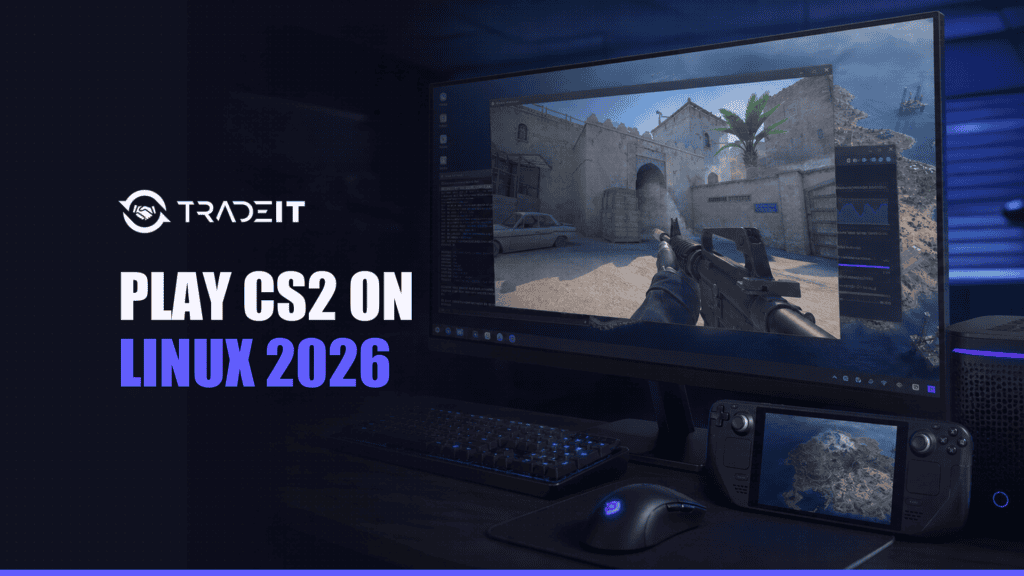

Yes. Counter-Strike 2 runs natively on Linux in 2026. Valve ships an official SteamOS + Linux build, so you should install CS2 through Steam and leave the game’s per-title Compatibility option unchecked. Do not force Proton: Proton is the Windows compatibility path, while CS2 already has a supported Vulkan-based Linux client.
The native client supports Valve matchmaking, Premier, Competitive, VAC, Workshop content, and the same Steam inventory you use on Windows. The major limitation is FACEIT: its anti-cheat is available only for Windows 10 and 11, so Linux cannot be your only operating system if FACEIT matches are non-negotiable.
Linux is a supported CS2 platform. The setup is straightforward once the native-client, Vulkan, and anti-cheat boundaries are clear.
Valve publishes a SteamOS + Linux build.
Official pathLeave CS2 Compatibility unchecked.
Wrong defaultUse Valve’s native Linux launch path.
SupportedFACEIT AC is Windows 10/11 only.
Linux blockedInstall the native build without Proton.
Tune settingsYour skins and items follow the Steam account, not the operating system.
Account-wideUpdate your distro, install its supported graphics stack, confirm Vulkan sees the correct GPU, install CS2 in Steam, and keep the game-specific Compatibility override off.
Does CS2 Run on Linux? Yes, Natively
CS2 does run on Linux, and it does not need a Windows translation layer to do so. Valve’s own Steam listing has a separate SteamOS + Linux requirements panel. That is the decisive confirmation: the Linux build is a first-party release, not a community port and not a Proton workaround.
The Linux client renders through Vulkan. Steam may also download a Steam Linux Runtime container so the game sees a predictable set of libraries across different distributions. That runtime is normal for native Linux games; it is not the same thing as Proton.
The Linux client is a full CS2 client. The meaningful gap comes from third-party anti-cheat, not from Valve matchmaking or your inventory.
| Feature | Linux status | What to know |
|---|---|---|
| Valve Premier and Competitive | Available | Launch the native Linux client through Steam and use the normal in-game matchmaking menus. |
| VAC | Available | The Steam listing identifies VAC support. A VAC session error is a troubleshooting problem, not proof that Linux itself is unsupported. |
| Workshop maps and community servers | Available | Subscriptions and server browsing work through the same Steam account. |
| Steam inventory, skins, and market items | Same account | Your inventory is tied to Steam, not to the operating system. |
| FACEIT protected matches | Unavailable | FACEIT’s required anti-cheat app and kernel-mode driver are Windows-only. |
Valve lists Ubuntu 20.04 as the minimum OS baseline, but that does not make CS2 “Ubuntu-only.” The native build also runs on current Fedora, Arch Linux, SteamOS, and other maintained 64-bit distributions when Steam, Vulkan, and the correct graphics libraries are available.
CS2 Linux System Requirements (2026)
Valve’s Linux minimum is a floor, not a competitive-performance target. CS2 can launch on older supported hardware, but stable frame times, high-refresh play, background voice chat, and modern maps benefit from more CPU headroom, memory, and free storage.
The right-hand column is editorial guidance for a comfortable modern setup; it is not an additional Valve requirement.
| Component | Valve Linux minimum | Practical 2026 target | Why it matters |
|---|---|---|---|
| Operating system | Ubuntu 20.04 | A currently supported Ubuntu LTS, Fedora, Arch, SteamOS, or equivalent 64-bit distro | Current userspace, security updates, driver packaging, and Vulkan support reduce avoidable launch issues. |
| Processor | 4 hardware CPU threads; Intel Core i5-750 or better | Modern 6-core / 12-thread CPU or better | CS2 is sensitive to CPU limits and one-percent-low frame times, especially in utility-heavy fights. |
| Memory | 8 GB RAM | 16 GB RAM | Leaves room for Steam, the desktop, voice chat, browser tabs, and shader/cache activity. |
| Graphics | AMD GCN+ or NVIDIA Kepler+ with up-to-date Vulkan drivers | A modern Vulkan-capable GPU with current distro-supported drivers | Driver quality and shader compilation affect frame pacing as much as peak FPS. |
| Vulkan extension | VK_EXT_graphics_pipeline_library highly recommended |
Confirm the extension is exposed by the active GPU driver | It helps the engine’s graphics pipeline handling and is a strong sign that the correct modern stack is loaded. |
| Storage | 85 GB available | Keep roughly 100–120 GB free on an SSD | Updates, temporary patch space, Workshop content, and caches need room beyond the install size. |
| Audio | Sound card highly recommended | Working PipeWire or PulseAudio-compatible output | Correct device routing matters for positional audio and voice chat. |
Intel graphics are not named in Valve’s published minimum. Modern Intel GPUs can use Mesa ANV, but performance depends heavily on the exact generation, memory configuration, and driver support.
Do not copy an old guide’s kernel number as though it were a CS2 requirement. As of July 20, 2026, upstream Linux stable is 7.1.4, while supported long-term branches include 6.18 and 6.12. That does not mean every player should install the newest upstream kernel. Use the kernel shipped and maintained by your distribution unless a documented hardware bug gives you a reason to change.
Install your distro’s supported production driver, not an old 535 pin or a random .run file.
AMD and Intel users should take the current supported Mesa packages from their distro.
A maintained kernel with matching modules is safer than chasing a number from another distribution.
Publishing rule: version numbers are a dated freshness snapshot, not commands. Package branches move; the durable recommendation is to stay on a supported graphics and kernel stack.
Why You Should NOT Force Proton for CS2 on Linux
Proton exists so Linux can run Windows games that do not have a suitable native build. CS2 already has one. Enabling a game-specific Proton override tells Steam to use the Windows compatibility path instead of Valve’s native Linux launch path, adding another runtime layer that CS2 does not need.
That can create unnecessary downloads, startup failures, input or video quirks, and VAC-session problems. It does not mean that selecting Proton automatically earns a VAC ban; the practical point is simpler: Proton is not Valve’s supported default for CS2, so remove the override before troubleshooting anything else.
Keep global Steam Play available for Windows-only games. The setting that matters here is CS2’s own Compatibility override.
| Question | Native Linux client | Forced Proton path |
|---|---|---|
| What Steam launches | Valve’s Linux build through the selected Steam Linux Runtime | The Windows build through Proton |
| Recommended for CS2 | Yes | No |
| Vulkan path | Native Vulkan renderer | Windows graphics calls translated through the compatibility stack |
| VAC / support posture | Official Linux route | Unnecessary, unofficial-for-CS2 override that can complicate sessions and support |
| Best troubleshooting move | Update driver, verify files, test clean launch options | Turn the override off, then verify files and relaunch |
Other games may need Steam Play. For CS2, open Library → Counter-Strike 2 → Properties → Compatibility and make sure “Force the use of a specific Steam Play compatibility tool” is off.
To return an existing installation to native mode, uncheck the override, close the Properties window, restart Steam, and use Properties → Installed Files → Verify integrity of game files. Steam will reconcile the installed depots and runtime. Leave Launch Options empty for the first clean test; the native Linux client already uses Vulkan, so -vulkan is not a required optimization.
How to Install the Native CS2 Linux Client
The game installation itself is the same across distributions: install Steam from a trusted package source, sign in, install Counter-Strike 2, and keep its Compatibility override off. The distribution-specific work is making sure Steam and the correct Vulkan driver stack are present first.
Follow this order so a driver problem does not get mistaken for a game problem.
- Update your distribution
Apply normal system, kernel, firmware, and graphics-package updates from your distro’s supported repositories. Reboot after a kernel or proprietary NVIDIA driver change.
- Install the correct GPU stack
Use NVIDIA’s distro-packaged proprietary driver, Mesa RADV for AMD, or Mesa ANV for supported Intel graphics. Do not mix unrelated vendor stacks.
- Verify Vulkan before installing the game
Run
vulkaninfo --summaryand confirm it names the GPU you intend to use. On a hybrid laptop, make sure Steam is not launching on the low-power GPU by accident. - Install Steam from a trusted source
Use your distribution’s package, its documented third-party repository, or the supported SteamOS client. Avoid unofficial repacks.
- Install Counter-Strike 2
Open the Steam Store or Library, select CS2, choose an SSD library with enough free space, and let Steam download the native Linux build and required runtime.
- Confirm Compatibility is off
In CS2 Properties, leave “Force the use of a specific Steam Play compatibility tool” unchecked. Global Proton can stay enabled for other games.
- Run one clean baseline session
Start with empty Launch Options, confirm audio and the correct refresh rate, load a practice map, then enter Valve matchmaking only after the client is stable.
Avoid copying a long command string before you have a baseline. Most “magic” CS2 launch options are either obsolete, hardware-specific, or impossible to evaluate when stacked together. Add one measured change at a time.
These are conservative starting points for current mainstream installations. Derivatives may rename packages or use a different repository policy.
| Distribution | Steam route | Vulkan tools / driver note | Important caveat |
|---|---|---|---|
| Ubuntu | Ubuntu’s native DEB package, or enable i386 and install steam-installer from the required repository component |
sudo apt install vulkan-tools; use Additional Drivers or ubuntu-drivers for NVIDIA |
Do not add an old graphics PPA just to reproduce a guide’s driver number. |
| Fedora | Enable RPM Fusion as documented for your Fedora release, then sudo dnf install steam |
sudo dnf install vulkan-tools; Mesa is the normal AMD/Intel path; NVIDIA packages come from the enabled nonfree repository |
The Flatpak client can work, but sandboxed paths and permissions make troubleshooting different from RPM Steam. |
| Arch Linux | Enable [multilib], update fully, then sudo pacman -S steam |
Install vulkan-tools plus the matching vendor Vulkan packages and 32-bit libraries |
Partial upgrades are unsupported; update the system as a unit before changing graphics packages. |
| SteamOS / Steam Deck | Steam is preinstalled | Install SteamOS updates through Settings; no desktop package-manager work is needed for normal play | Do not make the immutable system writable just to follow a desktop Linux command guide. |
On a distro derivative, follow that project’s current Steam and driver documentation. Package names are less important than keeping the Steam client, kernel module, Vulkan userspace, and 32-bit dependencies internally consistent.
Choose a distribution, GPU, and desktop session. The tool returns a conservative starting plan and the exact native-client check to make in Steam.
Confirm the intended GPU and Valve’s recommended pipeline-library extension.
vulkaninfo --summary
    vulkaninfo | grep VK_EXT_graphics_pipeline_library
CS2 → Properties → Compatibility → leave “Force the use of a specific Steam Play compatibility tool” unchecked.
Launch Options: leave empty for the first test
Restart Steam after a runtime or driver change, verify game files, then launch a practice map before joining a protected match.
Properties → Installed Files → Verify integrity
Start with the Steam compatibility setting.
Commands are starting points for current mainstream releases. Read the note each output gives you, and use your distro’s package documentation when a derivative changes repository or package names.
GPU Drivers and Vulkan Setup
A native CS2 installation can still fail if the graphics stack is wrong. The game needs a working Vulkan implementation for the GPU that actually launches it. On desktops that is usually obvious; on laptops, an integrated GPU can be selected even when a faster discrete GPU is present.
Install the driver through your distribution, reboot when a kernel module changes, and verify the result before changing CS2 settings. A successful desktop session or OpenGL test does not automatically prove that the correct Vulkan device is active.
Run these before opening CS2. The first identifies the active Vulkan devices; the second checks Valve’s highly recommended extension.
vulkaninfo --summary
vulkaninfo | grep VK_EXT_graphics_pipeline_library
vulkaninfo shows software rendering
Stop there. A renderer such as llvmpipe/lavapipe means CS2 is not using normal hardware acceleration. Fix the vendor driver and Vulkan ICD before changing launch options.
NVIDIA (Proprietary Driver)
For NVIDIA, use the proprietary driver branch packaged and supported by your distribution. NVIDIA’s upstream production snapshot was 595.84 on July 20, 2026, but that number is not a universal install command: Ubuntu, Fedora, Arch, and SteamOS can package or qualify branches on different schedules.
Avoid NVIDIA’s standalone .run installer unless you are deliberately administering drivers outside your package manager. It can leave files that conflict with future kernel and distro updates. On Secure Boot systems, a correctly installed driver may also need a signed/enrolled kernel module; if the desktop falls back after an update, check the module before blaming CS2.
The command should list the GPU and loaded driver without a communication error.
nvidia-smi
vulkaninfo --summaryLaunch Steam or CS2 with your distro’s PRIME/offload method. prime-run %command% is common on Arch-based setups, but it is not a universal command.
AMD (Mesa RADV)
For most Radeon players, the normal gaming stack is the in-kernel amdgpu driver plus Mesa’s RADV Vulkan driver. Current distributions already integrate these pieces. Mesa 26.1.5 was the upstream bug-fix release current on July 20, 2026; use your distribution’s supported package rather than replacing it with an unrelated third-party build by default.
AMDGPU-PRO is not the default recommendation for CS2 gaming. Install it only when another documented professional or compute workload specifically requires it. Mixing proprietary and Mesa Vulkan components without understanding ICD selection can make the wrong driver appear first.
| Distro | Typical package starting point | Check |
|---|---|---|
| Ubuntu | mesa-vulkan-drivers and the matching i386 library where Steam needs it | vulkaninfo --summary should identify the Radeon GPU |
| Fedora | mesa-vulkan-drivers plus mesa-vulkan-drivers.i686 for 32-bit support | Update as a normal Fedora transaction |
| Arch | vulkan-radeon plus lib32-vulkan-radeon | Do a full pacman -Syu, not a partial upgrade |
Package names can change on derivatives. The durable target is Mesa RADV for the correct Radeon device, with Vulkan ICDs that match the rest of the system.
Intel (Mesa ANV)
Supported Intel integrated and discrete GPUs use Mesa ANV for Vulkan. Valve’s published minimum names AMD and NVIDIA families rather than an Intel baseline, so do not infer that every Intel iGPU is a good CS2 target. An integrated Xe-class GPU backed by dual-channel system memory is a very different proposition from an older iGPU; Intel Arc discrete graphics sit in another performance class again.
Use your distro’s current Mesa packages, verify that ANV exposes the intended device, and lower resolution or graphics load if the GPU is the limiting component. On a hybrid Intel + NVIDIA/AMD laptop, the Intel renderer may be technically valid but still be the wrong performance choice.
| GPU | Normal Linux Vulkan stack | Good sign | Common mistake |
|---|---|---|---|
| NVIDIA | Distro-packaged proprietary NVIDIA driver | nvidia-smi works and Vulkan names the NVIDIA GPU | Driver userspace and kernel module from different branches |
| AMD Radeon | Kernel amdgpu + Mesa RADV | Vulkan names the Radeon GPU and RADV ICD | Unnecessary AMDGPU-PRO/Mesa mixing |
| Intel | Mesa ANV | Vulkan names the correct Intel GPU | Expecting an old iGPU to match a modern discrete GPU |
| Hybrid laptop | Both stacks can be installed | CS2 launches on the chosen high-performance device | Steam silently starts on the integrated GPU |
FACEIT and Anti-Cheat: The Linux Limitation
FACEIT is the most important limitation for a competitive player choosing Linux. FACEIT’s official anti-cheat is made of a required app, a kernel-mode driver loaded at boot, and server-side validation. The client and driver are available only for Windows 10 and Windows 11; FACEIT does not offer a Linux version.
This needs one precise correction to a common explanation: Secure Boot is not inherently incompatible with Linux. Many Linux systems use Secure Boot. FACEIT’s blocker is that its anti-cheat implementation and supported client are Windows-only. Secure Boot, TPM 2.0, virtualization, and related checks are additional requirements inside that Windows support path.
Play Premier, Competitive, other current Valve modes, Workshop maps, and community servers through the native client.
Keep a supported Windows installation for FACEIT protected matches. A virtual machine or Proton does not replace the required Windows anti-cheat environment.
The native CS2 client can run, but the required FACEIT anti-cheat cannot. Plan the operating-system choice before committing to a league, hub, or team schedule.
Best Performance Tweaks for CS2 on Linux
There is no universal launch string that turns every Linux system into a high-FPS CS2 machine. The biggest gains usually come from choosing the correct GPU, keeping the graphics stack current, removing frame-time conflicts, and setting a realistic render load. Establish a baseline first, then change one variable and measure the result.
- Confirm the game is native and on the right GPU
Compatibility override off, no software renderer, and no accidental integrated-GPU launch. This is more important than any in-game preset.
- Use the display’s actual refresh rate
Check Linux display settings and CS2 video settings. A 144 Hz or 240 Hz monitor running at 60 Hz can feel like a performance problem even when FPS is high.
- Start with fullscreen and a native-resolution baseline
Then lower resolution, MSAA, shadows, or shader-heavy settings only where the GPU is the bottleneck. Borderless can be useful when a compositor has fullscreen issues, but it is not automatically faster.
- Let shader and map caches settle
The first run after a game, driver, or shader-cache update can stutter more. Test a map twice before judging a new stack.
- Remove overlays one at a time
Steam Overlay, Discord, MangoHud, recording software, RGB tools, and desktop effects can all be harmless, or conflict on a specific system. Disable individually so you know what changed.
- Use the distro’s performance power profile
On a laptop, connect AC power and select the supported performance profile. Avoid forcing a permanent CPU governor with an old command copied from another distro.
- Cap for stable frame time when appropriate
A stable cap below a wildly fluctuating peak can feel better than chasing the largest FPS counter. Test average FPS and one-percent lows on the same map and scenario.
- Keep optional helpers optional
If GameMode is installed,
gamemoderun %command%is reasonable to test. Keep it only if your measurements improve; it is not a required CS2 dependency.
Do not add -threads, -high, -nojoy, or -vulkan just because an old list labels them “best.” The Linux client already uses Vulkan, and aggressive process-priority or thread overrides can make frame pacing worse. For command-specific testing, use the dedicated guide to how to improve FPS in CS2 rather than stacking guesses.
Test the helper, compare the same replay/map, and remove it if frame times do not improve.
gamemoderun %command%On supported Mesa laptops, this can request the discrete GPU. Confirm the result with an overlay or Vulkan device output.
DRI_PRIME=1 %command%Use only one diagnostic option at a time. A clean, empty launch field is the control case for every comparison.
CS2 humming on Linux?
Now put a skin on that AK – browse the CS2 store on Tradeit.
CS2 on Steam Deck and the 2026 Steam Machine
Steam Deck and Valve’s 2026 Steam Machine make the native-Linux route easier to understand: both are SteamOS devices, and SteamOS is Linux. CS2 does not need Proton on either one. The same rule applies: install from Steam and do not force a Windows compatibility tool.
The hardware use case is different. Steam Deck is a handheld 1280 × 800 PC with a controller-first interface; it can launch CS2 natively, but competitive players may want lower settings, a stable frame cap, and a mouse/keyboard or docked setup. The Steam Machine is a living-room SteamOS PC: Valve launched it in June 2026 with the base 512 GB model starting at US$1,049, and it behaves like a Linux PC rather than a locked console.
| Platform | CS2 launch path | Best use | Main limitation |
|---|---|---|---|
| Steam Deck | Native SteamOS/Linux client; no Proton override | Portable practice, casual play, inventory management, docked sessions | Handheld CPU/GPU headroom, 800p screen, and controller input are not the ideal high-level competitive setup |
| 2026 Steam Machine | Native SteamOS/Linux client; no Proton override | Living-room or compact desktop SteamOS setup with normal PC peripherals | FACEIT remains unavailable because the operating system is Linux |
| Desktop Linux PC | Native client through your distribution’s Steam package | High-refresh Valve Premier/Competitive with the widest hardware choice | Requires more manual driver and distro maintenance than an appliance-style SteamOS device |
| Windows dual-boot | Windows client when booted into Windows | FACEIT plus native Linux for everything else | Disk space, rebooting, and maintaining two systems |
On Steam Deck, install from Gaming Mode, apply SteamOS updates through Settings, and begin with a clean native launch. Do not unlock the read-only system merely to install desktop packages from this guide. For an external monitor, confirm the dock, cable, display mode, and refresh rate before diagnosing the game.
Troubleshooting: Wayland vs X11, Stuttering, Audio, VAC
Troubleshoot from the outside in: launch path, driver, Vulkan device, game files, desktop session, then optional overlays and launch variables. Changing all of them at once can hide the actual cause.
| Symptom | First check | Next controlled test |
|---|---|---|
| Play button returns to Play | Compatibility override off; restart Steam; verify files | Launch Steam from a terminal and inspect the final error lines |
| Black screen or broken fullscreen | Correct GPU and refresh rate; remove all launch options | On Wayland, test the X11 SDL backend through XWayland |
| Severe stutter after update | Run the same map twice; let shaders/cache rebuild | Disable overlays/recorders one at a time and compare frame times |
| No sound or wrong output | Desktop output device and per-app mixer | Restart PipeWire/WirePlumber, then test one SDL audio backend |
| Disconnected by VAC | Native launch, clean files, no injectors or unsupported tools | Restart Steam/PC and verify files before contacting support |
| Low FPS on a gaming laptop | vulkaninfo --summary GPU name | Use the distro’s documented discrete-GPU offload method |
| Game works but feels like 60 Hz | Linux desktop and in-game refresh rate | Test a single display, fullscreen, and compositor/session settings |
Wayland black screen, cursor, or fullscreen problems
First remove every launch option and test the default SDL choice. If the problem appears only under a Wayland desktop, force the X11 backend as a diagnostic. This normally runs through XWayland; it does not require switching the entire desktop session.
SDL_VIDEODRIVER=x11 %command%The correct variable is SDL_VIDEODRIVER. Older guides often use the invalid SDL_VIDEO_DRIVER. If the fallback does not help, remove it rather than leaving a dead option behind.
Stuttering, shader compilation, or bad one-percent lows
After a CS2, Mesa/NVIDIA, or shader-cache update, load the same practice map twice before judging. Keep free SSD space, confirm the correct GPU, and compare with all overlays disabled. Do not delete shader caches as the first move; rebuilding them can temporarily create more stutter.
When the problem persists across repeat runs, use the focused guide to fix CS2 stuttering and record the exact map, driver, session, and frame-time behavior before changing more variables.
No audio, the wrong device, or broken voice output
Choose the intended device in the desktop sound panel and check the per-application stream while CS2 is open. On PipeWire systems, restart the user services, then reopen Steam.
systemctl --user restart pipewire wireplumber
    systemctl --user try-restart pipewire-pulse
As a temporary diagnostic only, try SDL_AUDIODRIVER=pipewire %command% or SDL_AUDIODRIVER=pulseaudio %command%. Keep whichever matches your active stack only if it fixes a reproducible problem.
VAC cannot verify the session or disconnects you
Return to the native launch path, remove custom injectors and unsupported overlays, restart Steam and the computer, then verify game files. Do not modify protected game binaries or textures. A VAC session error is not the same as a VAC ban.
- CS2 Properties → Compatibility → force-compatibility box off.
- Launch Options → empty.
- Installed Files → Verify integrity.
- Restart Steam and test an official server with a clean desktop session.
CS2 launches on the integrated GPU
Run vulkaninfo --summary and inspect the GPU list, then use your distro’s documented hybrid-graphics method. For Mesa systems, DRI_PRIME=1 %command% is a common test. NVIDIA PRIME commands differ by distro, so confirm the method instead of assuming every system has prime-run.
Also check whether Steam itself was launched in a power-saving mode. On some desktops, using the application menu’s “Launch using Discrete Graphics Card” action is cleaner than a permanent launch option.
Steam keeps installing or launching the wrong build
Uncheck the CS2 compatibility override, restart Steam, and verify the game files. Steam should reconcile the native depot and the runtime selected by Valve. Do not manually delete the Steam Linux Runtime tool; it is a managed dependency and is not evidence that Proton is active.
Ultrawide or multi-monitor placement is wrong
Set the intended gaming monitor as primary, confirm its scale and refresh rate, then test fullscreen with the other display temporarily disconnected or disabled. Mixed scaling and mixed refresh rates can expose compositor-specific behavior. If the problem is Wayland-only, test the X11 SDL backend; if it is X11-only, return to the automatic backend under a current Wayland session.
Once CS2 is stable, copy only the configuration files you actually need. The easiest way to find the install directory is Steam → CS2 → Manage → Browse local files, then open game/csgo/cfg. Per-user files usually live under Steam’s userdata/<SteamID>/730/local/cfg tree. The full CS2 config file setup guide covers autoexec behavior without turning this Linux article into a duplicate config tutorial.
Ready to trade CS2 skins?
Trade, buy, or sell CS2 skins instantly on Tradeit – works the same on Linux, Windows, or Steam Deck.
FAQ
Is CS2 slower on Linux than on Windows?
Not by one universal percentage. The result changes with CPU, GPU, driver branch, desktop session, map, game update, and whether you compare peak FPS or one-percent lows. A current AMD Mesa setup may behave differently from NVIDIA or an older iGPU. Benchmark the same map and settings on your own hardware; the fixed platform disadvantage is FACEIT availability, not a guaranteed FPS gap.
Does VAC work correctly on Linux for CS2?
Yes. Valve lists VAC for CS2 and publishes an official Linux build. Use the native client, keep game files clean, and remove software that injects into the process if you receive a VAC session error. Forcing Proton is unnecessary and can complicate troubleshooting, but it does not automatically mean a VAC ban.
Can I play CS2 on Steam Deck without any tweaks?
You can install and launch the native SteamOS/Linux build without forcing Proton. You may still want to lower settings, choose a stable frame cap, and adjust controls. For serious competitive play, a dock, mouse, keyboard, and suitable display are more practical than handheld controls.
What is Steam Linux Runtime (Sniper), and do I need it?
Steam Linux Runtime is Valve’s containerized userspace for giving Linux games a predictable library environment across distributions. “Sniper” is Steam Linux Runtime 3.0, an older runtime alongside the newer Steam Linux Runtime 4.0. Steam downloads the runtime selected for a game automatically, so you do not need to force one for normal CS2 setup. Leave the game’s Compatibility override off and let Steam use Valve’s selected native runtime.
Can I use my Windows CS2 config file on Linux?
Yes, normal text-based .cfg and autoexec files can be copied. Use Steam’s “Browse local files” action to reach game/csgo/cfg, and save the file as plain text if line-ending or encoding problems appear. Do not copy Windows DLLs, executables, or an entire Windows game folder over the native install. See the linked CS2 config file setup guide for the config workflow.
Are Linux CS2 skin inventories the same as Windows?
Yes. Your CS2 inventory is tied to your Steam account, so the same skins, stickers, cases, and tradeable items appear when you sign in on Linux, Windows, Steam Deck, or Steam Machine. The operating system does not create a separate inventory.
Does CS2 on Linux support ultrawide or multi-monitor setups?
CS2 can use common ultrawide and multi-monitor desktop modes, but resolution detection, window placement, mixed scaling, and refresh-rate behavior can depend on the compositor and X11/Wayland path. Set the gaming display as primary, confirm the refresh rate, test fullscreen first, and use the X11 SDL fallback only when the automatic backend has a reproducible issue.