Ever get stuck on “connecting to CS2 network” and miss your match start? In CS2, that error can throw you off fast. But usually, it’s not a full system crash. This guide walks you through how to fix this error quickly and get back to gaming.
Table of Contents
Quick Fixes for “Connecting to CS2 Network” Error
If you’re facing connection errors, they might not be as severe as they seem. They could also arise from your PC not meeting the minimum CS2 system requirements.
Simple solutions like restarting CS2 and Steam or verifying the integrity of your game files can often resolve the issue.
1. Restart CS2 and Steam
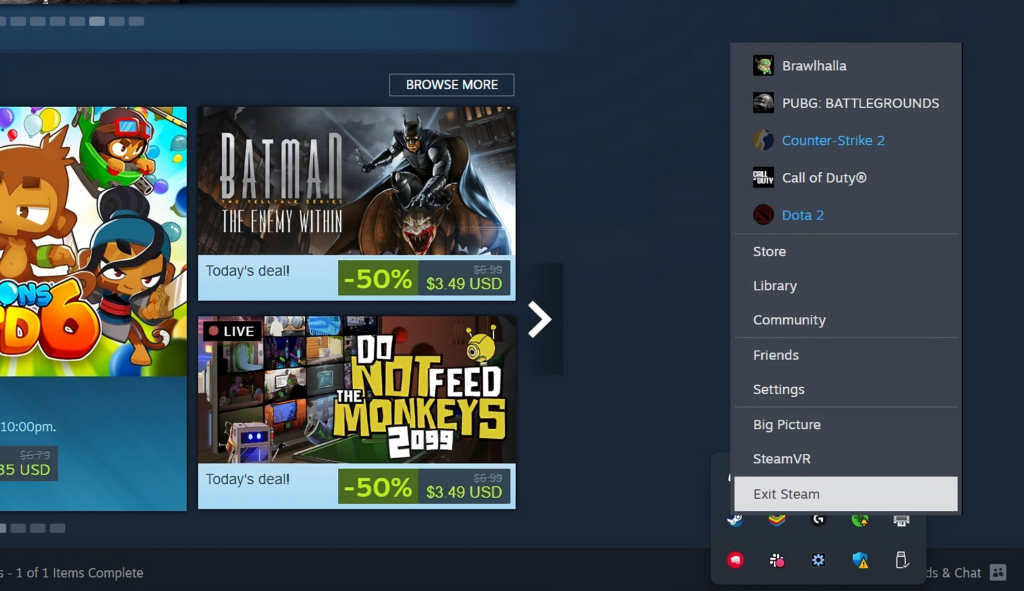
If you’re facing connection errors, they might not be as severe as they seem. Simple solutions like restarting CS2 and Steam or verifying the integrity of your game files can often resolve the issue.
1. Restarting CS2 and Steam
A temporary glitch in the CS2 game client or the Steam platform could be the culprit. Restarting both the game and Steam can refresh your connection and fix the error.
Steps to restart CS2 and Steam:
Exit CS2 and completely shut down the Steam client.
Open the Steam client and wait until it fully connects to its network.
Launch CS2 again and check if the network connectivity issue is resolved.
2. Verify Integrity of Game Files
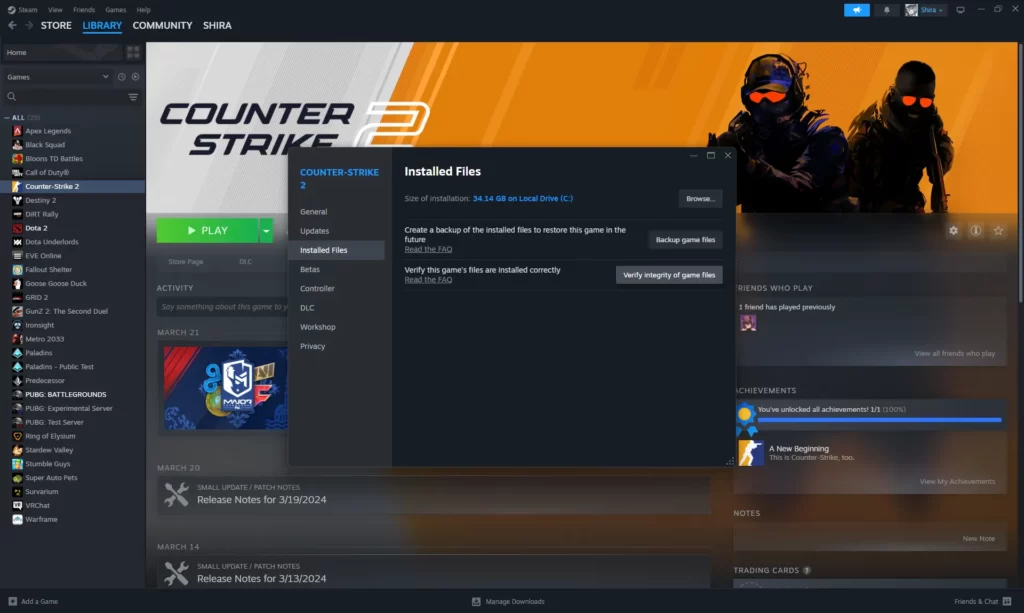
Corrupted game files can also cause connectivity issues in CS2. Steam’s ‘Verify Integrity of Game Files’ feature checks and repairs any corrupted files, ensuring your game is running correctly.
How to verify the integrity of game files:
Restart your computer and open the Steam client.
Go to your Steam Library and find Counter-Strike 2.
Right-click CS2 or use the gear icon, then select ‘Properties.’
Go to ‘Local Files’ and click ‘Verify Integrity of Game Files’.
The process might take some time, and certain files may fail verification, but these are usually local configuration files that don’t require replacement.
Advanced Network Fixes Help Connecting to The Counter-Strike Network CS2
If quick fixes don’t solve the problem, more advanced troubleshooting might be necessary. These solutions address deeper network or system issues that could be causing the connection error.
1. Optimize DNS & Network Settings
When it comes to online gaming, a well-optimized network can be your best friend, especially when playing an online game.
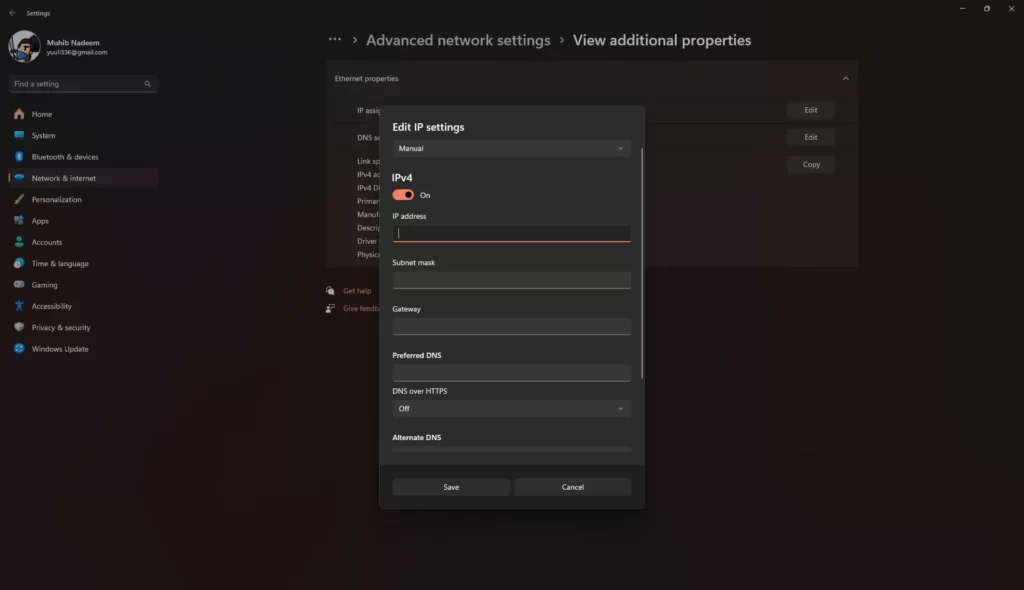
We can begin by implementing Google DNS. This can resolve issues with domain name resolution, potentially speeding up your connection to game servers and websites.
Steps to optimize network settings:
Change your DNS settings to Google’s DNS (Primary: 8.8.8.8, Secondary: 8.8.4.4) to fix domain issues and speed up server connections.
If DNS changes don’t work, reset your network settings to default to remove potential conflicts.
Related: CS2 Unable to Establish Connection Error
2. Shut Down Background Apps
These applications can cause connection problems in CS2, but how can you identify them? Ding ding! Task managers can help by identifying high-bandwidth applications that are not necessary during gameplay.
How to manage background applications:
Open Task Manager and identify high-bandwidth applications running in the background.
Shut down apps you don’t need to free up network resources for CS2.
Turn off automatic updates and synchronization services during gameplay to reduce interruptions.
3. Allow CS2 Through Firewall & Antivirus
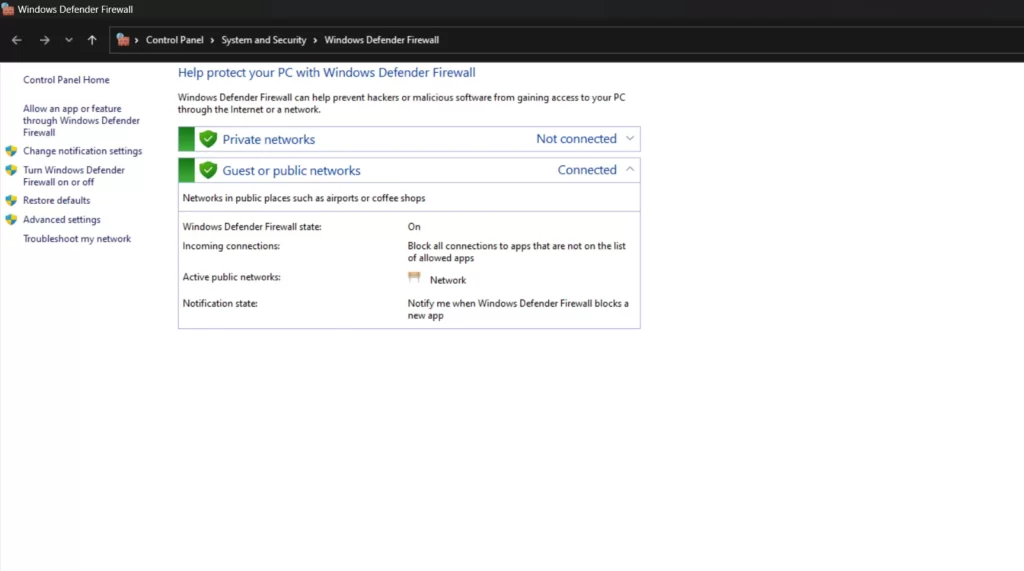
Sometimes, your own firewall and antivirus software might be blocking CS2’s access to the network. But remember, while this can fix connectivity issues, it is crucial to re-enable the security software after testing to maintain system protection.
Steps to configure the firewall and antivirus:
Add CS2 and Steam to your firewall’s whitelist to prevent them from being blocked.
Temporarily disable your antivirus if it’s blocking network access, then re-enable it afterward.
Checking CS2 Server Status
The CS2 server status webpage provides real-time updates on server availability. This can be your go-to spot to verify if the servers are behaving or causing server issues.
How to check server status:
Check Valve’s official status page first to see if it’s a server-side issue.
Use platforms like CS2 status check or Steam community reports to track outages.
If problems persist, submit logs and error codes to Valve Support for assistance.
If you’re dealing with a unique, puzzling issue, it’s time to seek assistance from the experts at Valve Support. Here’s how to get help:
Use the Steam Support interface to submit a detailed ticket about your issue.
Provide necessary logs and information for faster and more accurate troubleshooting.
Record specific error codes and circumstances when the problem occurs to help support identify the issue.
There are also third-party websites and services to monitor CS2 server status. They offer community reports and historical data on server uptime.
Related: CS2 Community Servers Not Working?
Wired vs. Wireless Connections
A wired Ethernet connection gives you steady bandwidth and lower latency much better reliability over Wi-Fi alone.
Summary
Your “connecting to CS2 network” issue is often fixable! Try restarting Steam/CS2 first, then move through DNS tweaks, closing bandwidth hogs, or firewall checks. If it persists, check server status or reach out for support.
FAQs
1. Why am I seeing the “Connecting to CS2 Network” error?
This error usually occurs when your game client cannot establish a stable connection to CS2 servers. Common causes include server outages, firewall or antivirus blocks, network instability, or corrupted game files.
2. How can I quickly fix this error?
Start by restarting your PC and router, verifying CS2 game files through Steam, temporarily disabling firewalls/antivirus, and ensuring your internet connection is stable. Often, these steps resolve the issue within minutes.
3. Could this be a server-side problem?
Yes. Sometimes CS2 servers undergo maintenance or experience temporary outages. You can check official server status pages or CS2 social media channels to confirm if the issue is on their end.
4. Do I need to change my DNS settings to fix this?
In some cases, switching to a reliable DNS like Google (8.8.8.8 / 8.8.4.4) or Cloudflare (1.1.1.1) can improve connectivity. This is especially helpful if your ISP is experiencing routing issues.
5. Will reinstalling CS2 solve the issue?
Reinstalling is usually a last resort. It can fix corrupted game files, but most “Connecting to CS2 Network” errors are resolved through simpler fixes like restarting, verifying files, or adjusting network/firewall settings.