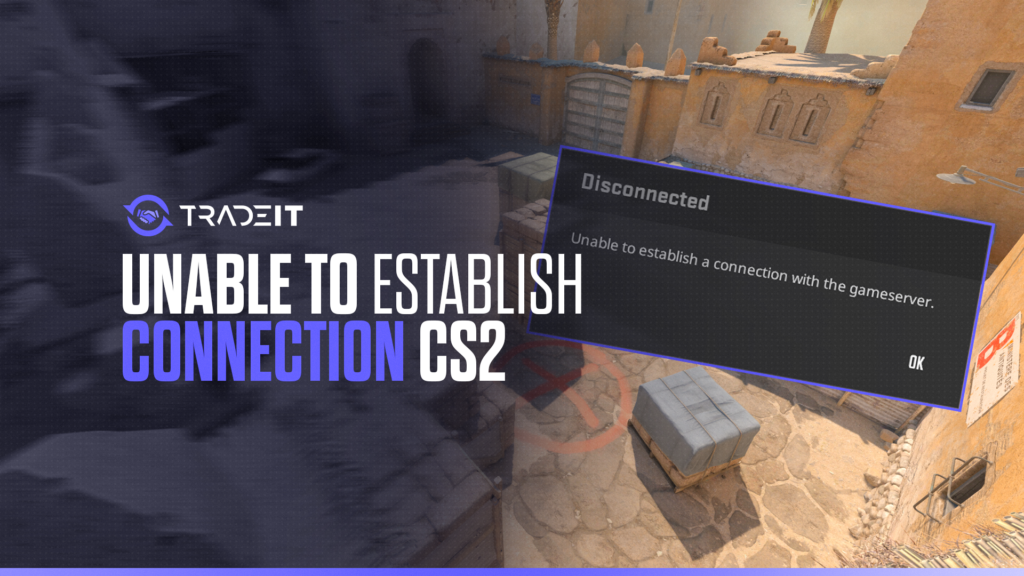

The “Unable to Establish Connection” error in CS2 can be frustrating, especially when it prevents you from joining matches or staying connected to servers.
This issue may be caused by network problems, corrupted game files, outdated drivers, or router configuration issues. Fortunately, most connection problems can be fixed with a few troubleshooting steps.
In this guide, we will cover quick and practical solutions to help you restore your connection and get back into the game as quickly as possible.
Essential First Steps to Resolve Connection Issues
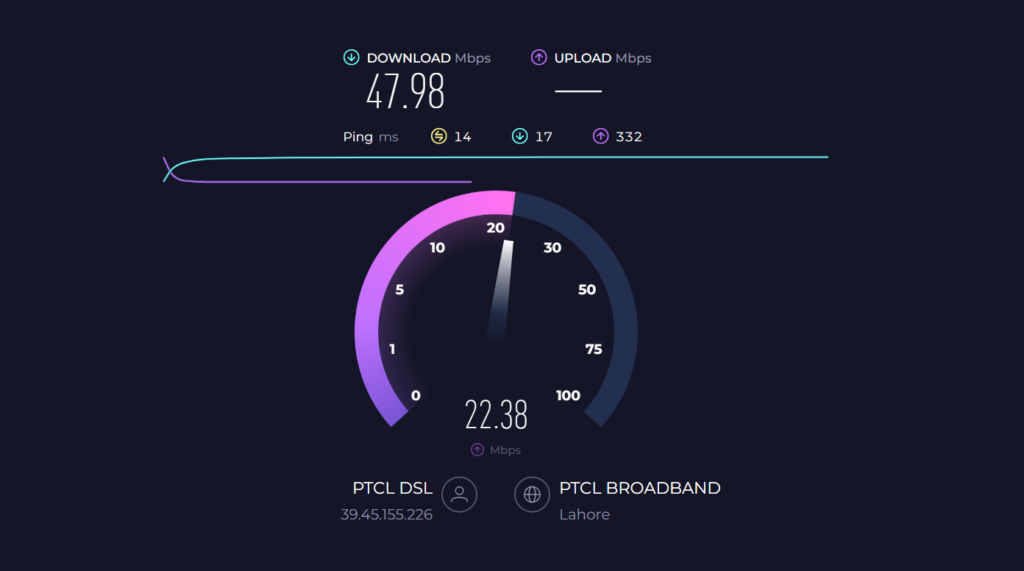
To establish a connection that meets the recommended speeds above 20 Mbps for smooth gaming, running a speed test can confirm if your connection meets this benchmark.
Here are some tips to help you achieve a more stable connection:
Choose a reputable internet provider for stable speeds and fewer connection interruptions.
Use an Ethernet cable instead of Wi-Fi for lower latency and improved stability.
Adjust router settings to improve network efficiency and gaming performance.
Limit the number of devices using the network at the same time to preserve bandwidth.
Reboot Your Network Equipment
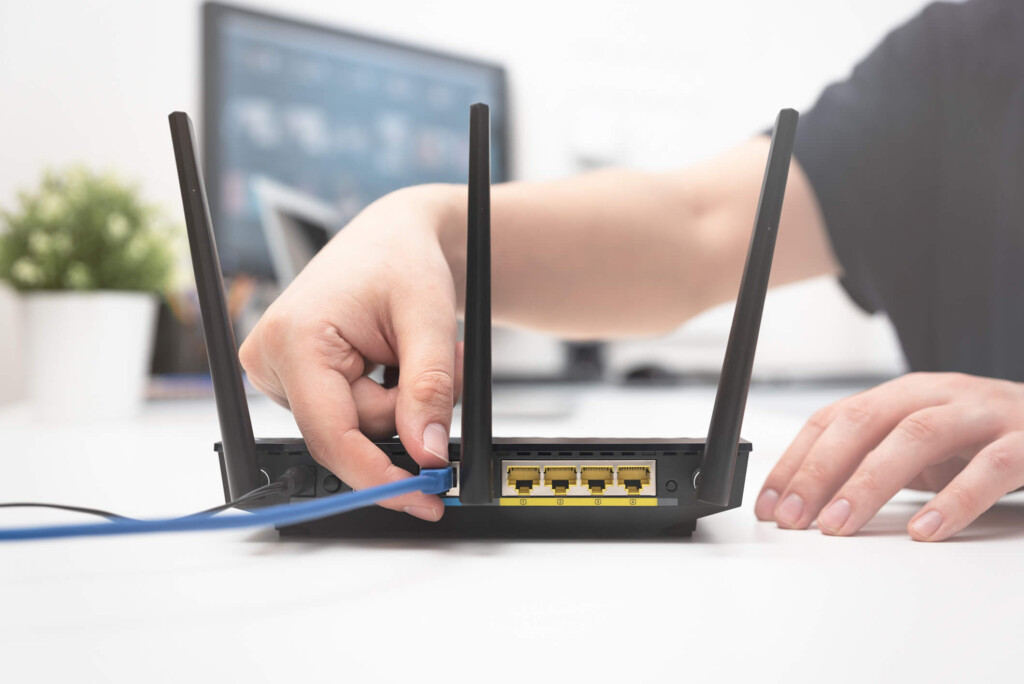
Ever heard the old adage, “When in doubt, turn it off and on again?” Well, that wisdom can apply to your internet connection too.
Power cycling modems and routers can reset your connection to the internet provider, potentially enhancing performance and reducing lag in gaming.
Unplug the power cables from both your modem and router.
Give the devices at least 30 seconds to fully reset before reconnecting them.
Plug the modem and router power cables back in to restart both devices.
Allow the modem and router lights to stabilize, confirming a fresh ISP connection.
Launch your game and check whether the lag or connection issue has been resolved.
Update Your Network Driver
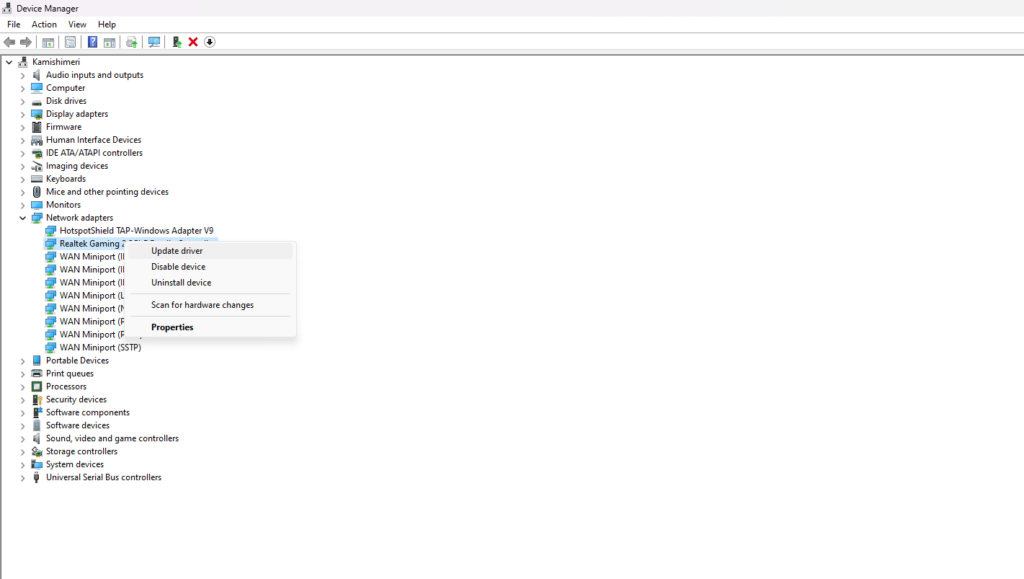
Sometimes, the issue lies within your device’s hardware. Updating network drivers can resolve game client connectivity issues by ensuring the hardware is compatible with the latest network protocols and services.
Thankfully, updating these drivers can be as easy as heading over to the Device Manager in Windows and selecting the option to search automatically for updated driver software.
But what if the automatic search comes up short? No worries! The latest driver can be downloaded directly from the manufacturer’s website. Just remember to double-check compatibility with your device before installing.
Run the Windows Network Troubleshooter
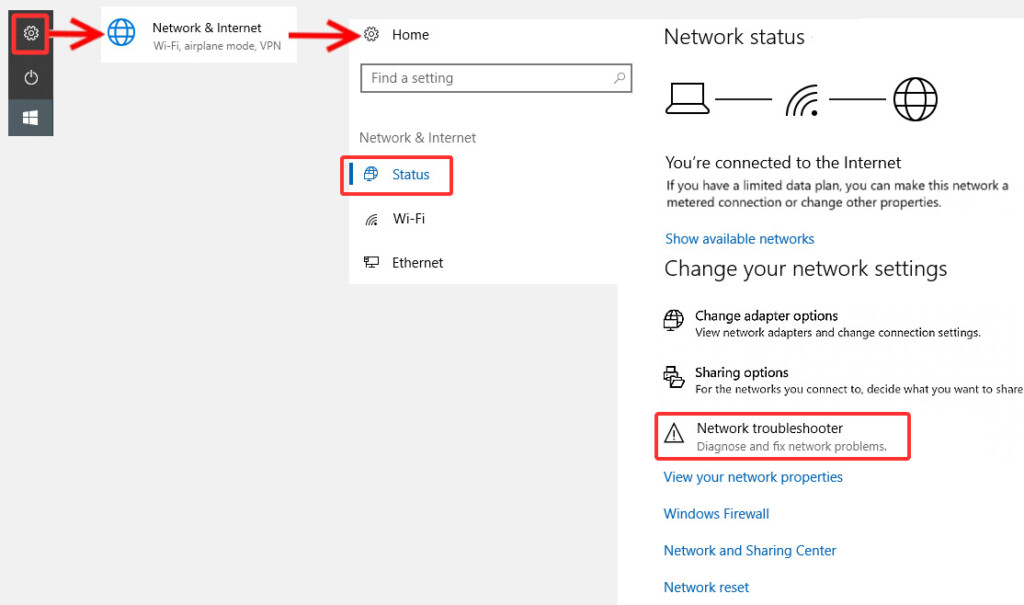
Windows users, there’s a handy tool built right into your operating system that can help with network woes – the Windows Network Troubleshooter.
Easily accessed by right-clicking the network icon in the taskbar and selecting ‘Troubleshoot problems’, it automatically detects and resolves common network-related issues.
Running this troubleshooter might just be the quick fix you need to solve any connection problems with CS2 servers, getting you back into the action in no time.
Inspecting and Repairing CS2 Game Files
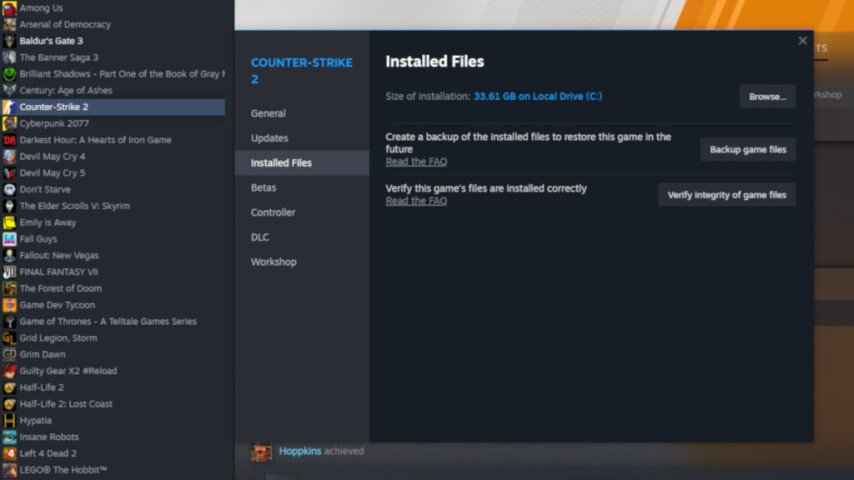
In some cases, connection errors in CS2 can be traced to corrupted or missing game files, preventing players from joining game servers.
Luckily, if you’re playing CS2 on Steam, there’s a built-in verification utility that you can use to inspect your game files and identify any potential error.
Just follow these steps to verify the integrity of game files:
Navigate to the game’s Library section in Steam.
Right-click the game and select Properties.
Go to the Local Files tab inside the Properties menu.
Click Verify integrity of game files and wait for Steam to complete the scan.
This process ensures that you have the correct and updated file to avoid issues like joining VAC-protected servers.
If it finds any corrupted or missing files, Steam automatically downloads and replaces them with the correct versions. And in the unlikely event that this doesn’t fix the connection issues, a complete reinstallation of CS2 might be the way to go.
Adjusting Your Firewall and Antivirus Settings
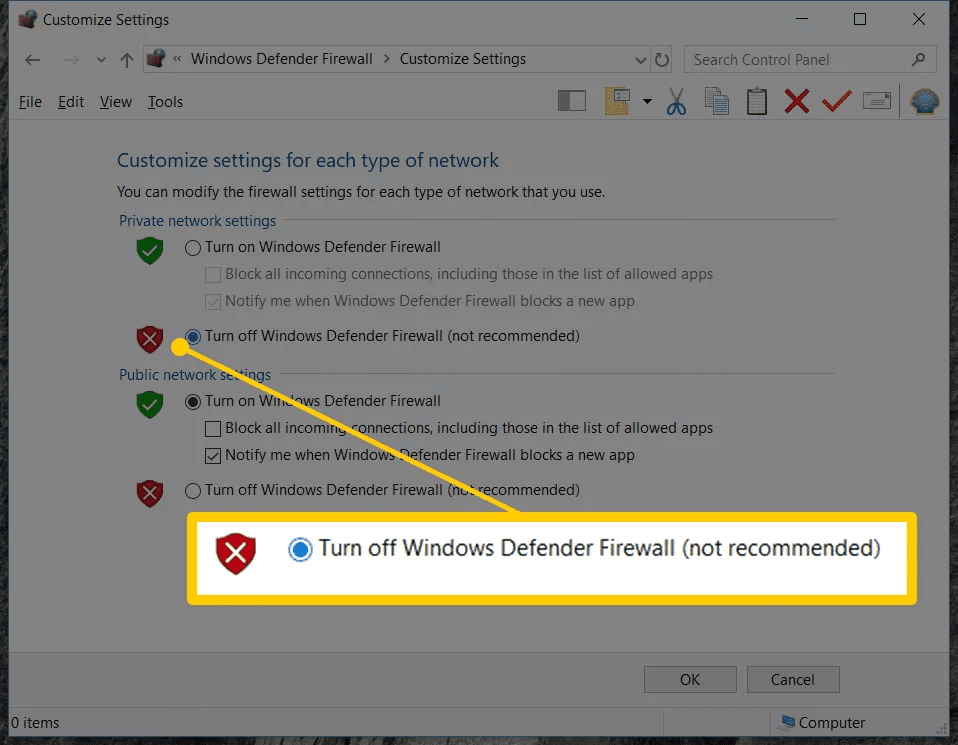
Firewalls and antivirus software are essential for protecting our devices, but sometimes they can be a little too protective, blocking connections between CS2 and game servers by closing off required ports and protocols.
If you suspect this might be the case and you’re unable to establish a connection, a quick way to check is to temporarily disable your firewall and try to connect to the CS2 game servers.
If your connection springs back to life with the firewall disabled, you’ve found your culprit. But don’t leave your system unprotected – add CS2 to the list of exceptions in your firewall settings to prevent future connection issues.
For some firewalls, this might involve manually navigating to the game’s installation folder and selecting the executable files, and could also get rid of the “Your Connection to Matchmaking is Not Reliable” CS2 error.
Switching Up Your DNS Settings
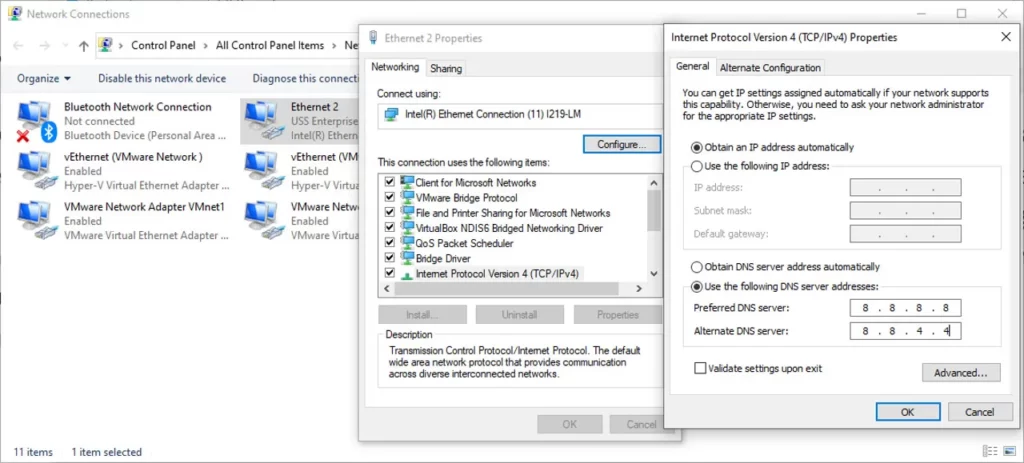
Sometimes, the solution to your connection woes might lie in your DNS settings. Switching to a public DNS, such as Google DNS, can result in faster search performance, and a more robust and secure connection.
But the process doesn’t end with switching to a public DNS. Flushing the DNS cache on your computer can help clear outdated or corrupted DNS records and may resolve connectivity issues. Here’s how you can flush your DNS cache:
Type cmd into the Windows search bar to locate Command Prompt.
Right-click Command Prompt and select Run as administrator.
Type ipconfig /flushdns and press Enter.
Look for the message confirming that the DNS Resolver Cache was successfully flushed.
Restart your computer and try connecting to the CS2 servers again.
Don’t worry if all this DNS talk sounds confusing. The process is quite simple and can be done on any device, be it an Xbox, PlayStation, Nintendo Switch, Windows PC, or even an Android device.
Advanced Solutions
If you’re up for a bit of a challenge, there are advanced solutions that can optimize your gaming experience. Port forwarding is one such method.
Port Forwarding for Optimized Gaming
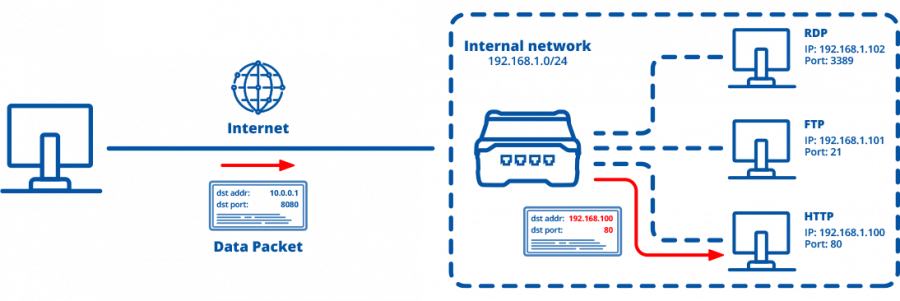
Port forwarding is a technique that can be crucial for an optimal gaming experience, especially for games like CS2.
It allows you to direct incoming internet traffic to the CS2 game server, ensuring a clear communication path to your gaming device. Here’s how to set it up:
Log in to your router’s administration interface using a web browser.
Locate the Port Forwarding or Virtual Server section in your router settings.
Input the local IP address of the PC or device you use for gaming.
Specify the TCP and UDP ports used by CS2 using official documentation or trusted community sources.
Save the new settings and restart your router to apply the changes.
Creating a DMZ for Enhanced Performance
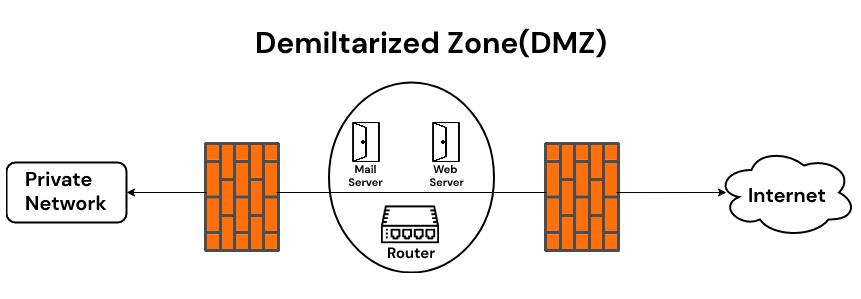
A DMZ (Demilitarized Zone) can further enhance your gaming experience by isolating your gaming device from the rest of your network, which can improve connectivity and reduce lag. Here’s how to configure a DMZ:
Identify the local IP address of the gaming device you want to place in the DMZ.
Log in to your router’s administration interface through a web browser.
Navigate to the router’s DMZ settings page or security menu.
Type your gaming device’s IP address into the DMZ host field.
Save the settings and reboot the router to apply the DMZ configuration.
Remember to only use DMZ for devices that need unrestricted internet access, like your gaming console or PC, as it can expose that device to more security risks.
How to Fix “Unable to Establish a Connection with the Game Server” on FACEIT
If you encounter the “unable to establish a connection with the gameserver” error while trying to play CS2 on FACEIT, the issue is often related to network instability, FACEIT Anti-Cheat conflicts, or server communication problems.
Before assuming the problem is on FACEIT’s side, try the following troubleshooting steps:
Restart CS2, Steam, and the FACEIT client to refresh active connections.
Confirm that FACEIT Anti-Cheat is running and fully updated.
Use Steam’s file verification tool to repair corrupted CS2 files.
Clear your DNS cache and restart your PC to refresh network routing.
Temporarily disable VPNs, proxies, or restrictive firewall settings.
Look for ongoing outages affecting FACEIT or Steam services.
Reboot your modem or router to refresh the internet connection.
If the problem persists after trying these fixes, the issue may be related to FACEIT server availability or account-specific connection restrictions.
When to Reach Out for Support?
Despite our best efforts, sometimes troubleshooting steps just don’t cut it, leaving us unable to resolve the issue. If rebooting routers and modems doesn’t reliably solve connection issues, it typically means that your hardware requires replacement.
When all suggested troubleshooting steps fail to resolve VAC errors, that’s when it’s time to reach out to Steam Support.
Likewise, if you continue to experience connectivity issues even after applying all the recommended fixes, don’t hesitate to contact your Internet Service Provider for support.
Summary
We’ve covered a lot of ground in this guide, providing a range of solutions to the ‘Unable to Establish Connection’ error in CS2.
From basic first steps like ensuring a stable internet connection and rebooting your network equipment, to more advanced solutions like port forwarding and setting up a DMZ host, these methods provide a comprehensive toolkit to get you back in the game.
FAQs
What is port forwarding and can it fix connection issues?
Port forwarding directs incoming internet traffic to a specific device on your network. This creates a clearer communication path and can help resolve certain gaming connection issues while improving online stability.
How do I update my network drivers to fix connection problems?
You can update network drivers through Windows Device Manager or by downloading the latest version directly from your hardware manufacturer’s website. Updated drivers may improve network performance and fix compatibility issues.
What should I do if restarting my router and modem does not work?
If rebooting your networking equipment does not solve the problem, there may be a hardware or ISP-related issue. Contacting your Internet Service Provider is often the next step to diagnose or replace faulty equipment.
How can I verify and repair CS2 game files?
You can repair CS2 files through Steam’s verification tool. Open Steam, go to your Library, right-click CS2, select Properties, open the Installed Files or Local Files tab, and click Verify integrity of game files.
What is a DMZ and how can it improve gaming performance?
A DMZ (Demilitarized Zone) allows specific internet traffic to communicate more directly with a designated device or service. In some cases, this can reduce latency and minimize connectivity interruptions for online gaming.