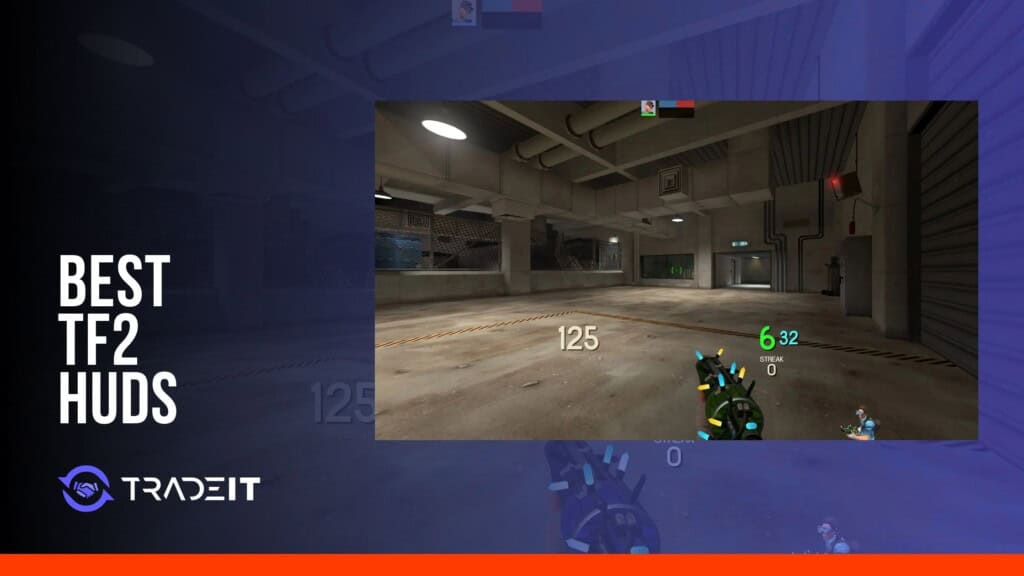

Quick answer: Start with SolarLightHUD REDUX for its intended setup: 1080p, Windows and English-language TF2. You can choose corner readouts, a centered arrangement or floating central numbers. We would look at FlawHUD for less clutter, rayshud for bold information and KBNHud for an ultrawide screen. There are eight maintained projects below, each listed on both HUD directories.
The best TF2 HUD depends on what you want to change. A clipped scoreboard needs a repair; health and ammo too far from your aim point call for a different arrangement. We cover both kinds of replacement here. Check the download’s resolution notes before choosing from screenshots, especially on an ultrawide screen. The menu and scoreboard need to fit as well as the combat view.
Best TF2 HUDs at a Glance (Comparison Table)
Read “Last updated” as the release or maintenance change listed for the project, not its original launch date. Aspect-ratio support comes from the project’s stated requirements; a 16:9 listing is not proof of ultrawide support.
| HUD | Style | Ultrawide support | Last updated | Best for |
|---|---|---|---|---|
| SolarLightHUD REDUX | Three configurable layouts | Limited testing; 16:9 target, 4:3 mode caveats | Jul 22, 2026 | Windows, English, 1080p |
| FlawHUD | Minimal competitive | Up to 32:9 | Jan 9, 2026 | Low visual noise |
| rayshud | Bold competitive | Up to 32:9 | Jan 11, 2026 | Large, readable combat info |
| KBNHud | Flexible | Up to 32:9 | Mar 20, 2026 | Ultrawide displays |
| Improved Default HUD | Stock-style | 16:9 documented; other ratios not guaranteed | Jul 2, 2026 | Default-style upgrade |
| Center HUD | Centered modern | Up to 21:9 | Nov 25, 2025 stable; Feb 2, 2026 alpha | Centered health and ammo |
| yesodHUD | Modern compact | Not listed; 4:3 and 16:9 documented | Jul 20, 2026 | New and trending |
| Community HUD Fixes | Valve default repair | Up to 32:9 | Jan 19, 2026 | Default HUD fixes |
How We Selected These TF2 HUDs
We checked that each of these eight projects has an entry on both comfig and tf2huds.dev, plus a release or maintenance change within the preceding 12 months. The table identifies those updates. That rules out choosing an abandoned download simply because its name used to be popular.
Next came the setup requirements. Does the project support your screen shape? Does it need a font installed separately? Are there instructions for the release you are downloading? These are worth reading before copying files. Missing fonts or an unsupported aspect ratio can spoil a layout that otherwise looks right for you.
At 16:9, you can compare all eight. At 32:9, start with KBNHud, FlawHUD, rayshud or Community HUD Fixes, which explicitly list that ratio. Center HUD goes to 21:9. The extra width needs to work in menus and scoreboards as well as while playing, so a single widescreen screenshot is not enough to establish support.
For the download itself, use the maintainer’s repository or the project’s directory entry. That gives you a version number and somewhere to look for later fixes. A reposted archive may be missing both. Knowing the source reduces that uncertainty, although it is not a blanket security guarantee.
Customization is another dividing line. FlawHUD, rayshud and KBNHud work with TF2HUD Editor. Community HUD Fixes includes a menu for its options. Improved Default HUD instead asks you to edit files. With Improved Default HUD, allow time to read the file-editing instructions rather than expecting every option in a menu.
FlawHUD and rayshud solve opposite problems. One pares the view back; the other makes readouts stand out. Center HUD changes where you look by moving key information inward. These are interface preferences, not weapon upgrades. Decide whether you are missing information because it is too small, too far away or buried in a layout you find busy.
A working personal HUD does not need replacing just to match our list. Copy it somewhere safe before trying alternatives. For a new installation, though, we prefer a named release with notes and a maintainer’s download link to an anonymous archive of somebody else’s edits.
Choose a TF2 HUD by Use Case
Do you want TF2 to look different, or do you want the same interface with fewer faults? That separates a replacement such as FlawHUD from Community HUD Fixes. If the problem is where your health and ammo sit, compare the centered options. Keep the supported monitor ratios in view while choosing; a recent release can still be wrong for your setup.
Fast decision guide:
- Choose SolarLightHUD REDUX for three layout choices on its intended Windows, English, 1080p setup.
- Choose FlawHUD for a restrained competitive interface with minimal visual noise.
- Use rayshud for larger, bolder combat information.
- Community HUD Fixes repairs the default interface and adds optional extras.
- Improved Default HUD keeps the stock appearance, with configuration through file edits.
- Center HUD moves health and ammo inward while keeping a familiar TF2 look.
- Choose KBNHud for ultrawide coverage and deeper customization.
- Choose yesodHUD for a recently updated, modern option.
Best Overall TF2 HUD: SolarLightHUD REDUX (Updated July 22, 2026)
SolarLightHUD REDUX lets you switch between three layouts in its own menu. Default keeps health and ammo near the corners; Centered brings them inward; Classic uses floating numbers around the middle. For Windows, English TF2 and 1080p, that choice earns it our overall recommendation. Do read the limitations first. The maintainer documents Linux font-outline problems, overlap in some 4:3 modes and little ultrawide testing. Valve competitive matchmaking is unsupported, separately from third-party competitive play. One installation detail is easy to miss: do not rename solarlighthud-redux. Its customization menu depends on that folder name. Outside the intended platform and display setup, compare the other projects before committing to it.
Best Minimal Competitive HUD: FlawHUD (Updated January 9, 2026)
FlawHUD uses a dark theme and compact arrangement. Compared with rayshud, it is the one we would try when the problem is too much on screen rather than information being too small. Its listed formats reach 32:9, so it is also an ultrawide alternative to KBNHud. TF2HUD Editor provides controls for supported customizations, avoiding a file edit for every adjustment. After changing the colors or scale, check your TF2 crosshair against the scene. The layout can be sparse without making the aiming point difficult to see.
Best Bold Competitive HUD: rayshud (Updated January 11, 2026)
rayshud makes low health and ammo conspicuous through vivid color changes. That is the reason we would choose it over FlawHUD if small readouts are easy for you to miss. It also supplies six-a-side and 16v16 scoreboards, with minimal mode selecting between them. TF2HUD Editor handles its supported customizations, and the listed screen ratios extend to 32:9. This is not the quietest layout in the list. If large combat information is already distracting, the very feature that makes rayshud useful for someone else may put you off.
Best Community HUD Fixes: Default Repair (Updated January 19, 2026)
Community HUD Fixes is for the player who likes the stock interface but wants its faults repaired. Its changes include overlapping counters, clipped tooltips and misplaced panels, plus MvM scoreboard, minmode, backpack and item-preview fixes. There are optional extras too: damage numbers, crosshairs and a speedometer can be selected through its menu. For repairs without those additions, the extras folder is optional and can be left out. The project lists support from square 1:1 displays through 32:9 ultrawide. We would pick it before a complete redesign when the complaint is a broken panel rather than the default appearance itself.
Match the interface to the rest of your TF2 loadout after testing it at your normal resolution.
Browse TF2 SkinsBest Default-Style Upgrade: Improved Default HUD (Updated July 2, 2026)
Improved Default HUD changes spacing and interface elements while retaining the stock look. Unlike a HUD with a big options menu, it expects you to configure things in files. That is fine if you enjoy making precise adjustments, but allow some setup time if this is your first custom HUD. Keep a copy of your edits before replacing the folder during an update. The directory documents 16:9, and the maintainer says other ratios may work. “May work” is not the same as confirmed ultrawide support, so we would choose a different HUD specifically for a 21:9 or 32:9 display.
Best Centered Layout: Center HUD (Updated November 25, 2025)
Want health and ammo closer to your aim without losing the stock TF2 appearance? That is Center HUD’s job. You can download the full HUD or its Lite variant. V24 is the stable build; the separate v25 alpha is a prerelease, despite having the higher number. Its fixes and configuration options keep the project more than a simple repositioning of text. For monitors, 21:9 is the widest ratio in the listing. A 32:9 setup needs a different support check. Keep the unedited configuration somewhere safe while adjusting files, in case you want to go back.
Best Ultrawide HUD: KBNHud (Updated March 20, 2026)
KBNHud’s author designed it around Sniper play, keeping background panels to a minimum and important readouts near the middle. The transparent layout is useful to compare if you dislike blocks covering the scene. Development takes place on Linux, Windows is supported too, and the directory lists formats through 32:9. That makes it our ultrawide pick. Colors, crosshairs and supported extras are available through TF2HUD Editor, with file editing for further changes. Other classes can use it normally; the Sniper origin explains the design, not a class restriction.
Best New or Trending HUD: yesodHUD (Updated July 20, 2026)
yesodHUD reworks CollyHUD rather than repairing the default interface. It keeps a minimal arrangement, with font and health-style options. The maintainer describes support for all modes, hybrids included, but notes problems on Casual end-of-match screens. That is worth knowing before replacing a setup you already like. Its directory documents 4:3 and 16:9, so we are not recommending it for ultrawide. If the CollyHUD look appeals to you, this maintained rework is the newer option to compare. Move your previous HUD outside tf/custom while trying it so the two sets of files do not overlap.
How to Install and Update a TF2 HUD
Download a stable release from the HUD’s official repository or maintained directory entry. Close TF2 and back up your existing HUD plus any personal changes before replacing files.
- Extract one HUD folder into
Team Fortress 2/tf/custom/. Itsresource,scriptsormaterialsfolders should sit directly inside it, not inside another duplicate folder. - Move the old HUD outside
tf/custominstead of merging both versions. Install any fonts required by the project. - Restart TF2 and check the main menu, scoreboard, class selection and in-game indicators at your normal resolution.
The TF2 HUD installation process follows the same careful folder placement used for other TF2 mods. Reapply saved customizations only after the fresh build works.
How to Fix a Custom HUD After a TF2 Update
If a patch leaves missing text or overlapping panels, do not start rewriting resource files immediately. Check where the HUD was extracted, whether required fonts are installed and whether a newer release addresses the problem. You can then compare against the default interface to narrow it down.
Start with folder structure. An extra folder level can stop TF2 finding the files. If the path reads tf/custom/hudname/hudname/, move the inner folder up one level so the active folder directly contains the HUD files.
Check for stale releases. Check the maintainer’s latest release rather than reusing an old ZIP. A game patch may have changed the interface files that the older version replaces.
Install required fonts. Read the project’s font instructions. Some downloads expect a separate font installation; skipping it can leave text missing or menus looking wrong.
Look for broken menus or scoreboards. Note exactly which panel is failing. A scoreboard problem after a game update may be an old HUD definition that no longer matches TF2, rather than a fault with every part of the installation.
Try the default interface. Put the HUD folder somewhere outside tf/custom, then launch TF2 again. A fault that disappears points back to the HUD files or a conflict involving them. If it remains, the HUD is probably not the first thing to fix.
Separate HUD issues from config or launch settings. If removing the HUD changes nothing, look beyond it. Scripts, configuration changes and TF2 launch options may be involved. Change one thing, relaunch and note the result before touching the next setting.
Reinstall clean if needed. Keep the old folder as a backup somewhere else, then unpack the release into a new folder. An overwrite is not a clean install if old files remain alongside the new ones.
A useful bug report says which panel fails, at what resolution, and in which release. Tell the maintainer whether the default interface has the same fault. That gives them something specific to reproduce instead of just “HUD broken.” A configuration problem may involve TF2 console settings; a missing or outdated panel needs the relevant interface file repaired.
Frequently Asked Questions
Are custom HUDs allowed on Valve and competitive TF2 servers?
Generally yes for ordinary interface-only HUDs on Valve servers. For a league match or a community server, read that organizer’s rules, particularly if you have added other modifications. Approval for a normal HUD in casual play does not cover every possible modified setup in competition.
Do TF2 HUDs affect FPS or input latency?
Changing where the health number sits is not normally a noticeable input-latency change. The interface still takes work to draw, and large textures or animated elements can add to that work. A HUD should therefore be chosen for readability, not a promised FPS gain. To investigate a slowdown, try the same scene with the replacement removed.
Which TF2 HUD works best on ultrawide monitors?
KBNHud is our 32:9 pick, with FlawHUD, rayshud and Community HUD Fixes also declaring support for that ratio. Center HUD’s listing reaches 21:9. We would not choose yesodHUD specifically for ultrawide because it documents 4:3 and 16:9. SolarLightHUD REDUX gives some mode advice but expressly warns that ultrawide had little testing.
Can I use a custom HUD with mastercomfig?
In most setups, the two can coexist. The HUD replaces interface files, whereas mastercomfig manages configuration. Project notes may identify particular conflicts. If adding both creates a fault, remove one temporarily and see whether it remains before altering the other.
Why did my TF2 HUD stop working after a game update?
TF2 may now expect a different version of a file your HUD overrides. Your local files have not changed, but the game around them has. Start with a clean copy of the latest HUD release. If the same panel still fails, the maintainer may need to update it.
Can I keep multiple TF2 HUDs installed at the same time?
Store the alternatives outside tf/custom. Renaming a folder there does not reliably disable its files: TF2 reads the folders in custom and their contents can overlap. Leave only your chosen HUD in place.
How do I restore the default TF2 HUD?
Take the custom HUD folders out of tf/custom and restart TF2. With no replacement HUD files loaded, the game returns to its default interface. There is no need to throw your edited folders away; store them outside the game’s custom folder if you want to use them again.
Is there a best TF2 HUD for a specific class like Sniper or Medic?
Choose for the information you keep looking at. Sniper may benefit from less clutter around the TF2 crosshair; Medic may need health and status information to be prominent. KBNHud was designed with Sniper in mind, and FlawHUD is another sparse option. SolarLightHUD REDUX provides three layouts to compare if you meet its platform and resolution requirements.
Where can I find the most recently updated TF2 HUDs?
comfig.app lets you sort HUD listings, while tf2huds.dev has a featured selection. Follow the entry to the maintainer’s release notes before downloading. A recent date is useful, but the notes are where to check whether the build supports your resolution and which faults it fixes.