If Team Fortress 2 keeps crashing on your PC, it can be extremely frustrating. The game is known for running on a wide range of hardware, but occasional crashes can still occur due to outdated drivers, corrupted files, or incorrect launch settings.
Fortunately, most crashing issues can be resolved with a few simple troubleshooting steps. This guide covers the most common causes and solutions to help you get back into the game.
Table of Contents
Verify Game Files
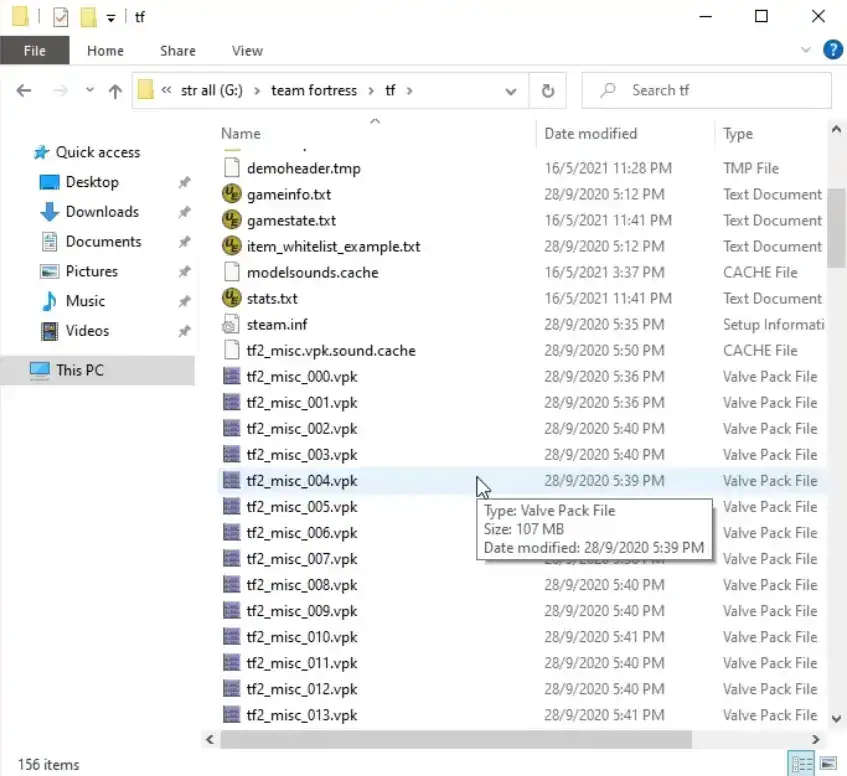
One of the most common reasons for crashes is corrupted or missing game files. Since TF2 is installed through Steam, verifying the integrity of the game files is one of the first things you should try.
To do this:
Launch Steam and navigate to your Library where all installed games are listed.
Locate Team Fortress 2 in your game list and open the context menu with a right click.
Select the Properties option to access the game’s configuration settings.
Inside the Properties window, navigate to the Installed Files section.
Click “Verify integrity of game files” so Steam can scan and repair any missing or corrupted files.
Steam will scan your installation and automatically replace any missing or damaged files. This process often fixes crashes that happen during startup or while loading maps.
Update Your Graphics Drivers
Outdated graphics drivers can cause stability problems in many games, including Team Fortress 2.
Visit the official website of your GPU manufacturer and download the latest drivers:
Download the latest GeForce drivers to improve game stability and graphics performance.
Install the newest Radeon drivers to fix compatibility issues and improve rendering stability.
Update Intel graphics drivers to ensure proper support for games and system stability.
After installing the updated drivers, restart your computer and launch the game again. Updated drivers often resolve crashes related to rendering or graphical glitches.
Remove Problematic Launch Options
Some players use launch options to improve performance or customize the game. However, incorrect launch parameters can sometimes cause crashes.
To check your launch options:
Launch the Steam client and navigate to your game library.
Find the game in your library and open the context menu with a right click.
Click the Properties option to access the game’s settings panel.
Look at the Launch Options field and remove any commands that might be causing crashes.
If you see unusual commands, try removing them temporarily and launching the game with default settings. This helps determine whether a specific command is causing instability.
Disable Custom Mods and Configs
Many players use custom configs, HUDs, or graphical modifications in Team Fortress 2. While these can improve performance or visuals, they may also lead to crashes if they conflict with updates.
To test this:
Navigate to your Team Fortress 2 installation directory inside the Steam folder.
Temporarily remove or rename the custom and cfg folders to disable mods and configs.
Launch Team Fortress 2 again to check if the crashing issue has been resolved.
If the crashes stop, one of your modifications is likely causing the problem.
Lower Your Graphics Settings
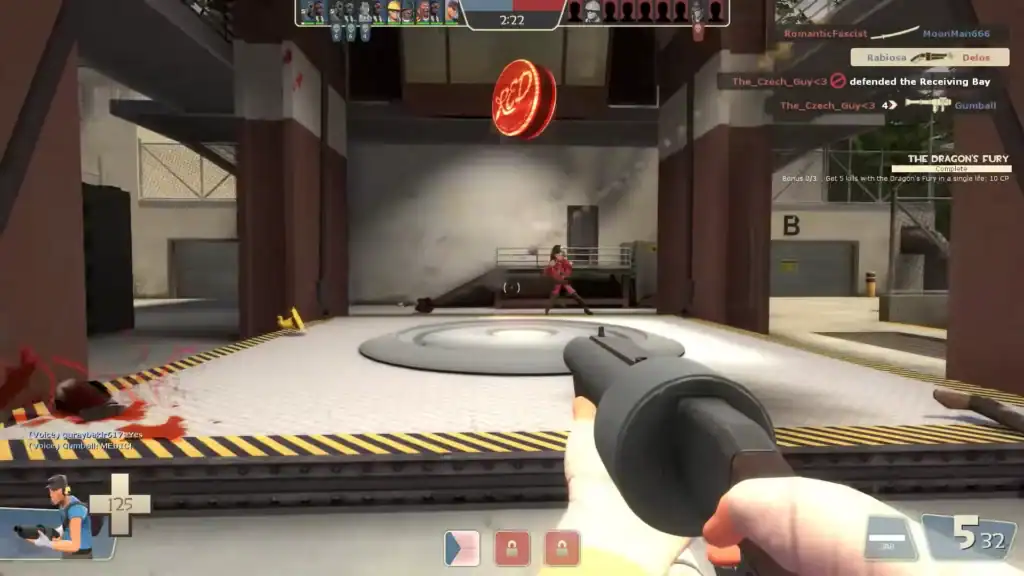
Although TF2 is not a very demanding game, extremely high settings or certain graphical options can still cause instability on some systems.
Try lowering the following settings:
Lowering shadow quality can reduce GPU load and improve stability during gameplay.
Reducing model detail can help lower CPU and GPU usage, preventing crashes.
Lower texture settings reduce VRAM usage and may prevent instability on older GPUs.
Disabling or lowering anti-aliasing can improve performance and reduce crashes.
Reducing these options can help stabilize performance, especially on older systems.
Close Background Applications
Background programs sometimes interfere with games. Applications that use overlays, screen recording, or performance monitoring can occasionally cause crashes.
Examples include:
Screen recording tools can sometimes conflict with games and cause crashes.
In-game overlays from various applications can interfere with game performance.
Some monitoring tools display system stats in-game and may cause instability.
Close unnecessary programs before launching Team Fortress 2 to reduce the chance of conflicts.
Reinstall the Game
If none of the previous solutions work, reinstalling the game may fix deeper issues.
To do this:
Remove the game through the Steam client to clear potentially corrupted files.
Reboot your system to clear temporary files and refresh system processes.
Download and reinstall the game from Steam to ensure a clean installation.
A fresh installation removes corrupted files and resets all game settings.
Summary
Crashes in Team Fortress 2 are usually caused by corrupted files, outdated drivers, incorrect launch options, or conflicting mods.
Verifying game files, updating your GPU drivers, disabling custom configurations, and adjusting graphics settings are some of the most effective solutions.
FAQs
Why does Team Fortress 2 keep crashing on startup?
Startup crashes are often caused by corrupted game files, outdated graphics drivers, or incompatible launch options. Verifying the game files through Steam and updating your GPU drivers usually resolves the issue.
Can mods cause TF2 to crash?
Yes, custom HUDs, configs, or graphical modifications can sometimes conflict with game updates. If TF2 starts crashing after installing mods, try removing the custom or cfg folders from the game directory to see if the issue disappears.
Do outdated graphics drivers affect TF2 stability?
Outdated drivers can definitely cause crashes or graphical issues. Updating drivers from manufacturers such as NVIDIA, AMD, or Intel can improve stability and performance.
How can I verify the TF2 game files?
You can verify the game files through Steam by opening your Library, right-clicking Team Fortress 2, selecting Properties, and then choosing the option to verify the integrity of the installed files. Steam will automatically repair missing or damaged files.
Will reinstalling TF2 fix crashing problems?
Reinstalling the game can fix persistent issues if other solutions fail. A fresh installation removes corrupted files, resets settings, and ensures the latest version of the game is installed through Steam.