If you’re struggling with low FPS in Team Fortress 2, you’re not alone. Despite its age, the game can still run poorly on certain systems due to unoptimized settings, background processes, or outdated configurations.
The good news is that there are several effective ways to improve performance and get smoother gameplay.
Table of Contents
Optimize Your In-Game Settings
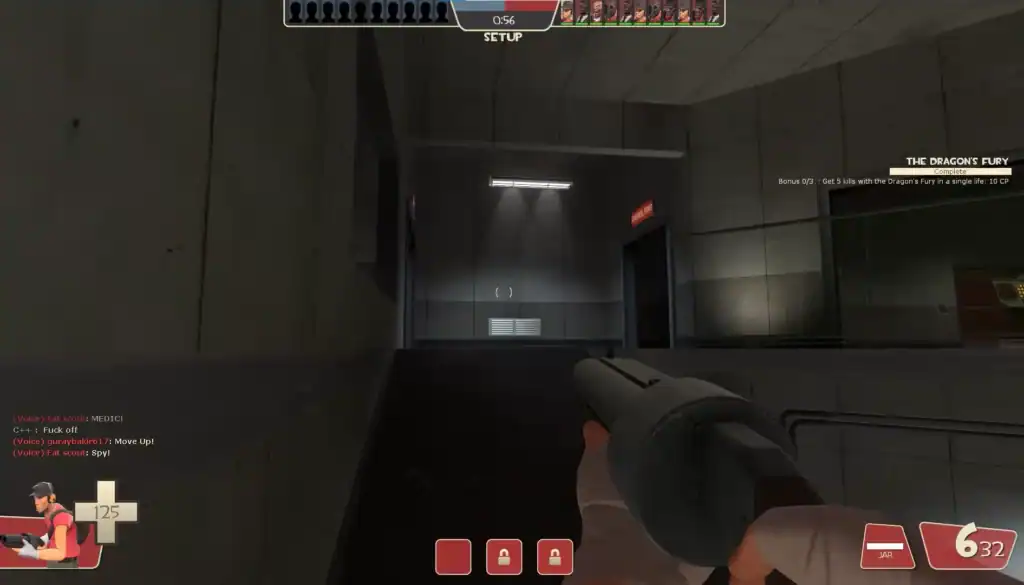
The first and easiest step is adjusting your in-game graphics settings. TF2 includes several options that can significantly impact performance.
Focus on lowering the most demanding settings:
Lower this setting to reduce GPU load and improve overall performance.
Reducing model detail helps lower CPU and GPU usage for smoother gameplay.
Disable or lower this option to boost FPS and reduce performance strain.
You can also tweak additional options for better stability:
Lower texture settings to decrease VRAM usage and improve stability.
Turn off motion blur to reduce visual clutter and slightly boost performance.
Slightly reducing resolution can significantly increase FPS on weaker systems.
While high settings may look better, competitive players often prioritize performance over visuals to ensure smoother aiming and movement.
Use Launch Options for Better Performance
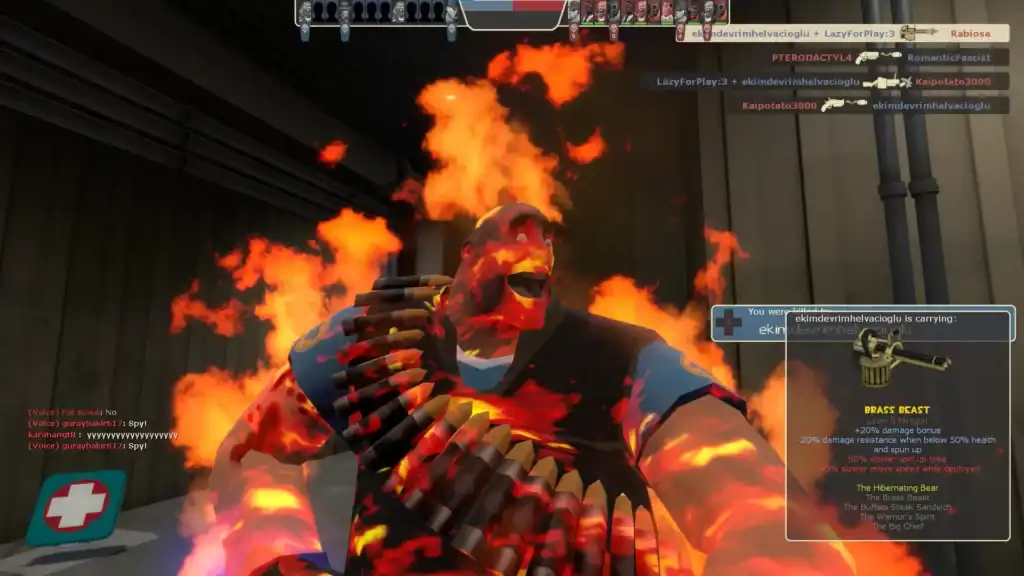
Launch options allow you to tweak how TF2 runs before it even starts. You can access these through Steam by right-clicking the game, selecting Properties, and entering commands in the launch options field.
Some commonly used performance-focused launch options include:
Skips the intro video and gets you into the game faster.
Sets the game to high CPU priority for improved performance.
Disables joystick support to free up system resources.
Can fix stuttering and improve stability on certain systems.
These commands won’t magically double your FPS, but they can provide small improvements and reduce stuttering.
Install a Performance Config
One of the most effective ways to boost FPS in TF2 is by using a custom config. These are community-made files designed to optimize game settings beyond what’s available in the default menu.
Popular configs like mastercomfig are widely used and allow you to choose different presets depending on your system. They reduce visual clutter, optimize CPU usage, and improve frame consistency.
Update Drivers and System Software
Outdated drivers and system components can heavily impact performance. Keeping everything up to date ensures better compatibility and smoother gameplay.
Make sure you regularly update:
Keep your NVIDIA, AMD, or Intel graphics drivers updated for optimal performance and stability.
Update your OS regularly to ensure compatibility and access to the latest performance improvements.
Ensure DirectX and other system components are up to date to avoid performance issues.
This helps prevent crashes, stuttering, and unexpected FPS drops.
Close Background Applications

Background programs can consume CPU, RAM, and disk usage, all of which affect TF2 performance. Before launching the game, close unnecessary applications such as browsers, recording software, or overlay tools.
Programs like Discord overlays or hardware monitoring tools can sometimes interfere with performance, so disabling them can lead to smoother gameplay.
Adjust Windows Settings for Gaming
Optimizing your Windows settings can also improve FPS. Set your power plan to High Performance to ensure your CPU and GPU are running at full capacity.
You can also disable unnecessary startup programs and visual effects in Windows to free up system resources. These small tweaks can add up, especially on mid-range or older systems.
Upgrade Your Hardware (If Needed)
If you’ve tried everything and still experience low FPS, your hardware may be the limiting factor. TF2 relies heavily on CPU performance, so upgrading your processor can provide noticeable improvements.
Consider upgrading the following components:
A stronger processor improves overall performance and boosts FPS in CPU-heavy games.
More memory allows smoother multitasking and reduces stuttering during gameplay.
An SSD reduces loading times and helps eliminate stutters caused by slow storage.
Even small upgrades can make a noticeable difference in gameplay smoothness.
Summary
Boosting FPS in Team Fortress 2 doesn’t require a high-end PC. By lowering in-game settings, using launch options, installing a performance config, and keeping your system optimized, you can achieve a much smoother experience.
Focus on reducing unnecessary load on your system and prioritizing performance over visuals. With the right setup, TF2 can run smoothly even on modest hardware, giving you a competitive edge and a more enjoyable gameplay experience.
FAQs
1. What is a good FPS for TF2?
A stable 60 FPS is considered playable, but most players aim for 120+ FPS for smoother gameplay and better responsiveness.
2. Do configs really improve FPS in TF2?
Yes, performance configs like mastercomfig can significantly boost FPS by optimizing hidden settings and reducing visual clutter.
3. Can a weak CPU cause low FPS in TF2?
Absolutely. TF2 is CPU-intensive, so a weak processor can bottleneck performance even if you have a decent GPU.
4. Should I play TF2 on low settings for competitive play?
In most cases, yes. Lower settings reduce distractions and improve FPS, giving you a smoother and more consistent experience.
5. Why does my TF2 FPS drop over time?
This can happen due to memory leaks, overheating, or background applications consuming resources. Restarting the game or system often helps resolve it.