Few things are more frustrating than launching Counter-Strike 2 and being unable to connect to official servers.
This error usually appears when the game fails to communicate with Valve’s matchmaking system, preventing you from joining matches. Fortunately, in most cases, the issue can be resolved with a few straightforward steps.
Table of Contents
Check CS2 Server Status First
Before troubleshooting your system, confirm whether the issue is on your end. Sometimes, Valve servers go down for maintenance or experience outages. If servers are offline globally, there’s nothing to fix locally. You’ll just need to wait.
Restart Your Game and PC
It may sound simple, but restarting can resolve temporary glitches. Close CS2 completely, restart your PC, and relaunch the game. This refreshes background processes and can restore normal connectivity.
Verify Game Files in Steam
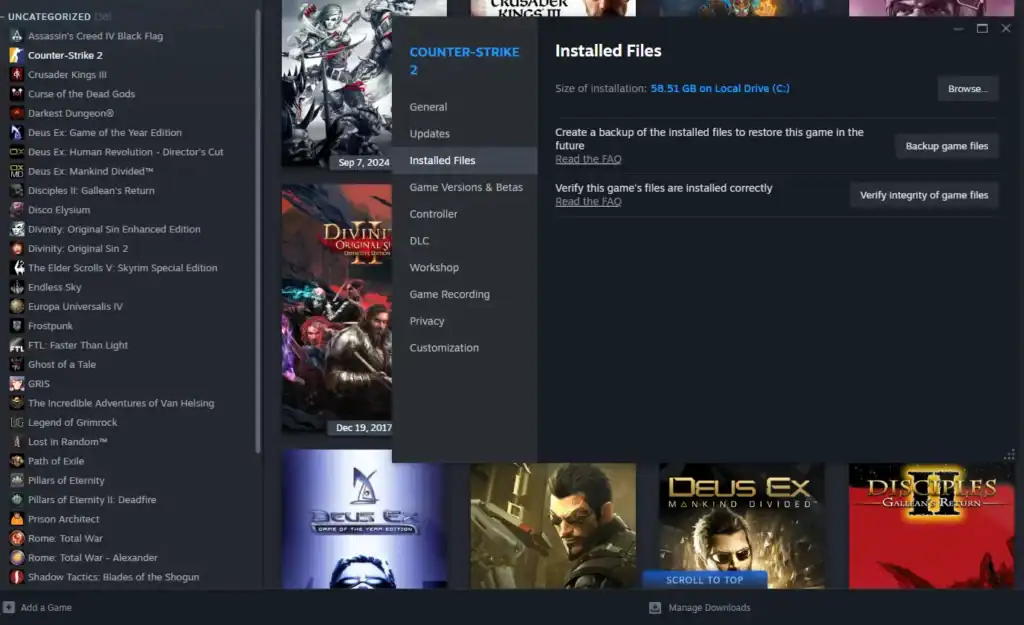
Corrupted or missing files can prevent proper server communication.
Follow these steps:
Launch the Steam client on your PC.
Navigate to your game library where all installed titles are listed.
Find Counter-Strike 2 and right-click it to open the options menu.
Click Properties from the dropdown menu.
Navigate to the Installed Files tab in the Properties window.
Click Verify integrity of game files to scan and repair any issues.
Steam will automatically repair any damaged files.
Check Your Internet Connection
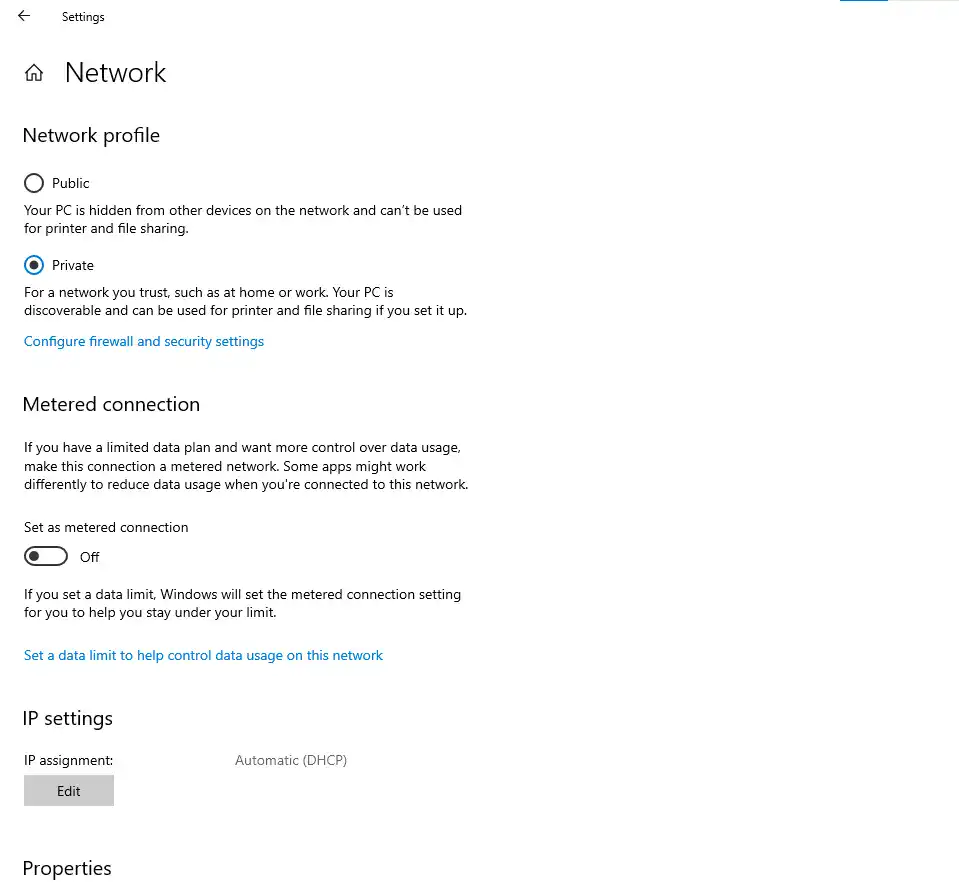
A weak or unstable connection is one of the most common causes of this error.
Try the following:
Power cycle your router to refresh the connection and clear temporary network issues.
Switch from Wi-Fi to Ethernet for a more stable and lower-latency connection.
Shut down downloads, streaming, and background apps that consume bandwidth.
Check your internet stability and latency to ensure consistent performance.
If your connection is inconsistent, CS2 may fail to reach official servers reliably.
Disable Firewall or Antivirus Temporarily
Sometimes, security software can block CS2’s connection.
Temporarily turn off your firewall or antivirus to test if they are blocking connections.
Start Counter-Strike 2 and check if the connection issue still occurs.
If it works, add CS2 and Steam to your security software’s exception list.
Be sure to re-enable protection afterward.
Flush DNS and Reset Network Settings
Network configuration issues can interfere with server connections.
Open Command Prompt as Administrator and run:
ipconfig /flushdns
netsh winsock reset
Restart your PC after running these commands.
Use a Different Network or VPN
In some regions, routing issues or ISP restrictions can block access to CS2 servers. Testing a different network (like a mobile hotspot) or using a VPN can help determine if your ISP is the problem.
If a VPN fixes the issue, your default routing may be unstable.
Update Network Drivers
Outdated drivers can cause connectivity problems.
Access Device Manager from Windows to manage your hardware drivers.
Find your Wi-Fi or Ethernet adapter under the Network Adapters section.
Right-click your adapter and select Update driver → Search automatically.
Keeping drivers updated ensures stable communication with game servers.
Summary
The “Can’t Reach Official Servers” error in CS2 is usually caused by network issues, corrupted files, or temporary server outages.
By systematically checking each potential cause, from server status to local settings, you can quickly identify and fix the problem.
FAQs
Why should I update my network drivers for CS2?
Outdated network drivers can cause unstable connections, packet loss, or failure to reach official servers in Counter-Strike 2. Updating them ensures your system communicates properly with online services.
How do I know if my network adapter driver is outdated?
Common signs include frequent disconnects, high ping spikes, or inability to connect to matchmaking. You can also check Device Manager for driver update notifications.
Is updating drivers safe for my PC?
Yes, updating through Windows Device Manager or your hardware manufacturer is safe. It helps improve stability and compatibility without affecting your personal files.
What should I do if automatic driver updates don’t work?
If automatic updates fail, you can manually download the latest driver from your motherboard or network card manufacturer’s official website.
Can outdated drivers really affect CS2 matchmaking?
Yes. Poor or outdated drivers can interrupt communication between your PC and Valve servers, leading to connection errors or matchmaking failures.