If you have tried to open or watch a Counter-Strike 2 demo and encountered the error message “unable to extract addons from file”, you are not alone.
This issue appears occasionally when loading demo files, especially those downloaded from third-party platforms or older matches. Fortunately, there are several simple ways to resolve the problem and get your demo working again.
This guide explains what causes the error and how to fix it so you can watch your CS2 demos without interruptions.
Table of Contents
What Causes the Error
The “unable to extract addons from file” error usually occurs when CS2 cannot properly read the demo file or access required resources. This may happen for several reasons:
The demo file may have been downloaded incorrectly or partially, resulting in a corrupted file that CS2 cannot read properly.
The demo may have been recorded using a different CS2 version, which can cause compatibility issues when trying to play it.
Some demos reference addons or files that may be missing or incompatible with your current installation.
If the demo file was extracted to the wrong directory, CS2 may not be able to locate or load it correctly.
Because demo files often rely on specific game data, even small inconsistencies can prevent them from loading properly.
Verify the Demo File Location
One of the most common causes of the issue is placing the demo file in the wrong directory. CS2 only recognizes demos when they are located in the correct folder.
To ensure the demo file is placed correctly:
Locate and open your main Steam installation folder on your computer.
Go to Steam/steamapps/common/Counter-Strike Global Offensive/game/csgo inside the Steam folder.
Look for the replays or demos folder where CS2 stores demo files.
Place your .dem file inside that directory so CS2 can detect and load it properly.
After placing the file in the correct location, restart CS2 and attempt to load the demo again using the console command:
playdemo demo_name
Make sure to remove the .dem extension when typing the command.
Redownload the Demo File
If the file location is correct but the error still appears, the demo file itself may be corrupted. Downloads can sometimes fail partially, especially if the file came from a third-party website.
To fix this problem:
Remove the existing demo file from your computer to avoid conflicts with a corrupted or incomplete download.
Go back to the website or platform where you originally downloaded the CS2 demo.
Download a fresh copy of the demo file to ensure it is complete and not corrupted.
If the demo is inside a ZIP or RAR archive, extract the contents to access the .dem file.
Move the newly downloaded .dem file into the correct CS2 demo folder so the game can load it properly.
A clean download often resolves the extraction error.
Verify Game Files in Steam
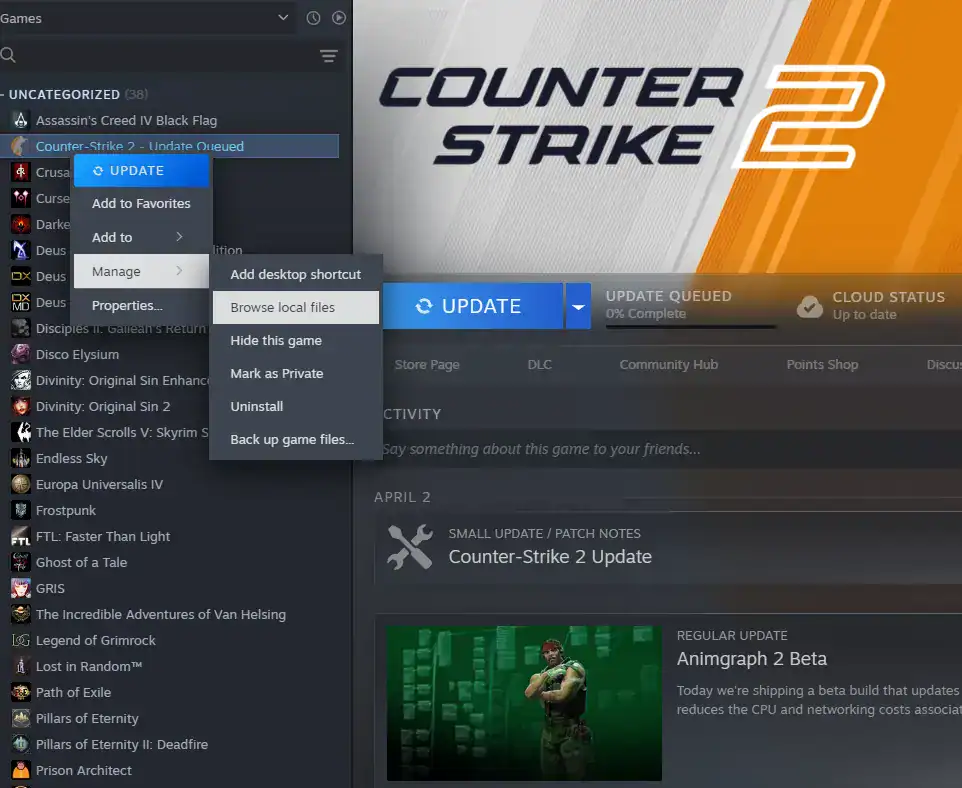
Another possible solution is verifying the integrity of your game files through Steam. This process checks your installation for missing or damaged files and replaces them automatically.
Follow these steps:
Launch Steam and navigate to your Library where all your installed games are listed.
Find Counter-Strike 2 in your game list and right-click on it to open additional options.
Select Properties from the dropdown menu to access the game’s settings.
Inside the Properties window, navigate to the Installed Files tab.
Click Verify integrity of game files to let Steam scan and repair any missing or corrupted files.
Steam will scan the game and repair any files that might be preventing demo playback.
Use the Console to Load the Demo
Sometimes the error appears when attempting to open demos through menus or third-party tools. Loading the demo directly through the console can bypass the issue.
First, enable the developer console in your CS2 settings. Then press the console key (usually ~) and type:
playdemo demo_name
If the demo file is valid and located in the correct directory, it should start playing immediately.
Summary
The “unable to extract addons from file” error in CS2 demos usually happens because of corrupted files, incorrect file locations, or mismatched game versions.
By verifying the demo location, redownloading the file, checking your game files, and loading the demo through the console, you can usually resolve the issue quickly.
Once fixed, you will be able to watch and analyze your CS2 demos without further problems.
FAQs
1. Why does CS2 show “unable to extract addons” when opening a demo?
This usually happens when the demo file is corrupted, downloaded incorrectly, or references addons that are missing or incompatible with your CS2 version.
2. How can I fix the “unable to extract addons” error?
Ensure the demo file is in the correct folder, verify the integrity of your game files in Steam, and re-download the demo if needed.
3. Can different CS2 versions cause demo extraction issues?
Yes. Demos recorded on a different CS2 version may not be compatible, resulting in errors when trying to extract addons.
4. How do I properly place a CS2 demo file?
Move your .dem file into the correct CS2 demo folder, usually located at Steam/steamapps/common/Counter-Strike Global Offensive/game/csgo/replays or demos.
5. Will verifying game files help with demo extraction errors?
Yes. Using Steam’s “Verify integrity of game files” option can repair missing or corrupted files that may prevent demos from extracting properly.