Being unable to enjoy a game like Rust because of crashes is infuriating. You’ve got everything ready to raid, but the game crashes every time you try to join a server.
After dealing with this myself, I’ve got some solid fixes that’ll get you back in-game without the headache.
Types of Rust Crashes
| Issue Type | What It Looks Like | Common Causes | Typical Fixes |
|---|---|---|---|
| Crashes on Loading | Game closes during startup or loading screen | Corrupted game files, outdated GPU drivers, missing dependencies | Verify files, update drivers, reinstall prerequisites |
| Asset Warmup Crashes | Crash during texture/model/shader loading | VRAM limits, shader cache corruption, GPU instability | Lower graphics settings, clear shader cache, update GPU drivers |
| Crashes When Joining Servers | Game crashes when entering specific servers | Mod conflicts, server version mismatch, corrupted server data | Switch servers, disable mods, verify files |
| EAC-Related Issues | Kick or crash related to anti-cheat | Easy Anti-Cheat corruption, blocked permissions, conflicting software | Repair EAC, run as admin, close overlays/AV conflicts |
| Low-Memory Crashes | Freeze or crash during gameplay or loading | Insufficient RAM, low virtual memory, background apps | Increase page file, close apps, lower settings |
Effective Rust Crash Fixes
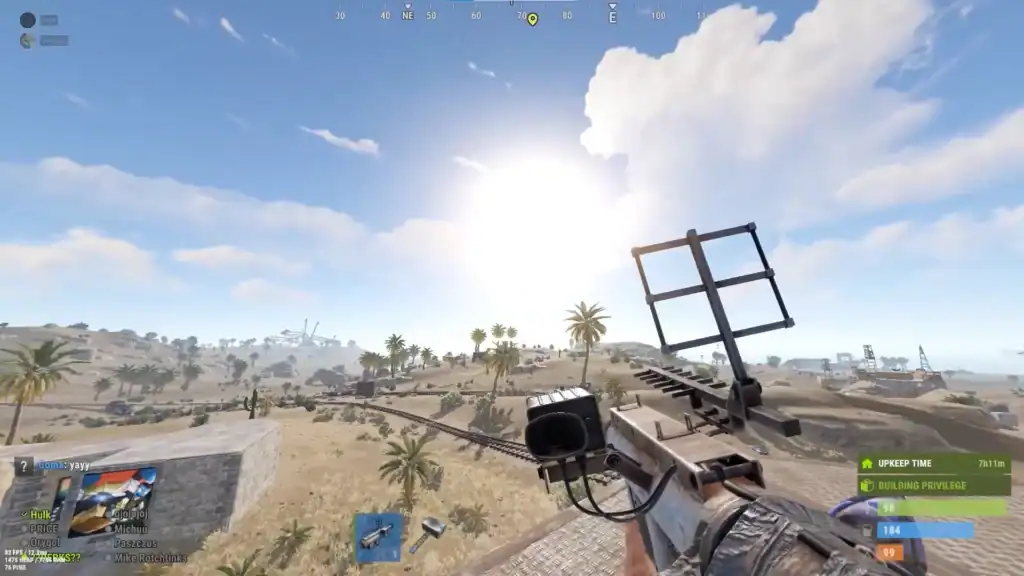
Here’s what you can do to prevent Rust from crashing when joining a server:
1. Check Your Graphics Drivers
This is usually the first thing I do when a game starts acting up. Outdated drivers can mess with the way Rust handles graphical data, causing crashes when you try to join a server.
If you’re running an Nvidia card, the GeForce Experience app is your best friend. Hop in, check for updates, and install the latest drivers. AMD users? Same deal. Download their auto-detect tool and keep those drivers fresh.
Keeping your GPU up to date prevents a lot of common issues, not just for Rust, but across the board.
2. Increase Virtual Memory
Sometimes, Rust just eats up too much RAM, especially when trying to load a server. Increasing your system’s virtual memory can make a massive difference. Here’s what I did:
Go to Windows System Settings to begin adjusting performance-related options.
Navigate to Advanced System Settings and open the Performance Settings menu.
Open the Virtual Memory tab and disable “Automatically manage paging file size” to allow manual control.
Manually set your paging file size to approximately 3× your installed RAM for improved stability in games.
I noticed an immediate improvement after bumping my virtual memory, and you might too.
3. Verify Integrity of Game Files
Corrupted game files are another silent killer. One of the most straightforward fixes is verifying the game files through Steam. Just:
Right-click on Rust in your Steam library.
Go to Properties → Local Files, then click “Verify Integrity of Game Files”.
This scans your installation for anything broken or missing and patches it up. This fix helped me out when the game files got corrupted without me even knowing.
4. Run Rust in DirectX 9
Sometimes Rust doesn’t play well with DirectX 11, and I found this trick online: forcing Rust to run in DirectX 9 can fix the crashes. All you have to do is:
Go to Rust in your Steam library.
Right-click the game → Properties → under Launch Options, type -dx9.
You might lose a bit of performance, but it’s worth it if it stops the crashes.
5. Opt-Out of Steam Beta
Steam’s Beta Program sounds cool, but it can also bring instability. If you’re crashing often, you might be running a beta build of Steam. To check:
Open Steam and go to Settings.
Under Account, check if you’re in a beta program. If yes, select “None” from the drop-down menu to opt out.
Restart Steam, and see if your issue clears up.
6. Close Background Apps and Firewall Issues
One thing I learned the hard way: background apps hogging system resources and security settings blocking connections can cause crashes.
Open your Task Manager (Ctrl + Shift + Esc) and close anything that doesn’t need to be running while you game.
I’ve also had to temporarily disable my antivirus and firewall to prevent Rust from getting blocked.
Go to Windows Defender Firewall and turn it off for both Private and Public networks.
Open your antivirus settings and turn off real-time protection temporarily to avoid blocking game processes.
This cleared up connection issues for me that I didn’t even realize were happening.
7. Reinstall Rust as a Last Resort
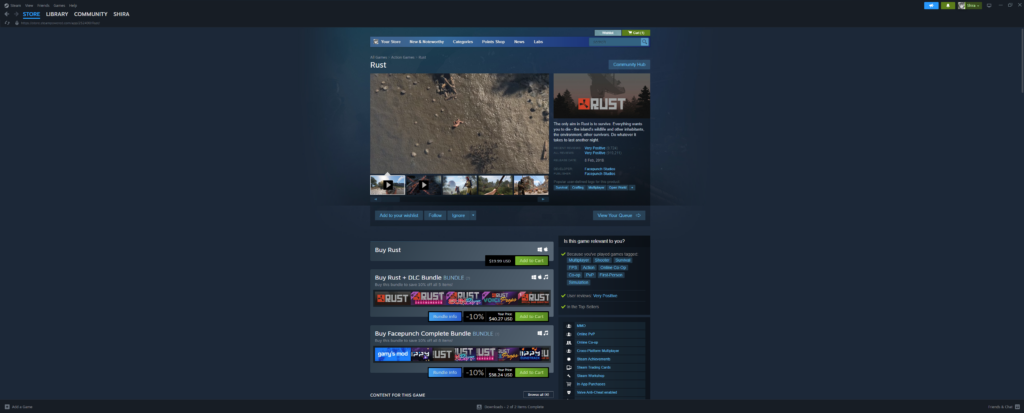
When all else fails, a fresh install is your best bet. I hate doing this, but sometimes Rust just needs a reset.
Uninstall the game, clear out any leftover files, and reinstall it from Steam. It’s not the quickest fix, but it’s a surefire way to wipe out any hidden issues.
Summary
Getting Rust to stop crashing when joining a server might take a few tries, but these steps should do the trick.
Once you’ve tweaked things right, you’ll be back to raiding and looting in no time. If none of this works, it could be a deeper system issue or something specific to your hardware. Either way, don’t give up. Rust is too good to miss out on!
FAQs
Why does Rust keep crashing?
Rust crashes are often caused by outdated graphics drivers, corrupted game files, or insufficient system resources. To fix this, update your GPU drivers, verify game files through Steam, and close unnecessary background applications. You can also improve stability by lowering in-game graphics settings.
Why does Rust crash when I join a server?
Crashing while joining a server usually happens due to memory or compatibility issues. Common causes include outdated drivers, low virtual memory, or corrupted assets. Try updating drivers, increasing virtual memory, and launching the game with different DirectX settings if needed.
Why can’t I join my Rust server?
If players cannot join your server, check that ports 28015 and 28016 are properly forwarded on your router. Also ensure your firewall is not blocking Rust or the server, and confirm that the server version matches the latest game update.
Why are Rust servers not loading?
If servers fail to load, verify your game files through Steam and update your network drivers. Increasing virtual memory and running Rust as an administrator can also help resolve loading issues.
Why is Rust crashing on the loading screen?
Crashes during loading are often caused by overheating, RAM limitations, or unstable system performance. Check your PC temperature, clean dust from hardware components, and ensure you have enough available memory before launching the game.
How do I stop Rust from crashing randomly?
Random crashes can often be fixed by disabling overlays (Discord, Steam overlay), updating drivers, and ensuring your system meets minimum requirements. Running the game in fullscreen mode instead of borderless can also improve stability.
Does low RAM cause Rust crashes?
Yes. Rust is a memory-intensive game, and insufficient RAM or virtual memory can cause frequent crashes, especially when joining servers or loading large maps.
Can mods cause Rust to crash?
Yes, mods or corrupted workshop files can cause instability. Try launching the game without mods or clearing your workshop cache if crashes occur after joining modded servers.
Why does Rust crash after an update?
After major updates, game files can become temporarily unstable or incompatible. Verifying file integrity on Steam usually resolves these post-update crashes.
Can overheating cause Rust to crash?
Yes. Overheating CPU or GPU can cause sudden crashes or freezes. Make sure your cooling system is working properly and clean dust buildup regularly.
Why does Rust freeze instead of crashing?
Freezing often indicates a memory or CPU bottleneck rather than a full crash. Lowering graphics settings and closing background apps can help reduce freezing issues.