Watching replays in Counter-Strike 2 demos becomes much more powerful when you use free camera mode, often called “freecam” or “free cam”.
It allows you to move the camera independently of any player, giving you full control over angles, positioning, and movement tracking. This is especially useful for analyzing gameplay, reviewing mistakes, or creating cinematic clips.
To use free cam, you’ll first need to enable developer tools and load a demo.
The 5 Essential Steps
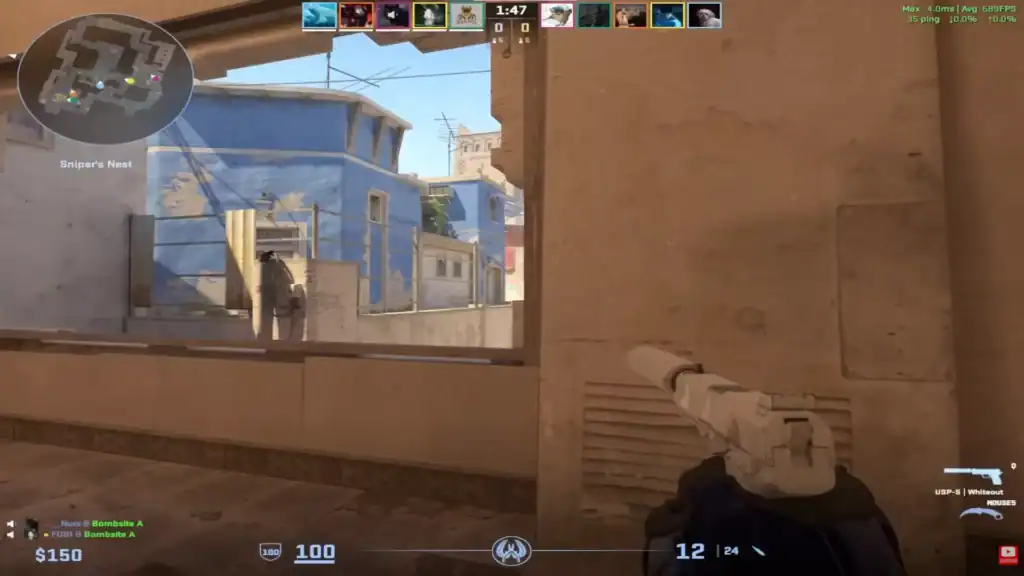
To use freecam in CS2, follow these steps:
Step 1: Enable the Developer Console
Before using freecam commands, you must enable the developer console:
Open the main game settings menu from the home screen.
Find and open the “Game” tab in settings.
Turn on Developer Console (~) to access commands.
Once enabled, press the ~ key in-game to open it.
Step 2: Load a Demo
You can only use free cam inside a demo or replay. Open the console and then use a command like:playdemo yourdemo.dem
Or load a match from your “Watch” tab and open it in replay mode.
Step 3: Enter Free Camera Mode
Once the demo is running, you can activate freecam using spectator controls. The most commonly used command is:
Removes freeze time effects for smoother demo playback control.
Opens the demo playback UI for full control over replay navigation.
Then use standard spectator controls:
Hold mouse buttons + WASD to move freely around the map in demo mode.
Use mouse wheel or adjust sensitivity to control camera movement speed.
There is no single official “freecam command” toggle, but combining spectator mode with demo controls effectively gives you full freecam functionality.
Step 4: Use Key Demo Commands for Better Control
To improve your freecam experience, these commands are very useful:
Opens the demo control panel for playback navigation.
Adjusts demo playback speed (X = desired multiplier).
Restores normal playback speed for the demo.
Removes UI clutter for a clean cinematic viewing experience.
These commands help you create smoother cinematic movement and better analysis angles.
Step 5: Smooth Camera Movement Tips
Freecam in CS2 is most effective when used properly:
Use lower sensitivity for more precise and controlled camera movement.
Pause the demo before repositioning the camera for better accuracy.
Set demo_timescale to 0.5 for detailed, slow-motion analysis.
Combine freecam with pause/play for precise frame-by-frame inspection.
This is especially useful for studying utility usage, crosshair placement, and timing decisions.
Why Freecam Is Useful
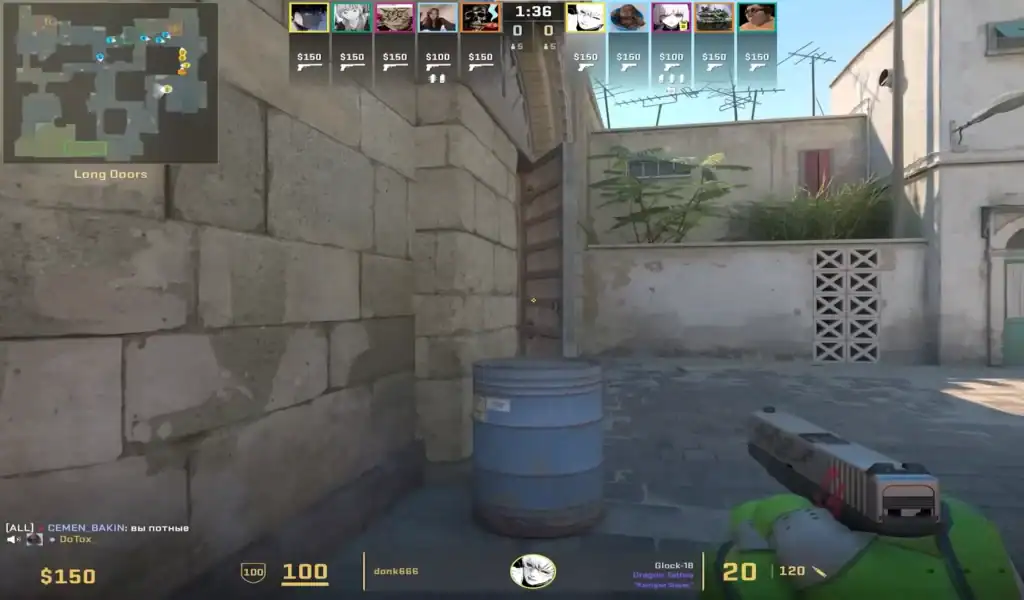
Free camera mode is widely used by players, analysts, and content creators because it provides full situational awareness. You can:
Follow utility paths to understand timing, placement, and impact.
Analyze rotations, spacing, and map control from any angle.
Rewatch clutch situations from multiple perspectives to learn decision-making.
Create smooth, cinematic highlights for content or personal review.
It turns normal demo viewing into a powerful training and content creation tool.
Summary
Freecam in Counter-Strike 2 isn’t a single button feature, but rather a combination of demo tools and spectator controls.
Once you understand how to use the console commands and demo UI, you gain complete freedom over how you explore matches.
Whether you’re improving gameplay or making content, mastering freecam is one of the most useful skills for advanced CS2 users.
FAQs
What is free cam in CS2 demos?
Free cam is a spectator mode technique that lets you move the camera freely around the map during demos, independent of any player’s perspective.
Is there a single “freecam command” in CS2?
No. CS2 does not have a dedicated freecam command. Instead, free camera movement is achieved through demo playback tools and spectator controls.
How do I enable free cam in CS2?
You enable the developer console, load a demo, and then use spectator movement controls (WASD + mouse) along with demo tools like demoui to navigate freely.
Can I use free cam in live matches?
No. Free cam only works in demo playback or replays, not in active competitive matches.
What is free cam useful for?
It’s commonly used to analyze player positioning, study utility usage, review clutch situations, and create cinematic highlight clips from different angles.