Have you ever wondered how you can unlock the full potential of Counter-Strike 2?
The developer console in CS2 is an incredibly versatile tool that allows you to tweak a wide range of settings.
Whether you’re looking to improve performance, customize controls, or experiment with new features, the console is your gateway to a more personalized gaming experience.
Table of Contents
Enabling the Developer Console in CS2
The process of enabling the developer CS2 console is straightforward. It involves accessing the game settings and activating the console option.
Once enabled, players will have the ability to input console commands, allowing them to personalize their gaming experience and optimize system performance.
In Counter-Strike 2, the developer console allows players to enter commands for customizing settings, troubleshooting issues, and enabling advanced gameplay features. If you’re unsure how to enable and use it, follow this updated guide.
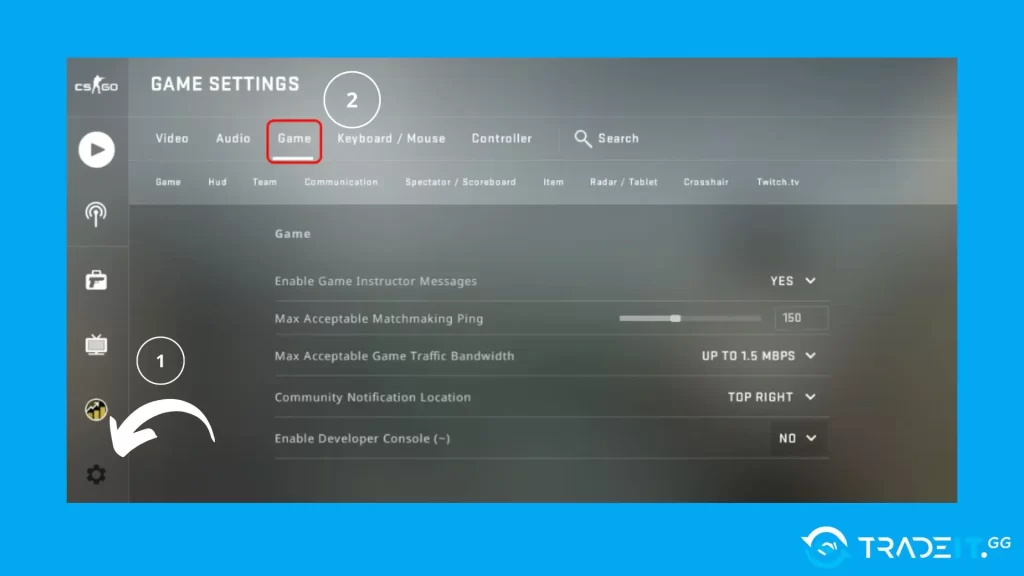
Launch CS2, locate the Settings menu, and open it.
Navigate to the Game section at the top of the menu.
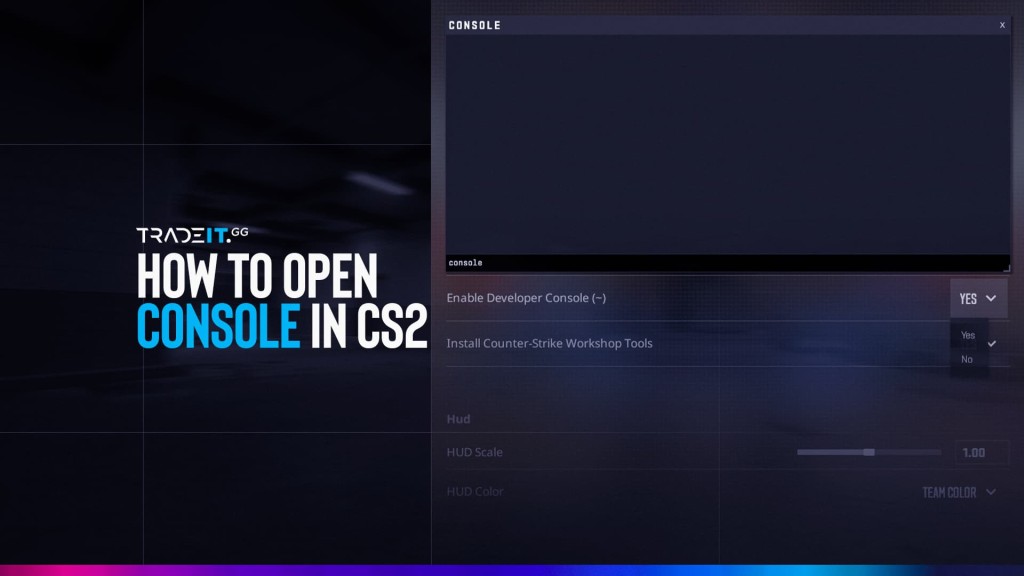
Find Enable Developer Console (~) and turn it on.
Switch to the Keyboard/Mouse tab in settings.
Scroll down until you locate Toggle Console.
Click it and set a preferred key (commonly the ` key).
Press your assigned key in-game to open the developer console.
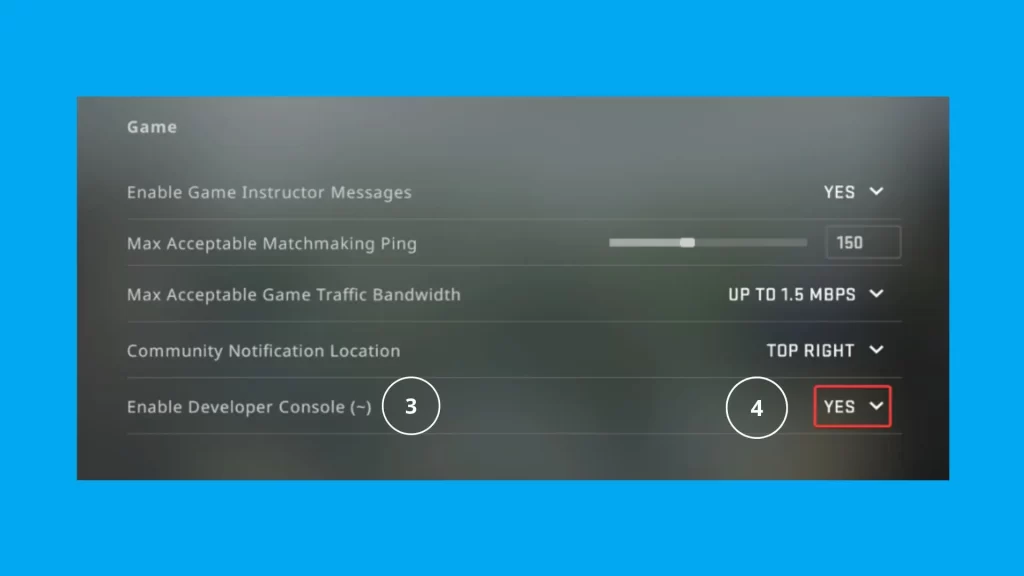
Note: If the console doesn’t appear after following these steps, refer to the troubleshooting section below.
When the console is enabled, players gain access to an abundance of CS2 console commands. These commands are designed to enhance gameplay and allow for a personalized gaming experience based on individual preferences.
Popular CS2 Console Commands
Once you have enabled the console, you’ll have access to a vast array of commands that can significantly enhance your gameplay. Here are some commonly used commands and their benefits:
| Command | Description | Status in CS2 | Notes |
|---|---|---|---|
mp_restartgame 1 | Restarts the game immediately | ✅ Works | Still fully functional for practice servers |
mp_freezetime 1 | Sets freeze time at round start | ✅ Works | Requires server/cheats access in some cases |
mp_startmoney 800 | Sets starting money | ✅ Works | Must be used before match start or with restart |
cl_showfps 1 | Displays FPS counter | ⚠️ Limited | Still works, but basic; many prefer cl_hud_telemetry |
net_graph 1 | Shows network stats | ❌ Removed | Not available in CS2 (replaced by telemetry tools) |
r_drawtracers_firstperson 0 | Disables bullet tracers | ⚠️ Limited | Behavior changed; may not fully disable tracers |
cl_hud_color <value> | Changes HUD color | ❌ Removed | Not supported in CS2 |
voice_enable 0 | Disables voice chat | ✅ Works | Still widely used |
cl_radar_always_centered 0 | Decenters radar | ✅ Works | Still effective for better map awareness |
Another extremely popular command is the CS2 fps command.
cl_showfps 1Implementing Setting Changes
After enabling the console, pressing the assigned key (~ or another custom key) should open a text box where you can enter commands.
Once done, you’ll immediately experience the benefits of your customized CS2 pro settings taking effect.
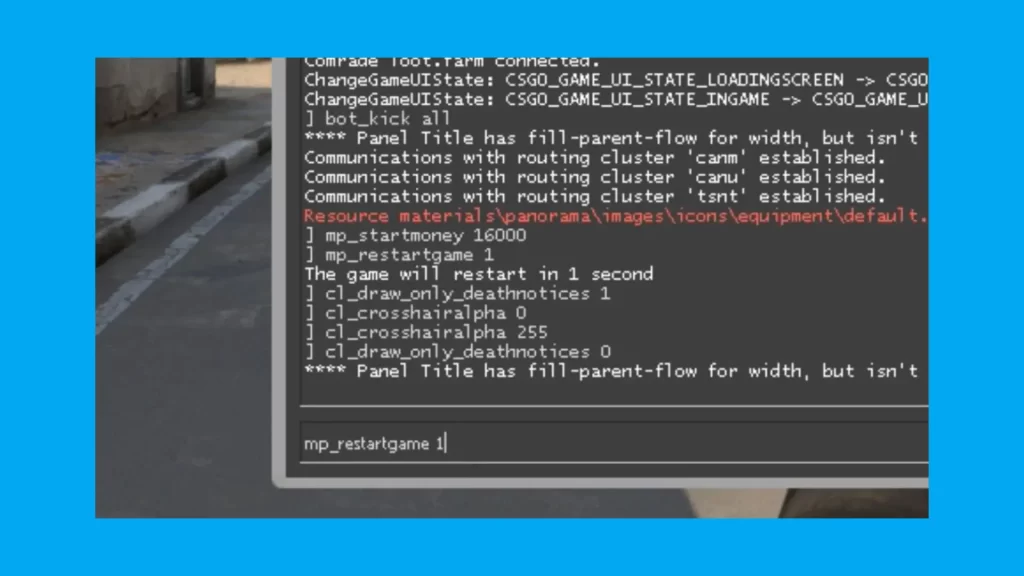
One should keep in mind that certain commands may necessitate a complete game restart for them to take full effect. It is, therefore, advisable to be prepared and willing to restart the game if necessary.
Troubleshooting CS2 Console Issues
Sometimes, users may experience difficulties with the console in CS2. Common issues include the console not opening and the need to reset CS2 console commands.
1. Console Not Opening or Invisible
If the CS2 console isn’t opening, there could be multiple reasons for this issue.
Go to Settings → Game and ensure Enable Developer Console is set to Yes.
Make sure the console key is correctly assigned. By default, it’s the ` key.
Update CS2 to the latest version and ensure your graphics drivers are up to date.
Use Steam’s Verify Integrity of Game Files to fix corrupted or missing files.
If the console is enabled but doesn’t appear, it may be invisible due to a known issue. To fix it:
Make sure the game is fully closed before making any file changes.
Go to C:\Program Files (x86)\Steam\userdata\<yoursteamid32>\730\local\cfg
Find the file named cs2_machine_convars.vcfg.
Right-click the file and open it using Notepad or any text editor.
Look for console-related settings (position/visibility) and reset or remove them.
Save the file and relaunch CS2 to apply the changes.
Always back up configuration files before making edits to avoid losing important settings.
2. Reset CS2 Settings to Default
If the console still won’t open, try resetting your game settings:
Right-click CS2 in your library and select Properties.
Open Steam and navigate to your CS2 Library page.
In Launch Options, type -autoconfig.
Launch the game again and check if the console now opens.
3. Resetting Console Commands
Sometimes, there may arise situations where it becomes necessary to restore the console commands in their original configurations. This is particularly relevant when engaging in gameplay activities such as CS2.
To accomplish this, you have two options available:
Open Settings and click Reset in the bottom-right corner to restore default configuration.
Add launch options (like -autoconfig) to override previously applied commands and reset behavior.
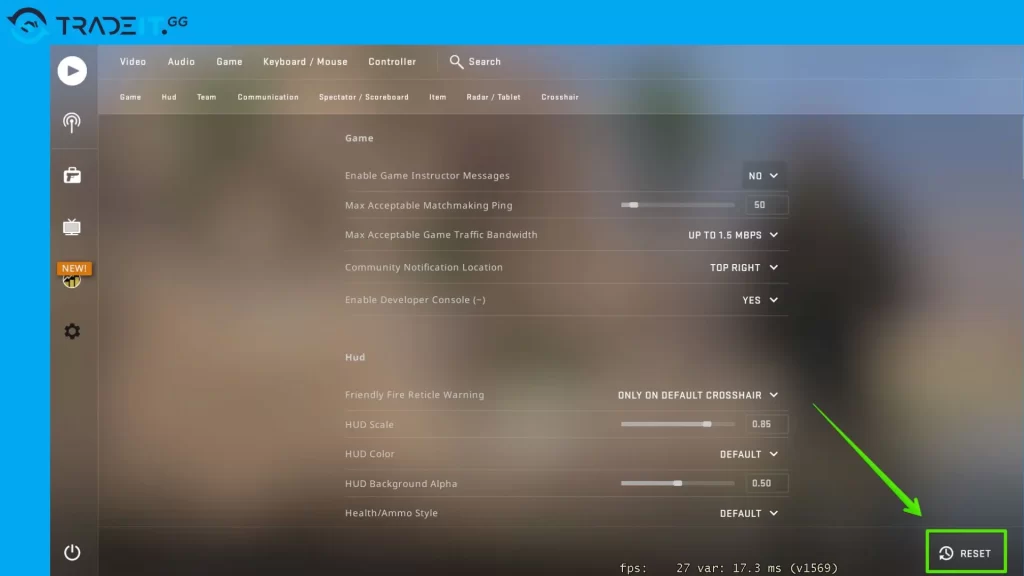
Resetting console commands can be a helpful solution for addressing any issues that may have arisen due to incorrect or conflicting commands.
Summary
Now that you know how to use it, the CS2 console is one of the most powerful tools you have to take control of the game and fully utilize its toolbox.
FAQs
Why can’t I open the console in CS2?
The most common reason is that the Developer Console is not enabled. Go to Settings → Game and set Enable Developer Console (~) to Yes. Also make sure a key is properly bound to it.
What is the default key to open the console?
By default, the console is opened using the backtick (`) key (the key below Esc on most keyboards). However, this can vary depending on your keyboard layout.
How do I change the console key in CS2?
Go to Settings → Keyboard/Mouse, scroll down to Toggle Console, click it, and assign a new key of your choice.
Can I open the console without enabling it in settings?
No. The console must be enabled first in the game settings; otherwise, the keybind will not work.
What should I do if the console still doesn’t open?
Try the following:
- Verify your key binding
- Restart the game
- Use
-autoconfigin launch options - Verify game files in Steam
If the issue persists, resetting config files may fix it.