

Packet loss in CS2 can make matches frustrating by causing rubberbanding, delayed hit registration, and inconsistent movement.
Fortunately, most connection issues can be resolved by improving your network setup, adjusting game settings, or identifying routing problems.
This guide explains how to fix packet loss in CS2, how to monitor your connection, and the best ways to reduce network interruptions for smoother gameplay.
Quick Fixes for Packet Loss

If you’re looking for the fastest way to fix packet loss in CS2, start with these proven solutions:
Replace Wi-Fi with a wired Ethernet connection to reduce interference and improve network stability during matches.
Power cycle your modem and router to clear temporary network issues that may be causing packet loss.
Stop downloads, streaming services, VPNs, cloud sync software, and other bandwidth-intensive applications before launching CS2.
Install the latest drivers for your network adapter to improve compatibility, stability, and overall performance.
Completely close Steam and Counter-Strike 2, then relaunch them to eliminate temporary networking glitches.
If packet loss suddenly appears, restarting your computer may resolve temporary system or network issues.
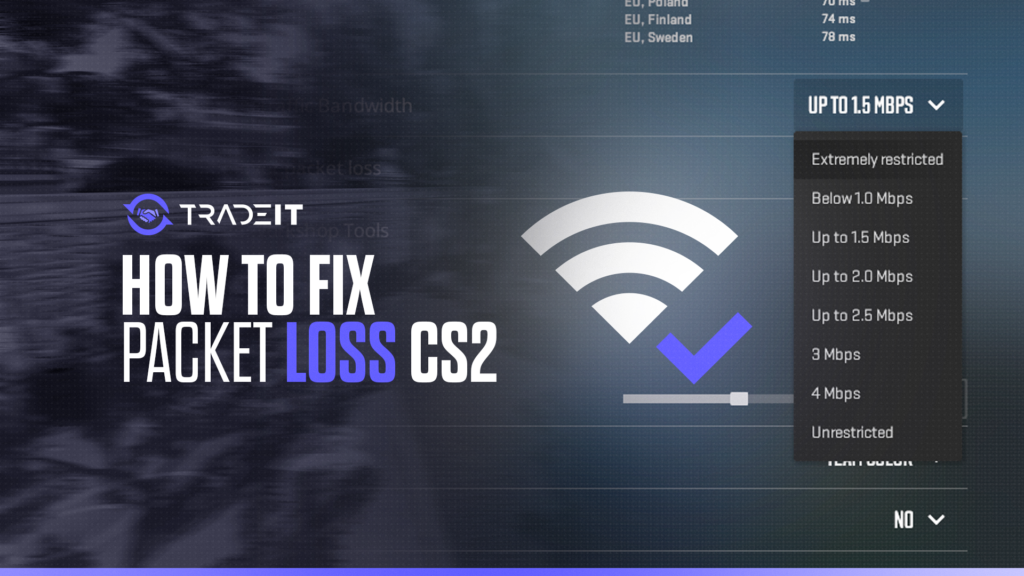
Configure CS2’s Network Quality settings to prioritize connection stability over responsiveness if you’re experiencing packet loss.
Whenever possible, connect to the closest available server to reduce latency and minimize the chances of packet loss.
These simple fixes solve most cases of packet loss in CS2, especially those caused by unstable home networks or excessive background traffic.
Advanced Packet Loss Fixes
If the basic fixes don’t work, it’s time to investigate your connection more thoroughly.
Start by running a traceroute to identify where packets are being lost between your PC and Valve’s servers. If packet loss occurs several hops before reaching the game server, the issue may lie with your ISP or one of its routing partners.
You can also enable Quality of Service (QoS) on your router to prioritize gaming traffic over downloads and streaming devices. Some players also find that gaming VPNs improve routing if their ISP uses inefficient network paths.
Finally, modern gaming routers often include traffic prioritization and latency optimization features that help maintain a more stable connection during competitive matches.
Now enjoy smoother matches and upgrade your inventory. Browse thousands of CS2 skins on Tradeit and find your next AK, M4, AWP, or knife. →
Browse CS2 SkinsHow to Check Packet Loss in CS2
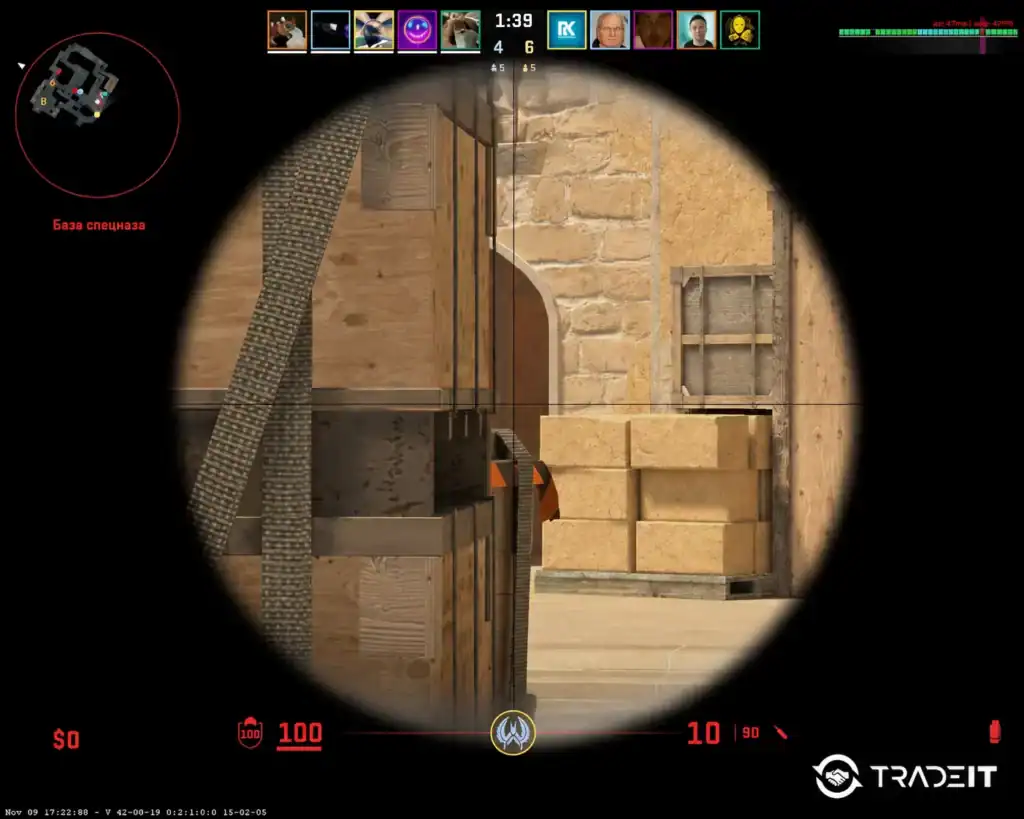
If you’re wondering how to see packet loss in CS2, the easiest method is using the game’s built-in Telemetry display. Enable Telemetry in the CS2 settings to display real-time network information such as:
Shows the percentage of network packets that never reach the game server or your PC. Higher values often cause rubberbanding, delayed actions, and missed shots.
Measures how much your latency fluctuates over time. High jitter leads to inconsistent movement, stuttering, and unreliable hit registration.
Displays the time it takes for data to travel between your PC and the game server. Lower ping generally results in a more responsive gameplay experience.
Provides an overall assessment of your connection by combining several network metrics, helping you quickly identify whether connection quality is affecting gameplay.
This allows you to determine whether connection problems are caused by your internet connection or something else, such as low FPS.
Here’s how you can enable Telemetry in the CS2 settings, so that it gets included in your HUD:
Open Counter-Strike 2 and wait for the main menu to load.
Click the gear icon in the upper-left corner to open the game’s settings menu.
Select the Game tab from the settings menu.
Scroll down until you reach the Telemetry options.
Turn on the network-related telemetry options, including Ping, Network Quality, and other metrics you want to monitor.
Set each metric to Always, Only When Poor, or Never, depending on your preference.
What Causes Packet Loss in CS2?
Packet loss can occur for several reasons:
Weak wireless signals, interference, or long distances from your router can cause packets to be lost before they reach the game server.
Multiple devices streaming, downloading, or gaming at the same time can overload your home network and increase packet loss.
Older firmware may contain bugs or performance issues that reduce network stability and affect online gaming.
Your internet provider may use inefficient routes to Valve’s servers, causing packets to be delayed or dropped along the way.
Temporary server maintenance or network problems on Valve’s end can occasionally result in packet loss for multiple players.
Game updates, cloud synchronization, streaming, and other downloads can consume bandwidth and interfere with CS2’s network traffic.
Damaged Ethernet cables, failing routers, or defective network adapters can lead to unstable connections and persistent packet loss.
In many cases, packet loss is caused by network instability rather than the game itself.
How to Reduce Packet Loss Fast
If you need a quick fix:
A wired connection provides lower latency and greater stability than Wi-Fi, making it the best option for competitive CS2 matches.
Stop downloads, cloud synchronization, and automatic updates to free up bandwidth for CS2.
Rebooting your router can clear temporary connection issues and establish a more stable route to Valve’s servers.
Reduce network congestion by disconnecting devices that aren’t needed while you’re playing.
If your router supports Quality of Service (QoS), prioritize gaming traffic to reduce latency and packet loss during matches.
Whenever possible, play on servers closest to your location to minimize latency and reduce the likelihood of packet loss.
These are usually the fastest ways to decrease the packet loss in CS2 without changing hardware.
Why Packet Loss Happens Only in CS2
Some players notice packet loss only while playing CS2, even though other online games work normally.
This usually happens because different games use different server locations and network routes. Your ISP may have an inefficient route to Valve’s servers while maintaining excellent routes to other gaming services.
CS2’s networking tools also make packet loss easier to identify than many other games, which may hide minor connection issues.
Packet Loss vs Ping vs Jitter
These three networking terms are often confused:
| Metric | What it measures | Gameplay impact |
|---|---|---|
| Packet Loss | Lost network packets | Rubberbanding, delayed shots, teleporting |
| Ping | Time required for data to travel | General input delay |
| Jitter | Variation in latency | Inconsistent movement and stuttering |
A player can have low ping but still experience severe packet loss or jitter, which is why monitoring all three values is important.
Best CS2 Network Settings
For the most stable online experience:
Turn on CS2’s Telemetry overlay to monitor packet loss, ping, jitter, and overall network quality during gameplay.
If your connection is unstable, configure the Network Quality setting to favor connection stability over maximum responsiveness.
Install the latest game updates to benefit from Valve’s networking improvements, bug fixes, and performance optimizations.
Exit unnecessary programs before launching CS2 to free up system resources and reduce background network activity.
Valve has also improved network diagnostics and jitter handling through recent updates, making it easier to diagnose connection problems.
Router & DNS Fixes
Your home network plays a major role in connection quality. Consider:
Reboot your router periodically to clear temporary network issues and maintain a stable connection for online gaming.
Install the latest firmware updates to improve security, stability, and overall network performance.
Switching to Google DNS or Cloudflare DNS may improve DNS resolution speed and connection reliability.
Position your router in a central, open location to reduce wireless interference and maximize signal strength throughout your home.
Whenever possible, use a wired Ethernet connection instead of Wi-Fi for the lowest latency and the most consistent network performance.
These changes often improve connection consistency.
ISP & Server Routing Problems
If packet loss continues after troubleshooting your own equipment, the problem may be outside your home.
Run a traceroute test to identify where packets begin dropping. If the issue occurs before reaching Valve’s servers, contact your ISP with the results. In some cases, changing VPN routes can temporarily bypass poor network routing until your provider resolves the issue.
Best Internet Setup for CS2

Competitive players should aim for:
Choose a fiber or high-quality cable connection that provides low, stable latency rather than focusing only on download speeds.
Connect your PC directly to the router using an Ethernet cable to minimize latency, packet loss, and wireless interference.
Use a modern dual-band or Wi-Fi 6 router for better network performance, improved device management, and stronger wireless coverage.
Activate Quality of Service (QoS) to prioritize gaming traffic over streaming, downloads, and other network activity.
Pause downloads, cloud synchronization, streaming services, and other bandwidth-intensive applications while playing to keep your connection as stable as possible.
A stable connection with low packet loss is generally more important than having extremely high download speeds.
FAQs
How do I fix packet loss in CS2?
Use a wired Ethernet connection, restart your router, close background downloads, update your network drivers, and enable CS2’s Telemetry to diagnose the problem.
How do I see packet loss in CS2?
Enable the in-game Telemetry display to monitor packet loss, ping, jitter, and other network statistics during matches.
Can high ping cause packet loss?
Not necessarily. High ping and packet loss are different network issues, although they often occur together.
Why does CS2 have packet loss but other games don’t?
Different games use different server infrastructure and network routes. Your ISP may have a poor connection to Valve’s servers while maintaining better routes to other services.
How do I decrease the packet loss in CS2?
Switch to Ethernet, reduce network congestion, enable QoS, update your router, and troubleshoot ISP routing if the problem persists.
Does Wi-Fi increase packet loss in CS2?
Yes. Wi-Fi is more unstable than Ethernet and is more likely to experience interference and jitter.
Can a VPN reduce packet loss?
Sometimes. A VPN may improve routing if your ISP has poor server paths, but it can also worsen latency depending on location.