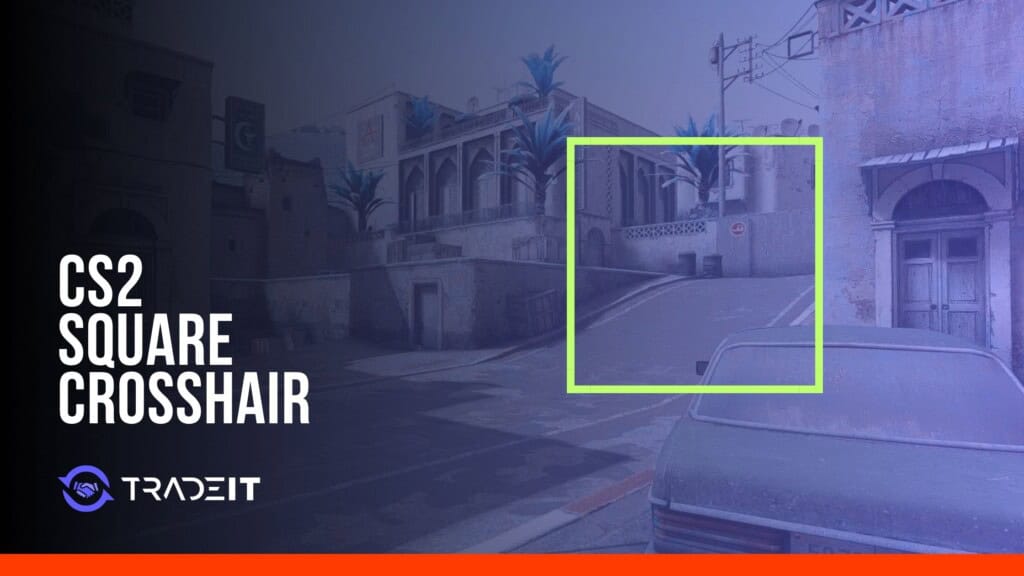


Quick answer: open Settings > Crosshair/Scopes and choose Static Square. CS2 has a built-in square style, so you do not need to overlap thick crosshair bars to imitate one.
cl_crosshairstyle 8Save your old crosshair first. Open Share or Import and copy its code somewhere you can find it again. Once the square looks right, export that as a second preset instead of overwriting your backup.
A square frames the target; a dot sits on it. Comparing a few CS2 crosshair presets helps you find how much of a reference you want on screen.
CS2 Square Crosshair Code and Commands
Enter the first line to select Static Square. The other two remove the center dot and stop the crosshair following recoil. You can leave those out if you want to keep your existing choices:
cl_crosshairstyle 8
cl_crosshairdot 0
cl_crosshair_recoil 0
The style command won’t copy somebody else’s complete design. Your color, size and outline remain, so adjust those too. An older square-looking share code may recreate a box with other controls rather than select the built-in Static Square style.
| Setting | Command | Purpose |
|---|---|---|
| Style | cl_crosshairstyle 8 | Select Static Square. |
| Center dot | cl_crosshairdot 0 | Remove the optional center dot. |
| Outline | cl_crosshair_drawoutline | Use 0 for none, 1 for full or 2 for a half-outline. |
| Thickness | cl_crosshair_thickness | Adjust line weight using the pixel-based control. |
| Color and opacity | cl_crosshaircolor_r, cl_crosshaircolor_g, cl_crosshaircolor_b, cl_crosshaircolor_a | Each channel accepts a value from 0 to 255. |
Old configs often contain cl_crosshairsize, cl_crosshairthickness and cl_crosshairalpha. Those are legacy names. The pixel-based controls use different names and scales, so don’t transfer the numbers by matching similar labels. Make the adjustment in Crosshair/Scopes and watch its effect.
How to Make a Square Crosshair in CS2
Use the crosshair menu
- Open Settings > Crosshair/Scopes.
- Save your existing preset using Share or Import.
- Choose Static Square from the style options.
- Adjust its dimensions, color and outline in the preview.
- Try the result on a practice map, then export the finished preset.
Use the developer console
- Enable the developer console under Settings > Game.
- Open it with your console key.
- Enter
cl_crosshairstyle 8. - Use the optional dot and recoil commands above if needed.
- Finish the visual adjustments in Crosshair/Scopes.
Don’t stop at the menu preview. Look at pale walls, dark doorways and distant heads in CS2 crosshair maps. Include the same checks in your aim training routine: a frame you can see clearly up close may hide too much at range.
Best Square Crosshair Presets
These are variations of Static Square, not four fixed-size codes. Start with the style selected and adjust one feature at a time. Your display and resolution affect how large a comfortable square feels.
Hollow Square Crosshair
cl_crosshairstyle 8Switch off the dot to leave an opening in the middle. Aim by placing the target inside that opening. If a tiny dot gets lost during a fast turn, this gives you a larger reference without filling the center.
Optional Outlined Square
cl_crosshair_drawoutline 1You can separate the frame from a wall without giving up its color. Add a full outline with 1, try a half-outline with cl_crosshair_drawoutline 2, or return to no outline with 0. The menu lets you choose the outline’s RGB and opacity separately.
Small Thick Box Crosshair
A thicker edge can help if you lose the frame during a turn. Add only a little thickness at first. Check a faraway head before adding more, since a box that is easy to find can also block the target you need to see.
Square With a Center Dot
cl_crosshairdot 1Now you have a point as well as a frame. Does the frame still help, or are you only using the point? In the latter case, a plain dot crosshair may be enough. Use cl_crosshairdot 0 to remove the point while keeping the square.
| Variant | Main adjustment | Benefit | Tradeoff |
|---|---|---|---|
| Hollow square | Static Square, dot off | Clear frame around an open center | More coverage than a thin cross |
| Outlined square | Full or half-outline | Extra contrast on similar colors | Additional visual weight |
| Thicker square | Increase thickness gradually | Easier to find during fast movement | Can obscure small targets |
| Square with dot | Enable the center dot | Explicit center reference | Can crowd the opening |
Square vs Dot vs Standard Crosshair
| Style | Center view | Best fit | Main tradeoff |
|---|---|---|---|
| Hollow square | Frame around an opening | A bold, easy-to-find reference | More coverage of distant targets |
| Dot | Single point | Minimal visual clutter | Can disappear against a busy background |
| Static cross | Four separate arms | A familiar all-purpose reference | Its gap and length still need tuning |
Explore finishes for rifles, pistols and the rest of your inventory.
Browse CS2 SkinsHow to Adjust Size, Gap, Thickness, and Color
With Static Square selected, adjust cl_crosshair_length, cl_crosshair_gap and cl_crosshair_thickness in the preview. The values are pixel-based. Copying a number from an old config won’t necessarily reproduce its old appearance.
Stop increasing the dimensions when you start losing sight of the head behind the frame. Old tutorials created a box by overlapping thick arms with a negative gap; Static Square removes the need for that workaround.
Try green, cyan or magenta against the map’s surfaces, with cl_crosshaircolor_a 255 for a fully opaque frame. Still hiding the target? That is a size problem rather than a color problem. Reduce the dimensions or compare smaller CS2 crosshair presets.
Is a Square Crosshair Good for CS2?
Only if you like aiming with it. Choosing a square cannot improve the gun’s accuracy or alter recoil and hitboxes. What it can change is how easily you find your aim point after turning.
We’d compare it with a thin static cross down a long sightline. The square may be easier to spot during a turn, yet cover more of a distant head once you stop. That is the compromise you’re choosing, not a more accurate gun.
Give the preset a few sessions. Misses while moving or mishandling recoil won’t tell you much about the shape. Losing the frame against a wall, or finding it too large to aim past, will.
Fix a Square Crosshair That Looks Wrong
Did the shape change after an import? Check the style first, because the code can replace that along with color and dimensions. Enter cl_crosshairstyle 8 to select Static Square again, then work through the remaining symptoms.
Solid-looking center
Disable the center dot, reduce excessive thickness and inspect the outline. Change one setting at a time until you can see the target through the center.
Plus-sign shape
Confirm that the style is Static Square rather than Static Cross. Do not try to repair the shape with old cl_crosshairsize and negative-gap recipes.
Shape moves while firing
Check both the style and Follow Recoil. For a steady reference, use Static Square and cl_crosshair_recoil 0. A config file or bind can restore a different setting later.
Walls look too heavy
Try no outline with cl_crosshair_drawoutline 0, then reduce thickness in the menu. Add a half-outline only if the base color needs more separation from the background.
Resolution behavior
A square can look rectangular in 4:3 stretched. CS2 rescales the crosshair’s pixel dimensions when you change resolution, but stretching the whole 4:3 image across a 16:9 display widens what you see.
Check the game’s aspect ratio and display mode, plus the GPU’s scaling setting. Adjust the square after choosing those settings, not before; otherwise you are tuning it for a picture you will not use in matches.
Trade, buy or sell CS2 skins on our marketplace.
Trade CS2 Skins on TradeitFrequently Asked Questions
Why does my square crosshair turn into a solid block?
The dot, thick lines and outline may be crowding the opening together. Switch the dot off, then reduce thickness. Check the outline last so you can see which part was filling the center.
Will the square stay centered at every resolution?
Yes, changing resolution doesn’t move the aim point. CS2 rescales the crosshair’s pixel dimensions with the resolution. A stretched display can still make the square look wider, which is a change in proportions rather than centering.
Can I add a dot to improve accuracy?
A dot adds a visible point to aim with; it doesn’t improve the weapon’s accuracy. Try it if you want a clearer center reference, and remove it if it hides the target inside the square.
Is this crosshair suitable for rifles and the AWP?
You can use it as your normal rifle crosshair, but it doesn’t replace the AWP’s scoped reticle. Scope appearance has its own controls, so set that up separately from the square.
How do I save multiple square presets?
Export each version through Share or Import and keep its code with a descriptive name. Saving a crosshair preset before another import makes it easy to return to your previous design.
How do I copy a teammate’s square crosshair?
Select the player on the scoreboard and use Copy Crosshair when the option is available, or import a code they share. Save your preset before copying another player’s crosshair.
Does changing color affect the square shape?
No. RGB and opacity change how visible it is. To change the geometry, adjust the style and dimensions instead.
Do professional CS2 players use square crosshairs?
Preferences change, so don’t treat a pro’s choice as proof that one shape is better. Try the square beside your usual static cross in deathmatch or on CS2 1v1 maps. Keep it if you find placement easier, not simply because someone else selected it.