Is Counter-Strike 2 crashing on your system? CS2 has a history of crashing at extremely decisive moments. You’re in a 1v1, ready to jump your opponent, and boom! There’s a crash.
No worries. You launch another game, prepared to carry your team in rank, all for another crash to jump on you.
This guide explains why Counter-Strike 2 keeps crashing and provides fixes for CS2 crashes on launch, mid-game, or after updates.
Table of Contents
Why Does Counter-Strike 2 Keep Crashing?
Counter-Strike 2 may crash if your system doesn’t meet the latest hardware and software requirements. Ensure your PC meets or exceeds these minimum and recommended specifications:
| Category | Minimum Requirements | Recommended Requirements |
| Operating System | Windows 10 (64-bit) | Windows 10 (64-bit) |
| Processor | Intel Core i3-6100 / AMD FX-6300 | Intel Core i5-6600K / AMD Ryzen 5 1600 |
| Memory | 6 GB RAM | 8 GB RAM |
| Graphics | NVIDIA GeForce GTX 660 / AMD Radeon HD 7800 series | NVIDIA GeForce GTX 1060 / AMD Radeon RX 580 |
| DirectX | Version 11 | Version 11 |
| Storage | 15 GB available space | 15 GB available space |
| Network | Broadband Internet connection | Broadband Internet connection |
To check if your PC meets the requirements for Counter-Strike 2, follow these steps:
Click the Windows Start button to begin.
Go to Settings (gear icon).
Navigate to the System section.
Scroll down and click About to view system specs.
Here you can see key specs like your processor and RAM.
CS2 Crash Scenarios and What Typically Causes Them
Crashes in Counter-Strike 2 can happen at different stages of the game, and the cause often depends on when the crash occurs rather than just the crash itself.
Occurs before the main menu loads. Common causes include corrupted files, outdated GPU drivers, broken launch options, or conflicting overlays and missing dependencies.
Happens during map or server loading due to memory issues, unstable RAM (XMP), corrupted assets, or insufficient VRAM under heavy load.
Usually caused by fullscreen mode issues, GPU driver instability, overlays, or Windows display optimization conflicts.
Often linked to system instability under load such as overheating, overclocking, background apps, driver faults, or rare network-related disruptions.
Common System-Level Causes of CS2 Crashes and Fixes
Crashes in Counter-Strike 2 are often not caused by the game itself, but by system-level conflicts that interfere with rendering, stability, or file integrity.
Overlays from Discord, Steam, or NVIDIA can interfere with rendering, causing stutters, black screens, or crashes—especially in fullscreen mode or after driver updates.
Even slight CPU or GPU overclock instability can cause random crashes under load. CS2 is highly sensitive to hardware instability during real-time rendering.
Outdated or damaged shaders can cause freezes or crashes when loading maps or effects, especially after driver or game updates.
System corruption can impact stability. Repair tools like System File Checker help restore missing or broken DirectX and runtime components.
How to Deal with CS2 Crashes
Here are some simple methods for dealing with a CS2 crash:
1. Verify Game Files Integrity
If Counter-Strike 2 keeps crashing on launch, verifying the game files can resolve data corruption.
Checking the integrity of your game files is like inspecting all connections within a circuit. If even one wire is out of place, the whole system can fail.
Thankfully, Steam has a handy feature that allows you to verify the integrity of your game files.
How to Fix Counter-Strike 2 Crashing on Launch
Find :contentReference[oaicite:0]{index=0} in your Steam Library.
Right-click the game and select “Properties…”.
Navigate to the “Local Files” section in the window.
Click “Verify integrity of game files” to repair missing or corrupted files.
This might take several minutes as Steam checks and repairs any inconsistencies or errors in the game files, ensuring everything is functioning correctly, much like a comprehensive vehicle inspection.
2. Update GPU Drivers
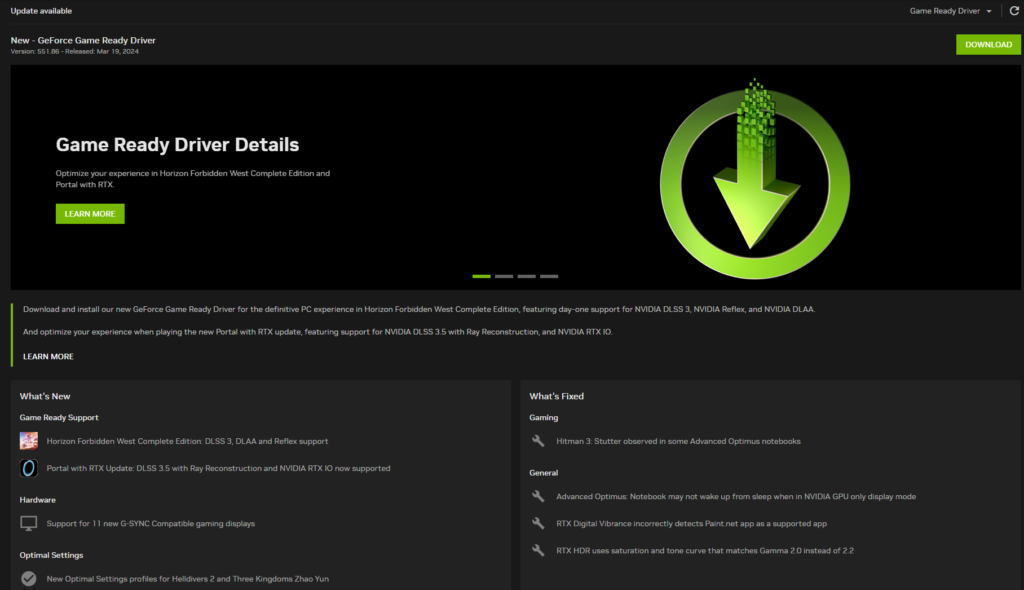
Outdated drivers are a common reason why CS2 keeps crashing on high-end systems.
If you’re not comfortable doing this manually, I’ve found Driver Easy to be a great alternative. But if you’d rather take the direct route, then just follow the steps below:
Go to your GPU manufacturer’s site to manually download the latest driver.
Find the driver that matches your exact graphics card model.
Follow the on-screen instructions to complete installation.
Use tools like Driver Easy for automated driver updates, similar to a mechanic handling maintenance.
Identify your GPU model and download the correct driver directly from the official manufacturer site.
Use the NVIDIA Control Panel or AMD Control Panel for automatic update notifications, eliminating the need to manually check for updates. Check out the best NVIDIA settings for CS2 and optimize them further.
3. Optimize Game Settings
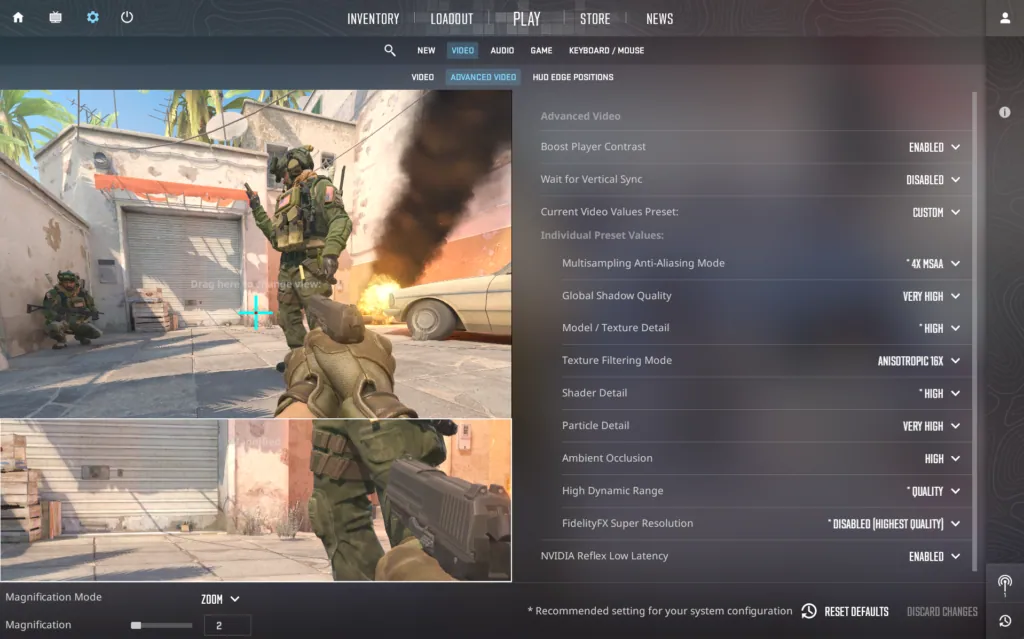
With our hardware in order, let’s shift our focus to the game’s settings. When the hardware is there, some fine-tuning can go a long way in ensuring optimal performance:
Configure Graphics Settings
When adjusting game settings for CS2, the temptation to maximize everything for prime visuals can be compelling. However, this can strain your GPU, leading to performance issues. It’s like trying to run a marathon in heavy boots – it’s doable, but it will tire you out quickly.
The key is to find a balance between great visuals and smooth performance:
| Setting | Optimal |
|---|---|
| Resolution & Aspect | 1920×1080 (16:9) |
| Global Shadow Quality | High or Medium |
| Model / Texture Detail | Medium |
| Shader Detail | High |
| Particle Detail | Low |
| Ambient Occlusion | Medium |
| High Dynamic Range | Quality |
| AA Mode | 4X MSAA |
| Texture Filtering | Bilinear |
| VSync | Disabled |
| Mouse Acceleration | Disabled (Windows) |
| Polling Rate | 1000HZ |
| Audio EQ | Crisp (Preference) |
| HUD & Radar | Default with custom scale |
| Windows & Steam | High performance; Disable GPU rendering |
You can also use the control panels provided by NVIDIA and AMD to adjust settings related to Ambient Occlusion and Image Sharpening, further enhancing your gaming experience.
Disable Full Screen Mode
Occasionally, stability issues can arise from using full-screen mode. CS2 is free but it is not perfect, and can often feel like trying to watch a movie in a crowded theater. The more elements there are, the higher the chance of disruption.
By disabling full-screen mode and exploring alternative display options, such as window-bordered mode, you can reduce the risk of crashes.
Right-click on cs2.exe and select Properties.
Navigate to the Compatibility section.
Tick “Disable fullscreen optimizations”.
Switch from fullscreen to windowed or borderless mode.
4. Disable Background Applications – Use Task Manager
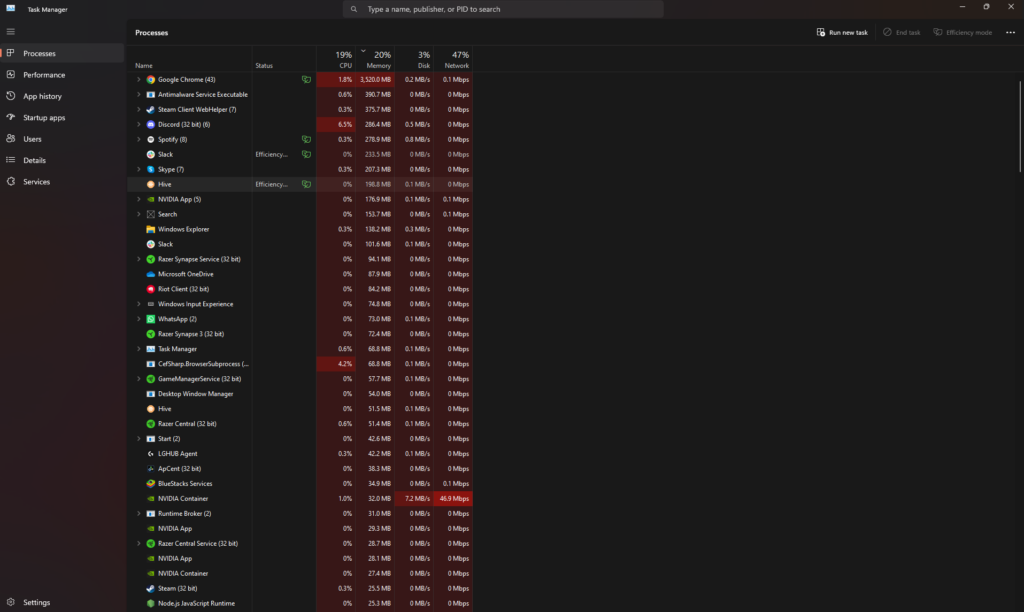
The Task Manager can be viewed as your PC’s central control panel. It gives you a clear view of all the processes running on your system, allowing you to manage them effectively. And managing these processes can be crucial for preventing Counter-Strike 2 crashes.
To close unnecessary background apps, follow these steps:
Press Ctrl + Shift + Esc to launch Task Manager.
Go to the Processes tab and monitor CPU and Memory usage.
Close high-resource processes to free up system performance for gameplay.
5. Disable Startup Programs
Think of startup programs as party guests – some are vital, while others cause unnecessary chaos by constantly running in the background.
Hence, by disabling non-essential startup programs and avoiding unnecessary launch settings, you can free up system resources.
To do this in Windows 10 using the Windows key, follow these steps:
Start by opening the Windows Settings menu.
Navigate to the Apps section.
Click on the Startup tab.
Toggle off programs you don’t want running at startup.
Just remember to keep essential programs, such as antivirus software, enabled for your system’s security.
6. Adjust Windows Settings
What to Do if CS2 Keeps Crashing During Matches? Optimize your Windows settings to reduce CS2 random crashes:
Go to Settings → Gaming → Game Mode and turn it off.
Open Control Panel → Power Options and select High Performance.
Go to Settings → Gaming and turn off Xbox Game Bar (DVR features).
7. Run Windows in Compatibility Mode
Compatibility mode not only helps prevent crashes when playing Counter-Strike 2 but also enhances the overall security of your PC.
This can be done by:
Right-click the game’s executable file and select Properties.
Navigate to the Compatibility section.
Tick “Run this program in compatibility mode for:”.
Choose an appropriate Windows version from the dropdown menu.
8. Manage Third-Party Overlays and Apps

While third-party overlays and apps can enrich your gaming experience, they might also trigger conflicts, resulting in in-game crashes.
Disabling overlays in Discord and Windows Game Bar can reduce potential conflicts and improve your Counter-Strike 2 experience.
Disable Discord Overlay:
Click the gear icon near your username in Discord.
Go to App Settings → Overlay.
Turn off “Enable in-game overlay”.
Disable Windows Game Bar:
Press the Windows key, type “Settings”, and press Enter.
Navigate to Gaming → Game Bar.
Turn off “Record game clips, screenshots, and broadcast using Game Bar”.
9. Address Overclocking and XMP Profiles
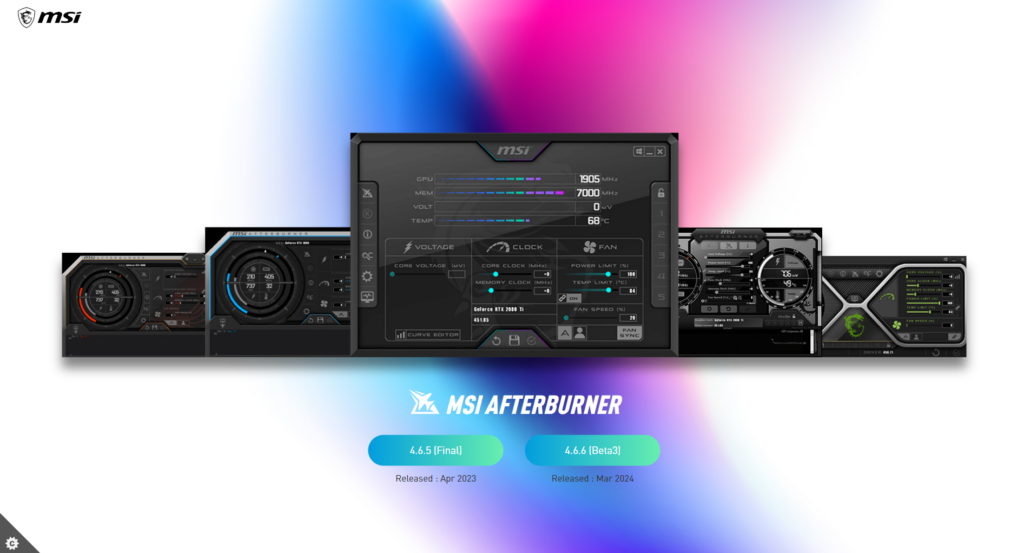
Overclocking and using XMP profiles can enhance performance temporarily but may lead to system instability and potential crashes. In certain cases, it can also decrease your trust factor in CS2.
Overclocking pushes your CPU and GPU beyond their limits, while XMP profiles let your RAM operate faster than the standard CPU specifications, risking stability.
Reset Overclocked CPU or GPU:
Use MSI Afterburner to revert GPU overclock settings to default.
Remove Afterburner profile files if the program fails to launch.
Ensures your hardware is not being pushed beyond stable performance limits.
Disable XMP Profiles:
Restart your PC and open BIOS/UEFI during startup.
Go to the Memory or Overclocking section in BIOS.
Turn off the XMP profile, then save changes.
Your PC restarts with default RAM speeds for improved stability.
10. Advanced Solutions for Persistent Crashes
If Counter-Strike 2 crashes even after basic troubleshooting, try reinstalling DirectX and checking system logs for errors.
Uninstall and reinstall :contentReference[oaicite:0]{index=0} via Steam.
Review Windows Event Viewer logs for specific crash or error details.
Reinstall DirectX and Visual C++ Redistributables from Microsoft.
Summary
We’ve covered a lot of ground in this guide, but the key takeaway is this: resolving Counter-Strike 2 crashes involves a comprehensive approach, addressing everything from your PC’s hardware to the game’s settings and even third-party apps and overlays.
FAQs
How do I stop CS2 from crashing on launch?
Crashes on launch often happen due to outdated drivers, corrupted files, or incompatible apps. Update your drivers, check system requirements, and verify game files.
Why does CS2 keep freezing my PC?
Freezes are usually caused by outdated graphics drivers or incorrect settings. Update drivers and adjust graphics settings to reduce freezes and crashes.
How do I fix the Counter-Strike crash?
Disable compatibility mode, delete csgo.exe and re-verify files, update your OS, and try launch options like cl_disablehtmlmotd 1 and -autoconfig.
How can I check if my PC meets the requirements for Counter-Strike 2?
Check “System” under Windows Settings and compare your CPU, GPU, and RAM with CS2’s minimum and recommended requirements.
How important is it to update my graphics drivers and Windows OS?
Very important. Updates ensure compatibility, prevent crashes, and improve both performance and security while playing CS2.
Why should I manage background applications while playing Counter-Strike 2?
Closing background apps frees system resources, reducing crashes and lag. Use Task Manager or disable non-essential startup programs.
Is there a fix for CS2 crashing mid-game?
Yes. Lower graphics settings, close heavy apps, and run CS2 on DirectX 11 to improve stability and prevent mid-game crashes.