Optimizing your settings for PvP combat in Rust can give you a competitive edge by improving your reaction time, aiming accuracy, and overall game performance.
In this guide, we’ll go over the best settings for graphics, audio, controls, and more to maximize your PvP win rate.
Table of Contents
Graphics Settings for PvP in Rust
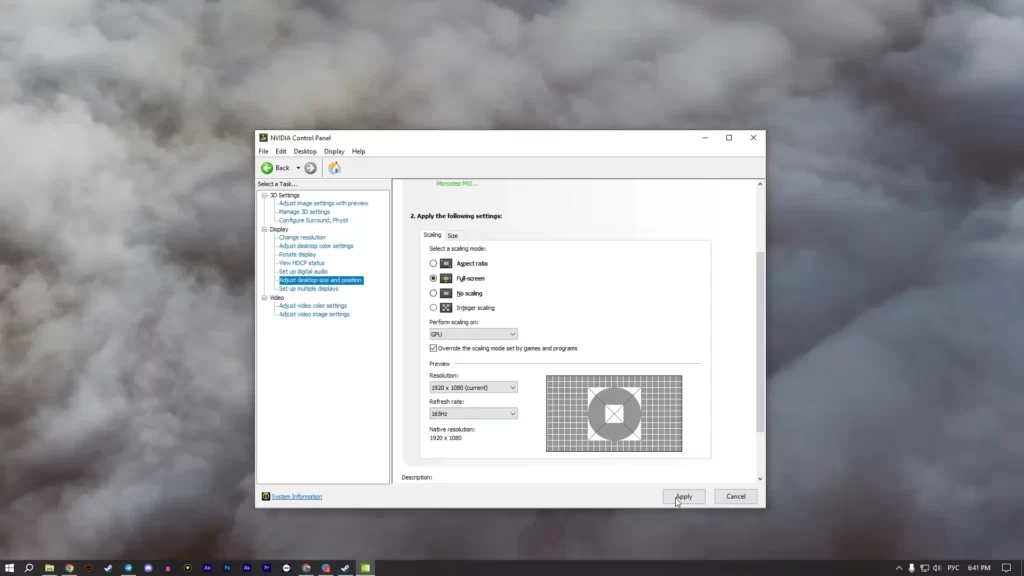
Having the right graphics settings can make a huge difference in visibility and performance. Here are the best settings for PvP:
| Setting | Recommended Value | Notes / Reason |
|---|---|---|
| Graphics Quality | 0 or 1 | Boosts FPS by reducing visual detail. |
| Shadow Quality | 0 | Shadows are unnecessary in PvP and reduce performance. |
| Anisotropic Filtering | Off | Increases FPS by reducing texture filtering load. |
| Anti-Aliasing | Off or FXAA | Minimal performance impact while reducing jagged edges. |
| Draw Distance | 2000–2500 | Low enough for FPS, high enough to spot enemies at range. |
| Water Quality | 0 | Reduces rendering load for smoother gameplay. |
| Shader Level | 600 | Maintains decent visuals without major FPS hit. |
| Max Gibs | 0 | Removes debris and blood for clearer visuals in fights. |
| Motion Blur | Off | Prevents blurry visuals, improving aiming accuracy. |
These settings help keep your game running smoothly while ensuring that enemies are clearly visible.
Field of View (FOV)
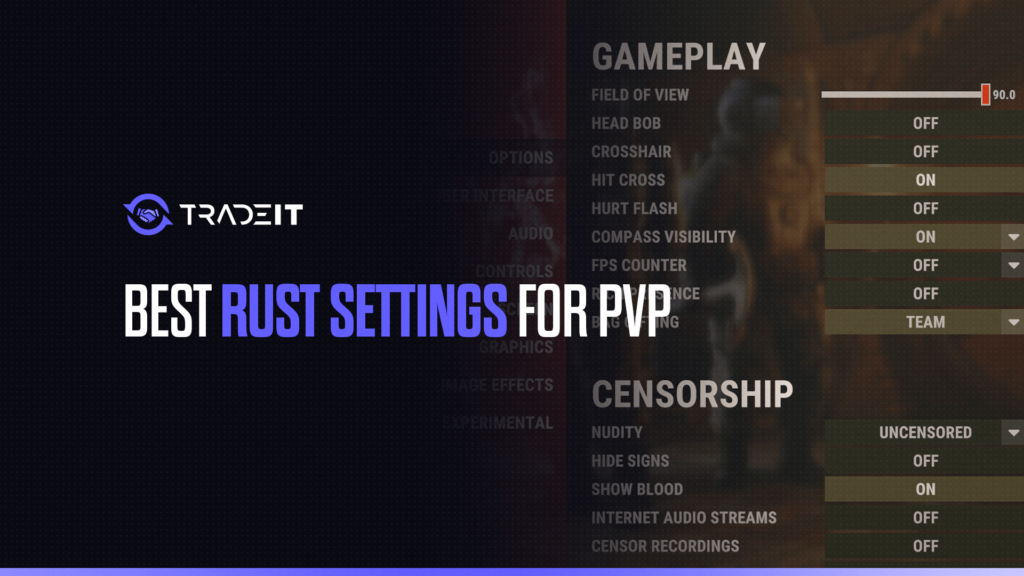
Set to 90-95. A higher FOV allows better peripheral vision, helping you spot enemies quickly. However, going too high may distort visuals.
Input and Sensitivity Settings
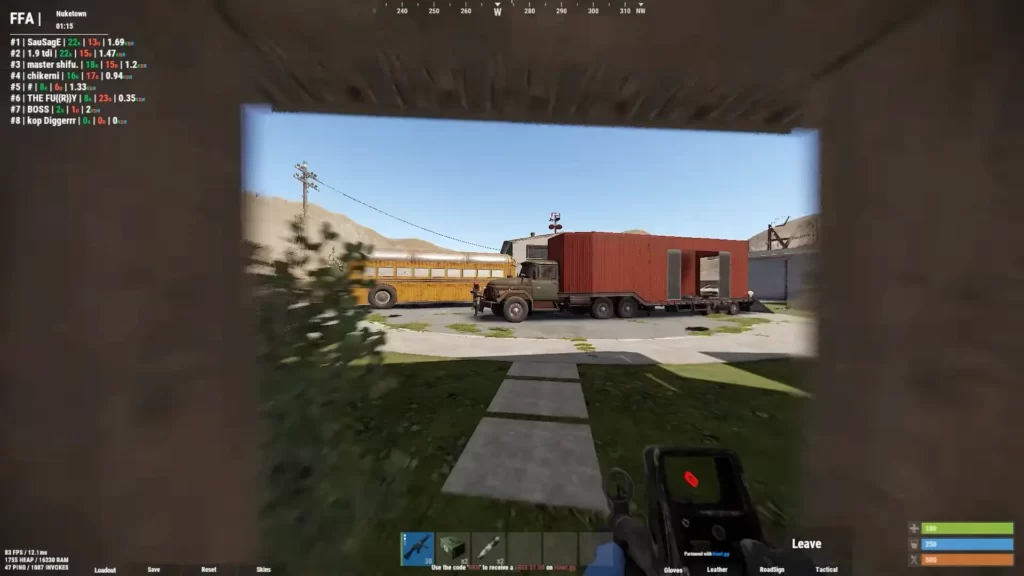
Having responsive controls ensures quick reactions and precise aiming. The following settings are ideal for PvP:
| Setting | Recommended Value | Notes / Reason |
|---|---|---|
| Mouse Sensitivity | ~0.2–0.5 | Lower sensitivity improves aim stability and control. |
| DPI Settings | 400–800 DPI | Provides precise aiming; adjust to personal comfort. |
| Scoped Sensitivity Multiplier | 0.8–1.0 | Helps maintain accuracy while using scopes. |
If using a gaming mouse, make sure to adjust your polling rate to 1000Hz for the fastest response times.
Audio Settings
Hearing enemy footsteps and gunfire direction can give you an advantage in PvP combat.
| Setting | Recommended Value | Notes / Reason |
|---|---|---|
| Master Volume | 100% | Adjust in Windows if overall sound is too loud. |
| Game Sounds | 80–100% | Ensures critical sounds like footsteps and gunfire are audible. |
| Voice Chat | 0–50% | Optional, depending on team communication needs. |
| Ambient Sound | 0% | Removes unnecessary background noise for better focus. |
| Instrument Sounds | 0% | Not needed for PvP; reduces distractions. |
Using high-quality headphones with surround sound capability can significantly enhance your spatial awareness in combat.
Network Settings
Minimizing lag and reducing packet loss can improve your reaction time and hit registration.
| Setting | Recommended Value | Notes / Reason |
|---|---|---|
| Max Ping | 150–200 | Prevents connecting to high-ping servers for smoother gameplay. |
| NVIDIA Reflex | Enabled + Boost | Reduces input latency if using an NVIDIA GPU. |
| Client Prediction | Enabled | Helps with smoother movement and aim tracking during PvP. |
Crosshair Settings
Using a custom crosshair can improve your accuracy and tracking. Programs like NVIDIA’s Freestyle or third-party overlays allow you to add a static crosshair for better targeting.
Keybinds for Faster Combat
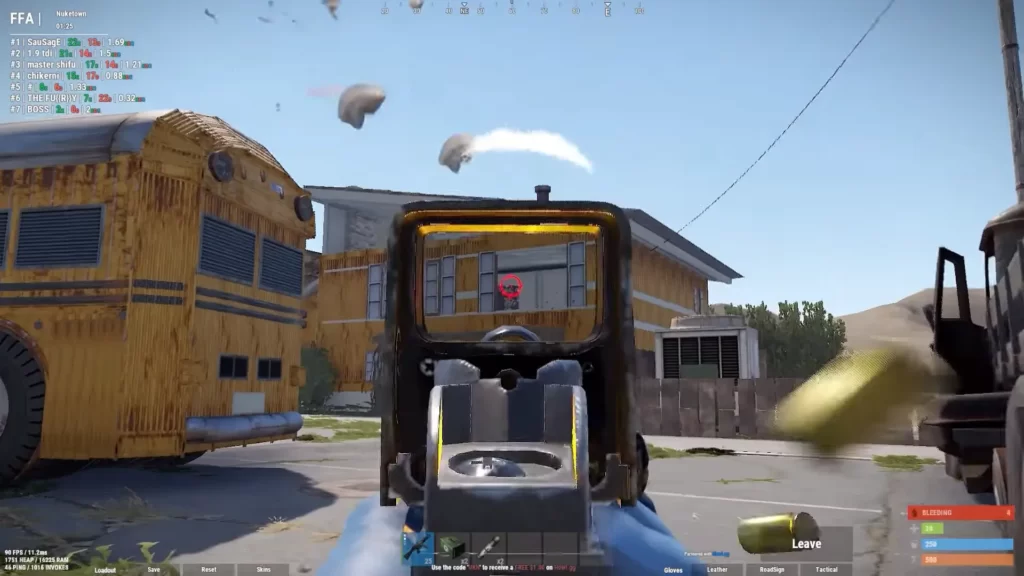
Setting up optimized keybinds can help with quick looting, weapon swapping, and movement:
| Setting | Recommended Value / Tip | Notes / Reason |
|---|---|---|
| Auto Run | Bind to a comfortable key | Maintains movement while looting or scouting. |
| Crouch Toggle | Set to Hold | Provides better movement control during combat. |
| Interact | Default | Ensure quick access for looting and opening doors. |
| Weapon Hotkeys | Assign weapons to keys 1–4 | Enables fast weapon swapping in fights. |
| Jump and Crouch on Mouse Side Buttons | Bind to mouse buttons | Allows quick dodging, jump shots, and faster reactions. |
Summary
Having the right settings in Rust can drastically improve your PvP performance. Optimizing graphics, audio, controls, and keybinds will give you an edge in combat, ensuring smoother gameplay and faster reaction times.
FAQs
1. What sensitivity is ideal for Rust PvP?
Most high-level PvP players use a low to medium mouse sensitivity to balance accuracy and quick aiming. A common range is 200–400 DPI with 20–50 in-game sensitivity, but personal comfort is key.
2. Should I use high or low graphics settings for PvP?
Lower graphics settings often help with higher FPS and smoother gameplay, making movement and spotting enemies easier. Shadows, anti-aliasing, and post-processing are typically reduced.
3. What is the best field of view (FOV) for PvP?
Many players use FOV 75–90. Higher FOV lets you see more of your surroundings, but can make targets appear smaller, so it’s a balance between awareness and aiming precision.
4. How should I configure my crosshair for PvP?
Use a small, clear crosshair that doesn’t obstruct vision. Many players prefer static or minimal dynamic crosshairs, often with bright colors that stand out against most environments.
5. Are there keybind tips for faster PvP reactions?
Yes. Map important actions like building, healing, and weapon switching to easily reachable keys. Many PvP players also use scroll wheel or extra mouse buttons for quick weapon swaps and utility use.