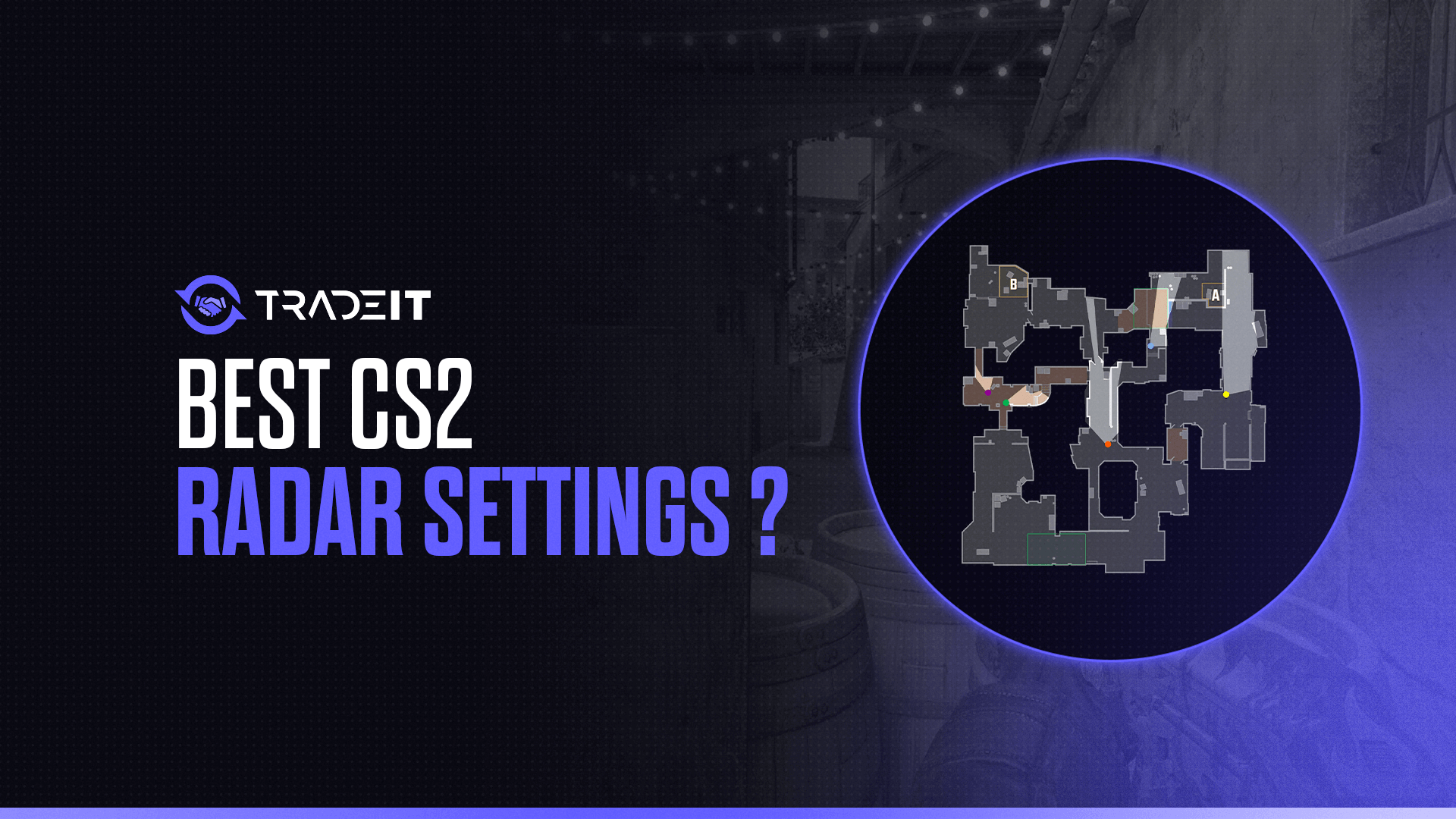
Getting the perfect radar setup in CS2 can make a significant difference in your gameplay. A well-optimized radar gives you crucial information without cluttering your screen.
Here’s how I dialed in my settings for the best performance and how you can do the same.
Table of Contents
Enabling the Developer Console
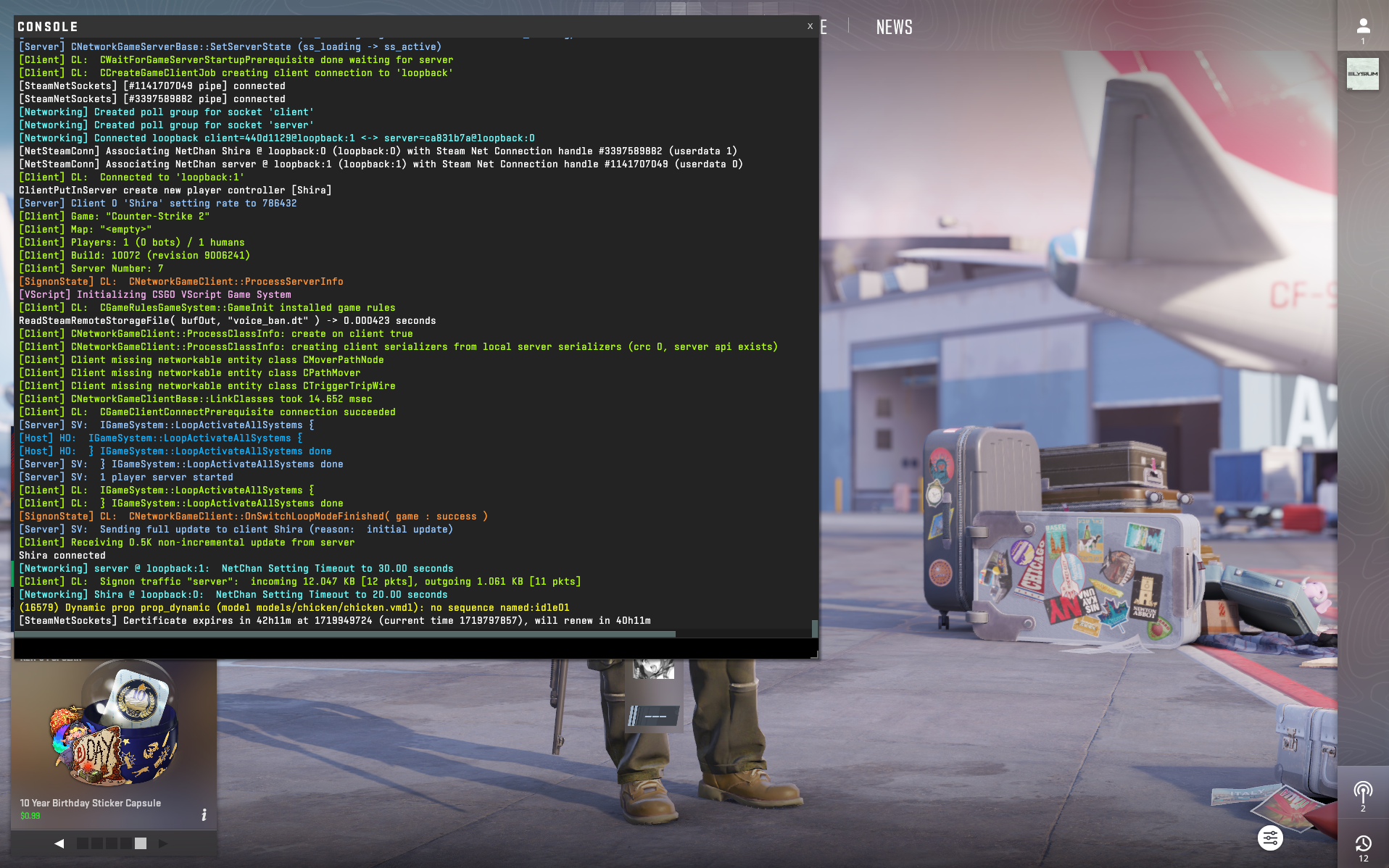
Before tweaking your radar settings, ensure the developer console is enabled. Here’s how:
From the main menu, click the gear icon to access settings.
Switch to the Game tab to find console-related options.
Set the option to “Yes” to activate the console.
Press the ~ key to bring up the console.
Essential Radar Commands
Here are the key console commands you’ll want to customize for the best radar experience:
Radar Scale
This command controls how zoomed in or out your radar is. Adjust it based on your preference for a broader or more detailed view.
cl_radar_scale
0.25 to 1
0.4 to 0.6
cl_radar_scale 0.5
Recommendation: A value around 0.5 provides a balanced view, giving enough detail without losing sight of the bigger picture.
HUD Radar Scale
This adjusts the size of the radar on your HUD.
cl_hud_radar_scale
0.8 to 1.3
1.1 to 1.3
cl_hud_radar_scale 1.15
Recommendation: Setting this around 1.2 enlarges the radar enough to see details without overwhelming your HUD.
Centered Radar
Decide whether your player icon is always centered on the radar.
cl_radar_always_centered
0 (not centered) or 1 (centered)
0
cl_radar_always_centered 0
Recommendation: Turning this off (0) allows you to see more of the map when you’re near the edges, providing better situational awareness.
Rotating Radar
Control whether the radar rotates with your character.
cl_radar_rotate
0 (static) or 1 (rotating)
1
cl_radar_rotate 1
Recommendation: Keeping it rotating (1) aligns the radar with your point of view, making it easier to navigate.
Icon Scale
Adjust the size of the icons on your radar for better visibility.
cl_radar_icon_scale_min
0.4 to 1
0.6 to 0.7
cl_radar_icon_scale_min 0.7
Recommendation: A value around 0.7 makes icons visible without being too intrusive.
Square Radar with Scoreboard
Toggle whether the radar changes shape when viewing the scoreboard.
cl_radar_square_with_scoreboard
0 (keep round) or 1 (switch to square)
0
cl_radar_square_with_scoreboard 0
Recommendation: Keeping the radar round (0) maintains consistency and avoids unnecessary changes when you check the scoreboard.
Applying the CS2 Radar Commands
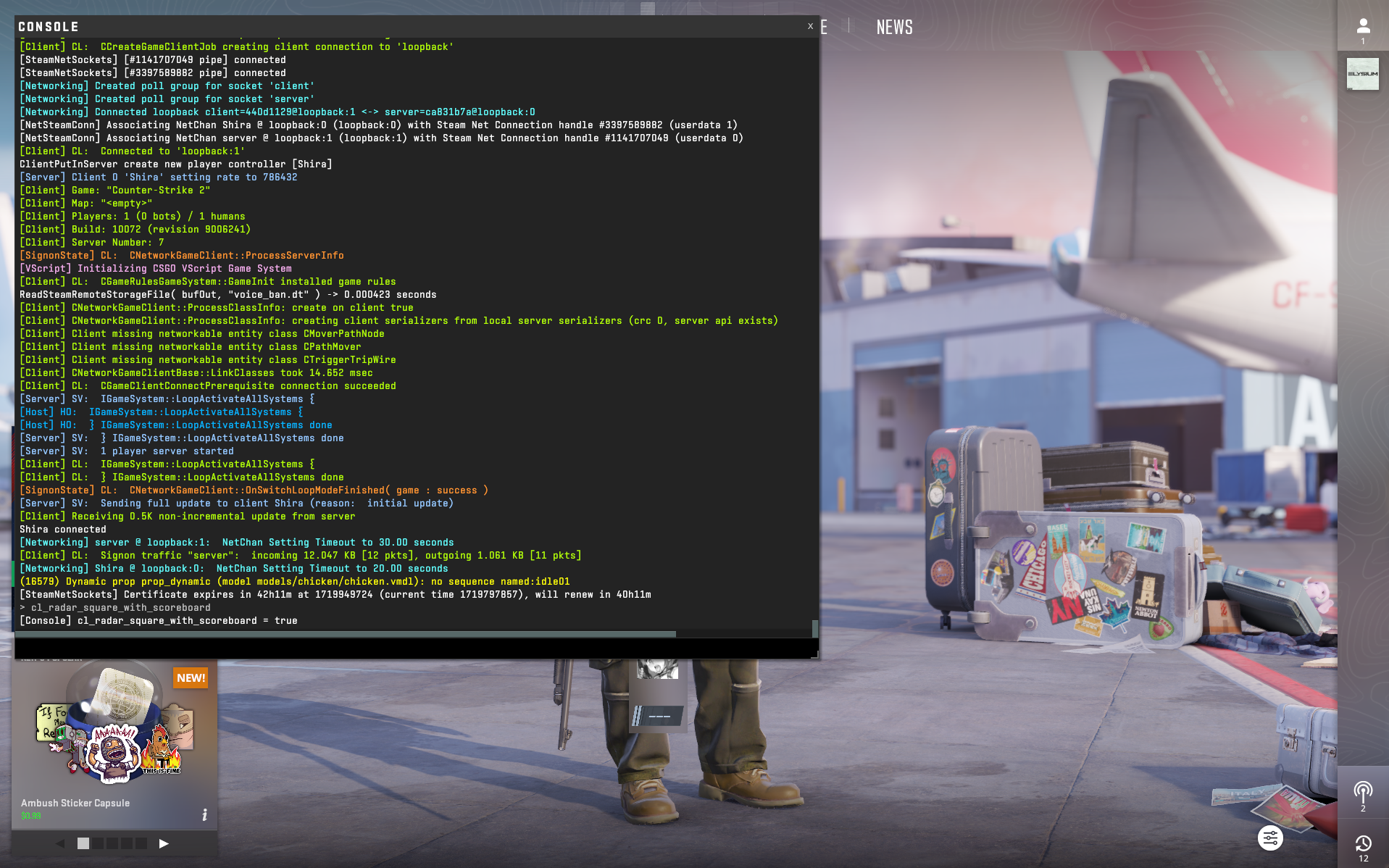
You can apply these commands either by typing them directly into the console or by adding them to your autoexec.cfg file for automatic execution every time you start the game.
Here’s how you can enter a command:
Press ~ to open the developer console in CS2.
Enter your desired command (e.g., cl_radar_scale 0.5) and press Enter.
Examples of Viable Configurations
For a minimal HUD with a clear overview:
cl_hud_radar_scale 1.3
cl_radar_scale 0.35
cl_radar_rotate 1
cl_radar_always_centered 0
cl_radar_icon_scale_min 0.7
cl_radar_square_with_scoreboard 0
For more detailed icons and better local information:
cl_hud_radar_scale 1.15
cl_radar_scale 0.3
cl_radar_rotate 1
cl_radar_always_centered 0
cl_radar_icon_scale_min 1
cl_radar_square_with_scoreboard 1
Conclusion
Customizing your radar settings can significantly improve your situational awareness in CS2. By tweaking the commands to fit your playstyle, you can get the most out of your radar and ensure you’re always one step ahead of the competition.
FAQs
1. What radar scale is best for CS2?
Most players prefer a smaller radar scale so more of the map is visible at once. A scale around 0.4–0.6 helps track teammates and enemy positions without constantly rotating the view.
2. Should I use a rotating or static radar in CS2?
A static radar is generally recommended for competitive play. It keeps the map orientation consistent, making callouts and positioning easier to understand, especially on unfamiliar maps.
3. Is “center the radar on the player” a good setting?
Yes. Centering the radar on your player provides better situational awareness, especially when moving across large maps, as it shows what’s happening around you at all times.
4. Do radar settings affect performance or FPS?
No. Radar settings are purely visual and do not impact FPS or game performance. You can adjust them freely without worrying about hardware strain.
5. Are radar settings different for casual and competitive CS2?
They can be. Casual players may prefer a larger radar or rotating view for comfort, while competitive players usually choose smaller, static radar settings for clearer information and faster decision-making.