Looking to get more out of your CS2 practice sessions? The right commands can save time, remove distractions, and help you focus on improving the skills that matter most.
In this guide, you’ll find some of the best CS2 practice commands for setting up custom training sessions, fine-tuning movement, testing utility, and sharpening your overall gameplay.
Whether you’re working on aim, grenades, or map knowledge, these commands can make your practice much more effective.
Most Useful CS2 Practice Commands
Here are most of the key CS2 practice commands to use for an improved practice session:
| COMMAND | WHAT IT DOES |
| mp_startmoney 60000 | Gives you $60000 at the start of the game. |
| mp_maxmoney 60000 | Raises the maximum amount of money that you can have. |
| mp_buytime 1 | Both teams can buy anywhere. |
| sv_showimpacts 1 | Shows useful information related to bullet impact. |
| sv_showimpacts_time 1 | Sets the amount of display time for the information related to bullet impact. |
| sv_infinite_ammo 1 | Gives you infinite ammo. |
| ammo_grenade_limit_total 5 | Sets the maximum total amount of grenades you can carry at any given time |
| sv_cheats 1 | Sets whether or not cheat commands are allowed on the server. |
| bot_add [T/CT][easy/normal/hard/expert] | Adds a bot on a given team and with a given level of expertise. |
| bot_kick [name] | Kicks a bot. |
| mp_warmup_end | Ends the warmup. |
| mp_roundtime_defuse 60 | Set the round time to 60 minutes. |
| mp_respawn_on_death_ct 1 | Offers instant respawn to the CT side. |
| mp_respawn_on_death_t 1 | Offers instant respawn to the T side. |
| sv_grenade_trajectory_time_spectator 15 | Sets the amount of time, in seconds, that grenade trajectories are drawn on the screen for spectators |
| mp_roundtime 60 | Sets the round time to 60 minutes. |
| mp_freezetime 0 | Permits instant movement at the start of the round. |
| god | Enter god mode and become immortal. |
| sv_gravity | Changes the gravity. |
| noclip | Allows you to fly. |
CS2 Practice Commands copy+paste
If you just want to get started, simply copy+paste these commands and you’re good to go:
mp_warmup_end
mp_maxmoney 60000
mp_startmoney 60000
mp_limitteams 0
mp_autoteambalance 0
mp_buy_anywhere 1
mp_buytime 9999
mp_freezetime 0
mp_roundtime 60
mp_roundtime_defuse 60
mp_respawn_on_death_ct 1
mp_respawn_on_death_t 1
sv_cheats 1
sv_infinite_ammo 1
sv_showimpacts 1
sv_showimpacts_time 10
sv_grenade_trajectory_prac_pipreview 1
sv_grenade_trajectory_time_spectator 15
ammo_grenade_limit_total 5
bot_kick
mp_restartgame 1
echo “Practice Settings Loaded!”
Activating the Developer Console in CS2
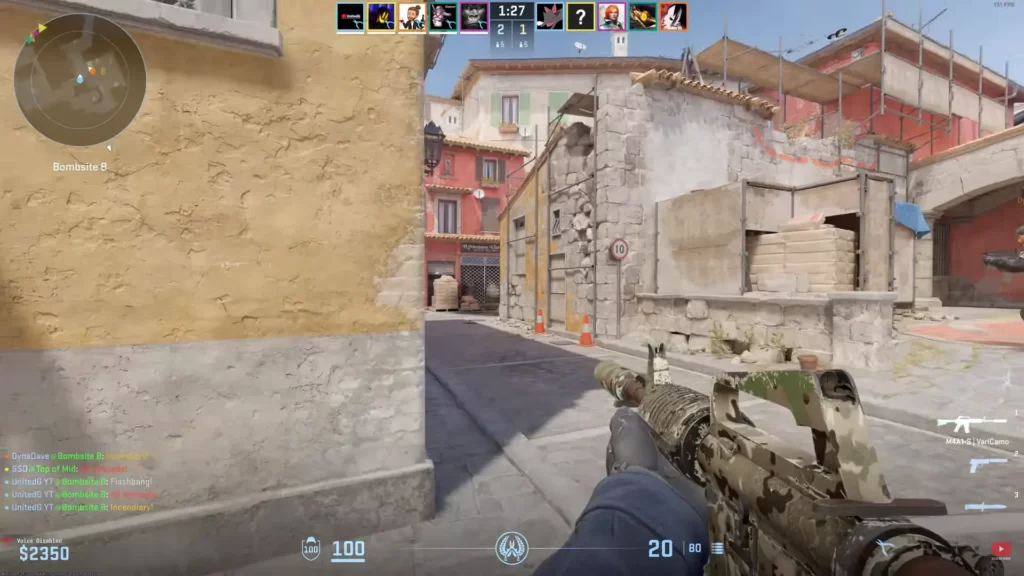
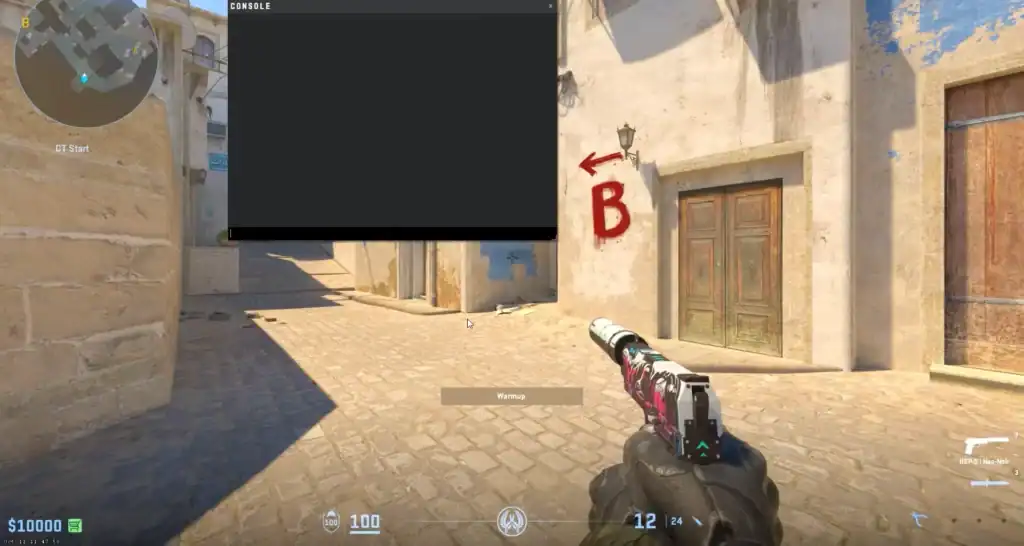
The developer console in CS2 serves as a hub for tweaking your gaming experience. It allows players to input and execute a variety of commands. To enable it, follow these steps:
Launch Counter-Strike 2 from Steam to begin setting up commands.
Navigate to the Game section in Settings to access the console options.
Ensure the “Enable Developer Console (~)” option is set to Yes.
Press ~ (tilde) and input your desired console commands for practice or configuration.
For more advanced players looking to automate the execution of certain commands each time the game is launched, you can:
Open the game files folder and create a new text file to start your autoexec configuration.
Rename the newly created text document to autoexec.cfg so CS2 recognizes it automatically.
Inside autoexec.cfg, write all the console commands you want executed automatically every time CS2 launches.
Setting Up Your Ultimate CS2 Practice Server
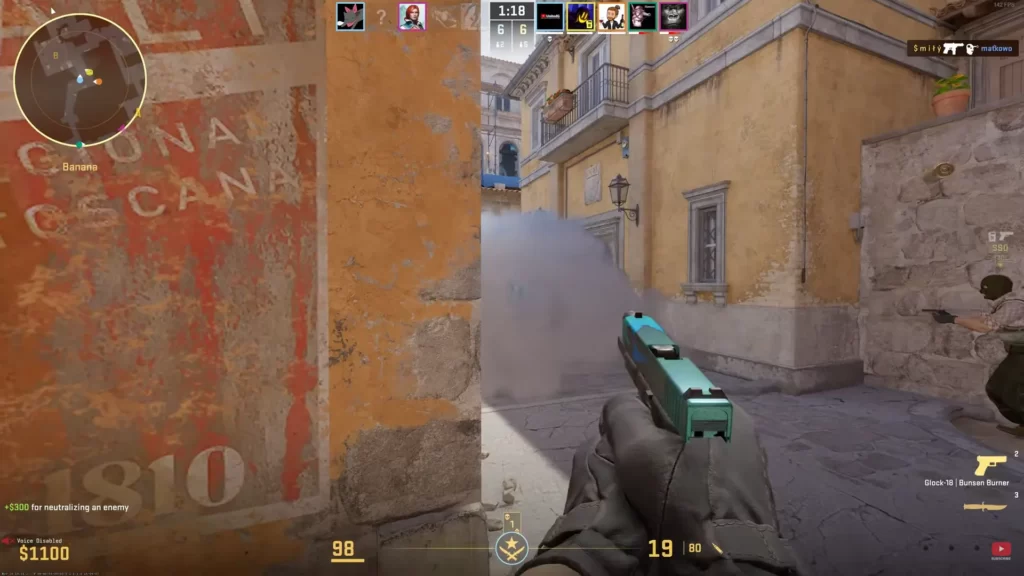
Creating a personal practice server in CS2 significantly enhances your gaming experience. With your server, you can customize the training environment to your needs, focus on specific skills, and elevate your gameplay performance.
Instant Respawn Commands
Being able to instantly respawn in your practice server keeps you in the action and maximizes your training time. To achieve this, use these commands:
mp_respawn_on_death_ct 1 mp_respawn_on_death_t 1 With these commands, both the CT-side and T-side players will respawn instantly.
Round Time Management
Gaining control over round times aids in crafting an optimal practice environment. Commands like mp_roundtime 60 and mp_roundtime_defuse 60 can extend the rounds and the bomb defuse time to a maximum of 60 minutes.
This is especially useful for practicing specific scenarios or techniques without the pressure of a ticking clock.
Utilizing the mp_freezetime 0 command permits instant movement at the round’s inception. If you prefer to bypass the warmup period, mp_warmup_end will catapult you directly into the fray.
Creating Your CS2 Practice Config
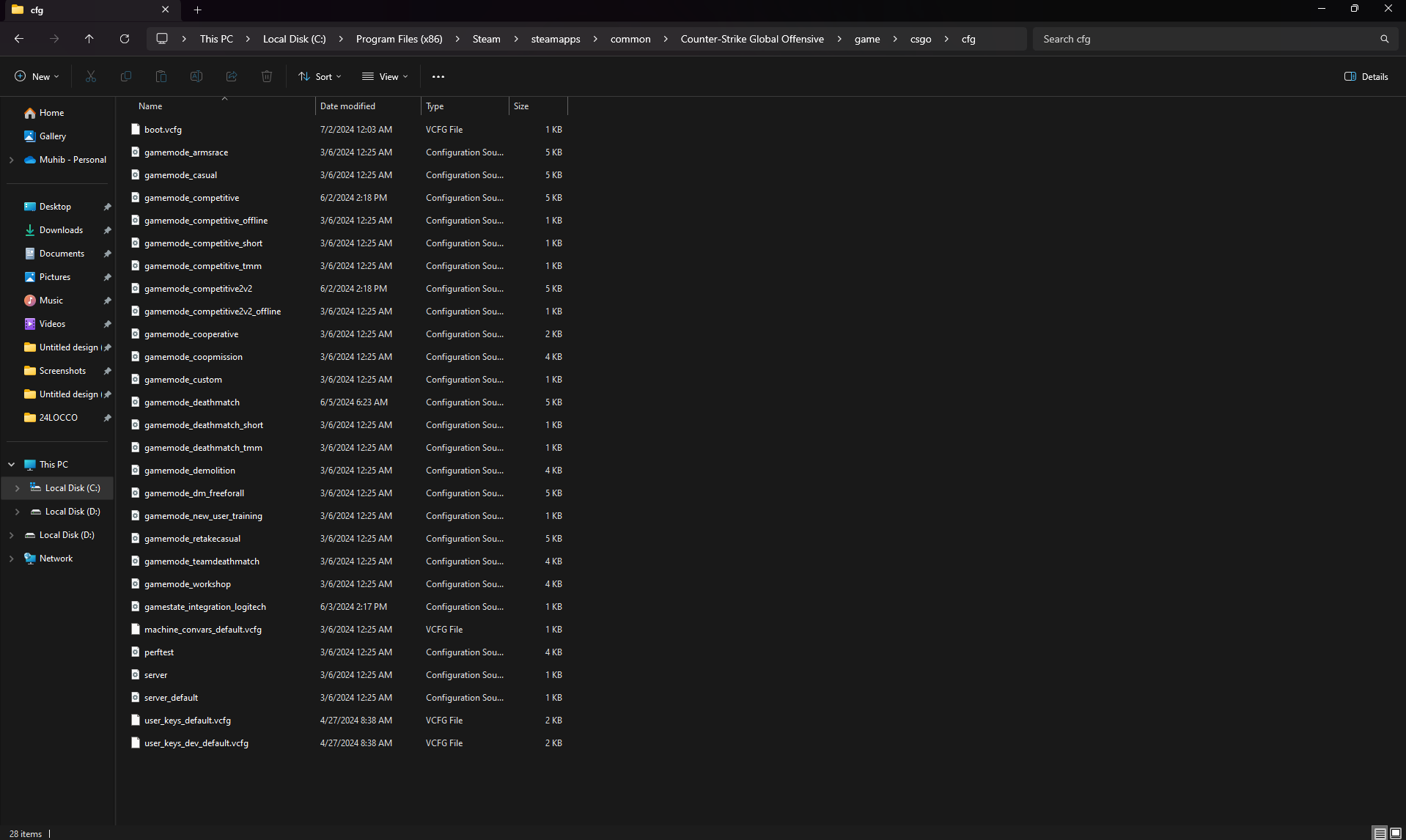
To streamline your practice sessions, creating a custom config file is essential. This file contains commands that automatically set up your practice environment every time you launch the game.
Here’s how to do it:
Steps to Create a Config File
Go to: C:\Program Files (x86)\Steam\steamapps\common\Counter-Strike Global Offensive\game\csgo\cfg
Make a copy of the existing autoexec.cfg file.
Rename the copied file to practice.cfg and remove all current content.
// CS2 Practice Config mp_warmup_end mp_maxmoney 60000 mp_startmoney 60000 mp_limitteams 0 mp_autoteambalance 0 mp_buy_anywhere 1 mp_buytime 9999 mp_freezetime 0 mp_roundtime 60 mp_roundtime_defuse 60 mp_respawn_on_death_ct 1 mp_respawn_on_death_t 1 sv_cheats 1 sv_infinite_ammo 1 sv_showimpacts 1 sv_showimpacts_time 10 sv_grenade_trajectory_prac_pipreview 1 ammo_grenade_limit_total 5 bot_kick mp_restartgame 1 echo "Practice Settings Loaded!"
Save your new practice.cfg in the same folder.
Quick Commands for Immediate Use
If you prefer not to create a config file, you can enter these commands directly into the console:
mp_warmup_end; mp_maxmoney 60000; mp_startmoney 60000; mp_limitteams 0; mp_autoteambalance 0; mp_buy_anywhere 1; mp_buytime 9999; mp_freezetime 0; mp_roundtime 60; mp_roundtime_defuse 60; mp_respawn_on_death_ct 1; mp_respawn_on_death_t 1; sv_cheats 1; sv_infinite_ammo 1; sv_showimpacts 1; sv_showimpacts_time 10; sv_grenade_trajectory_prac_pipreview 1; ammo_grenade_limit_total 5; bot_kick; mp_restartgame 1; echo "Practice Settings Loaded!";
Useful Binds
Here are some handy binds to enhance your practice experience. Open the console and paste these commands:
bind "MOUSE5" "noclip" - Allows you to fly around the map
bind "MOUSE4" "sv_rethrow_last_grenade" - Re-throws the most recent grenade
CS2 Bot Commands
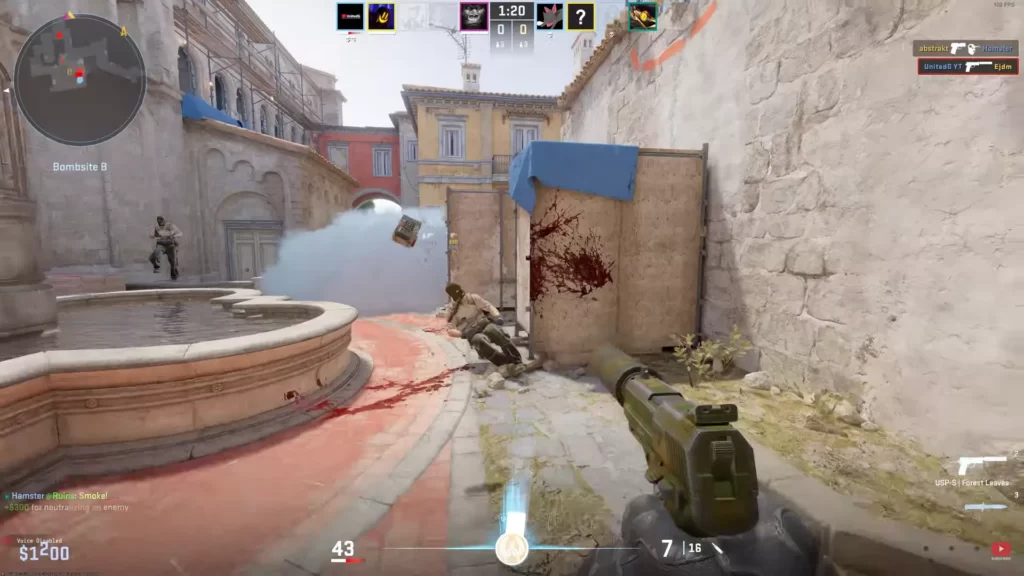
If you want to use bots in your practice sessions, these are the most important CS2 bot commands:
| CS2 Bot Command | What It Does |
|---|---|
bot_add_ct | Adds a bot to the Counter-Terrorist team. |
bot_add_t | Adds a bot to the Terrorist team. |
bot_add | Adds a bot to either team automatically. |
bot_kick | Removes all bots from the server. |
bot_kick [name] | Removes a specific bot by name. |
bot_stop 1 | Freezes all bots in place for aim and flick practice. |
bot_stop 0 | Allows bots to move normally again. |
bot_place | Spawns a bot exactly where your crosshair is pointing. |
bot_difficulty 0 | Sets bots to Easy difficulty. |
bot_difficulty 1 | Sets bots to Normal difficulty. |
bot_difficulty 2 | Sets bots to Hard difficulty. |
bot_difficulty 3 | Sets bots to Expert difficulty. |
bot_mimic 1 | Makes bots copy your movement and actions. |
bot_mimic 0 | Disables mimic mode. |
bot_crouch 1 | Forces bots to crouch continuously. |
bot_crouch 0 | Returns bots to normal standing behavior. |
bot_zombie 1 | Prevents bots from attacking players. |
bot_zombie 0 | Allows bots to attack normally again. |
bot_quota [number] | Sets the total number of bots on the server. |
bot_quota_mode fill | Automatically fills empty player slots with bots. |
bot_quota_mode normal | Uses standard bot population rules. |
bot_dont_shoot 1 | Prevents bots from firing their weapons. |
bot_dont_shoot 0 | Allows bots to shoot normally. |
bot_chatter off | Disables bot radio messages and voice chatter. |
bot_chatter minimal | Reduces bot communications. |
bot_chatter normal | Restores normal bot communications. |
bot_knives_only | Forces bots to use only knives. |
bot_pistols_only | Forces bots to use only pistols. |
bot_snipers_only | Forces bots to use only sniper rifles. |
bot_all_weapons | Removes weapon restrictions from bots. |
CS2 Smoke Practice Commands
If your CS2 practice sessions make heavy use of grenades, these are the most important commands that you can use.
| CS2 Grenade Command | What It Does |
|---|---|
sv_cheats 1 | Enables cheat commands required for grenade practice. |
sv_infinite_ammo 1 | Gives unlimited grenades and ammunition. |
ammo_grenade_limit_total 5 | Allows you to carry up to five grenades at once. |
sv_grenade_trajectory 1 | Displays the grenade’s flight path as a visible line. |
sv_grenade_trajectory_time 10 | Keeps the trajectory visible for 10 seconds after the throw. |
sv_grenade_trajectory_prac_pipreview 1 | Shows a live preview window of where utility will land before it detonates. |
sv_rethrow_last_grenade | Instantly repeats your last grenade throw. |
noclip | Lets you fly around the map to inspect lineups and landing spots. |
mp_roundtime 60 | Extends round duration for uninterrupted practice. |
mp_roundtime_defuse 60 | Extends Defuse mode rounds to 60 minutes. |
mp_freezetime 0 | Removes freeze time at the start of rounds. |
mp_buy_anywhere 1 | Allows you to buy grenades anywhere on the map. |
mp_buytime 9999 | Extends buy time so you can purchase utility at any time. |
mp_restartgame 1 | Quickly restarts the server after changing settings. |
mp_warmup_end | Skips the warmup period and starts the match immediately. |
god | Makes you invulnerable while testing utility damage and lineups. |
cl_sim_grenade_trajectory 1 | Displays a predicted trajectory line before throwing a grenade (where supported). |
Copy+Paste CS2 Grenade Practice Commands
These CS2 grenade commands will be of great use during your practice sessions:
sv_cheats 1
sv_infinite_ammo 1
ammo_grenade_limit_total 5
sv_grenade_trajectory 1
sv_grenade_trajectory_time 10
sv_grenade_trajectory_prac_pipreview 1
mp_buy_anywhere 1
mp_buytime 9999
noclip
Infinite Grenades Command
If you need infinite grenades during your CS2 practice sessions, simply use this command:
sv_infinite_ammo 1Infinite Money Command
If you need infinite money during your CS2 practice sessions, simply use these commands:
mp_startmoney 60000mp_maxmoney 60000Essential CS2 Practice Commands for Skill Improvement
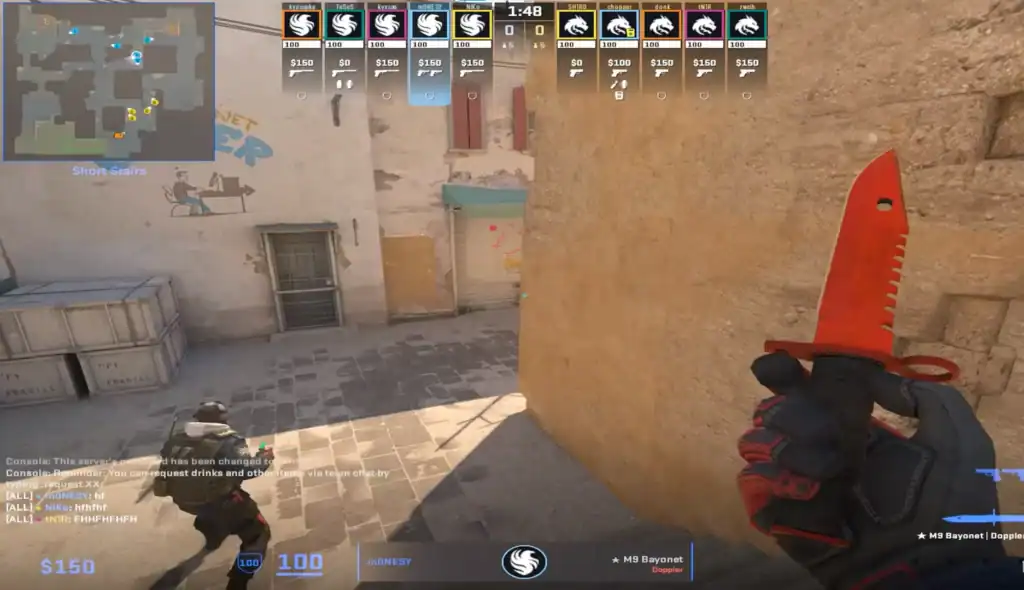
CS2 boasts an array of CS2 console commands that assist in honing specific skills such as aim training and movement mastery. Examine some of these commands and their role in sharpening your skills.
Aim Training Commands
In CS2, enhancing your aim is of paramount importance. Commands like bot_add_ct, bot_add_t, and bot_stop 1 can help you practice and improve your aiming skills by allowing you to control bots.
By practicing against bots, you can focus on improving your aim without the pressure of a live match.
Another important command here is sv_infinite_ammo 1, which provides infinite ammunition.
Movement Mastery
Achieving proficiency in movement in CS2 can provide a competitive advantage in matches. Here are some tips to enhance your jumping skills, a critical aspect of advanced movement techniques in the game:
Use bind mwheeldown +jump to assign jumping to your mouse wheel. This makes jump timing more consistent and is commonly used for movement training.
Work on chaining jumps together while maintaining momentum. Consistent bunny hopping can improve movement speed and map traversal.
Combine jumps with smooth left and right strafes to build speed, improve air control, and reach positions that are difficult with standard movement.
Press crouch at the peak of your jump to clear higher obstacles, access elevated spots, and improve your overall movement versatility.
Additionally, enabling cheats on the server by using the command sv_cheats 1 can provide a valuable opportunity to practice and refine specific movements and techniques that are normally limited.
CS2 FPS and HUD Commands for Practice
If you want to tweak your HUD or see FPS data during practice, these are the best commands to use:
| Command | Recommended Value | Benefit |
|---|---|---|
cl_showfps 1 | Enabled | Monitor FPS during training sessions. |
cq_netgraph 1 | Enabled | Check ping and network stability. |
cl_radar_always_centered 0 | Disabled | See more of the map on the radar. |
cl_radar_scale 0.35 | Medium | Better overview of teammate positions. |
cl_hud_radar_scale 1.15 | Slightly Larger | Improves radar readability. |
fps_max 400 | High | Reduces FPS bottlenecks on modern systems. |
Advanced Launch Options for Enhanced Practice
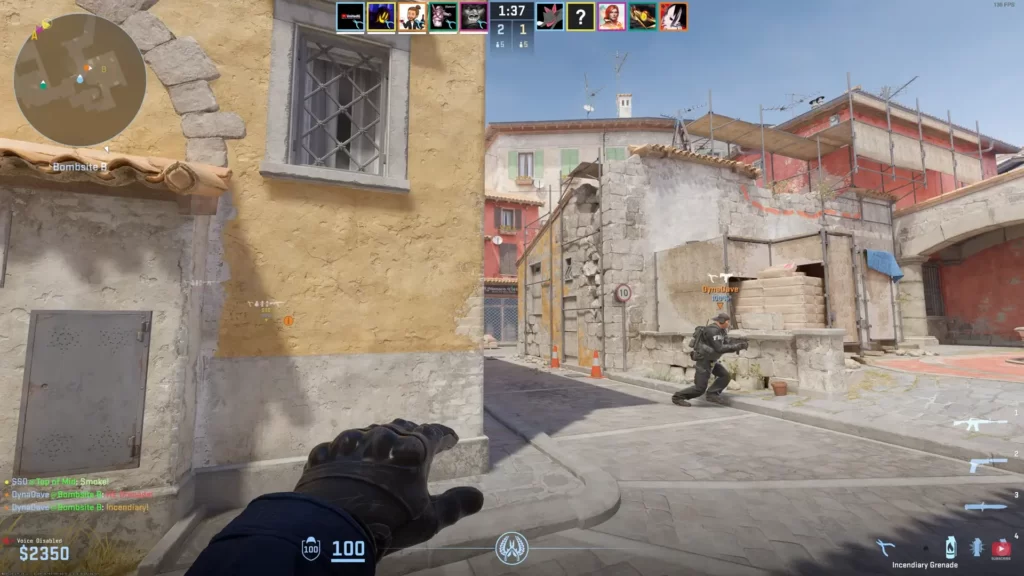
| Launch Option | Purpose |
|---|---|
-console | Opens the developer console automatically when CS2 launches. |
+exec practice.cfg | Automatically loads your custom practice configuration file. |
-novid | Skips the Valve startup video and loads the game faster. |
+fps_max 400 | Sets the maximum FPS to 400 on startup. |
+cl_showfps 1 | Displays the FPS counter automatically. |
+cq_netgraph 1 | Shows network statistics such as ping and packet loss. |
-high | Gives CS2 higher CPU priority in Windows. |
+volume 0.3 | Sets the game volume when launching. |
+cl_radar_always_centered 0 | Shows more of the map on the radar instead of centering it on the player. |
+cl_hud_radar_scale 1.15 | Increases radar size for better visibility. |
Fine-tuning your game’s launch options can substantially boost your practice sessions. The -high launch command prioritizes Counter-Strike 2 in terms of CPU usage, preventing other applications or background processes from consuming excessive power.
To make this adjustment, simply access your Steam library and modify the game’s properties.
You should create your own practice.cfg file and include all desired CS2 commands there.
Are CS2 Practice Commands Worth Using?
Mastering CS2 console commands is an effective way to enhance your gameplay and set up a perfect practice server. This guide taught you some of the most useful CS2 practice commands. Explore them and take your gaming experience to the next level!
FAQs
What are the most essential CS2 practice commands for aim training?
The most useful commands for aim practice are:
sv_cheats 1
bot_kick
sv_infinite_ammo 1
weapon_accuracy_nospread 1
mp_freezetime 0
mp_roundtime_defuse 60
These commands create a distraction-free environment where you can focus on flicks, tracking, spray control, and crosshair placement. Infinite ammo eliminates reload interruptions, while no-spread settings help isolate your raw aim and recoil control.
How do I practice recoil patterns in CS2?
To train recoil control effectively, use:
sv_cheats 1
sv_infinite_ammo 1
weapon_accuracy_nospread 0
Keep weapon spread enabled and practice spraying at a wall to learn each weapon’s bullet pattern. Focus on pulling your mouse in the opposite direction of the spray pattern until you can consistently keep shots grouped together. Once comfortable, transition to moving targets or bots to simulate real matches.
How do I spawn bots for peeking or flick practice?
Use the following commands:
bot_kick
bot_add_ct
bot_add_t
bot_stop 1
You can place stationary bots around the map and practice peeking, pre-aiming common angles, or flicking between targets. For more advanced drills, disable bot stopping (bot_stop 0) to practice against moving opponents and improve target tracking.
What commands help with grenade practice?
The most important grenade-training commands are:
sv_cheats 1
sv_infinite_ammo 1
sv_grenade_trajectory_prac_pipreview 1
sv_grenade_trajectory_time 10
noclip
These commands allow you to see grenade trajectories, fly around the map, and repeatedly test lineups without running out of utility. They are ideal for learning smoke, flashbang, molotov, and HE grenade setups on any map.
What’s the best way to reset positions quickly?
For fast repetitions during practice, use:
mp_restartgame 1
mp_round_restart_delay 0
These commands rapidly reset rounds and help grind setups fast.