After spending many hours fine-tuning my CS2 performance, I’ve discovered that choosing the right Counter-Strike 2 launch options is the single most effective way to transform your gaming experience.
These powerful startup commands can dramatically boost your FPS, reduce input lag, enhance visibility, and give you a significant competitive edge, without requiring any hardware upgrades.
Table of Contents
How to Set Launch Options for CS2
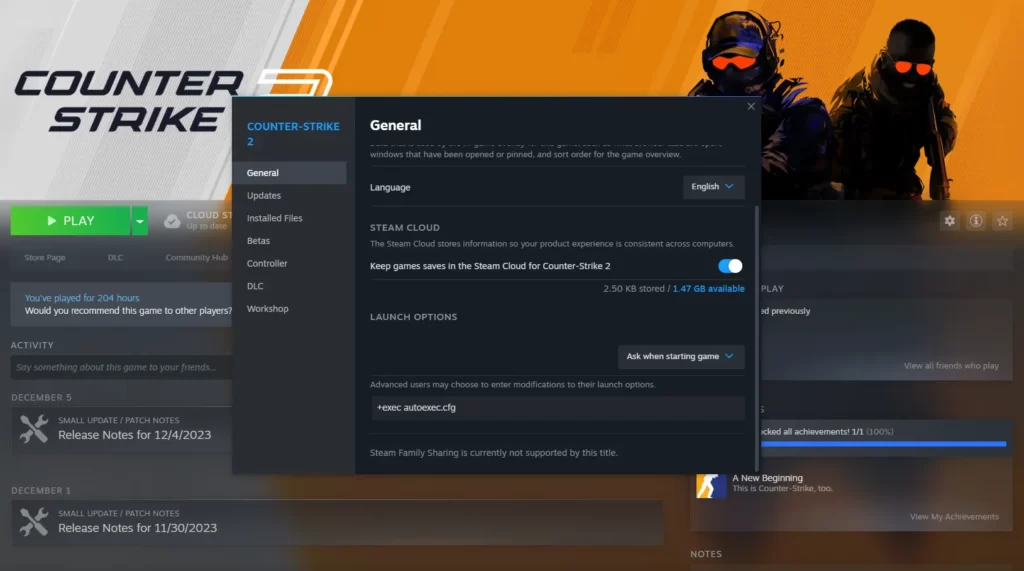
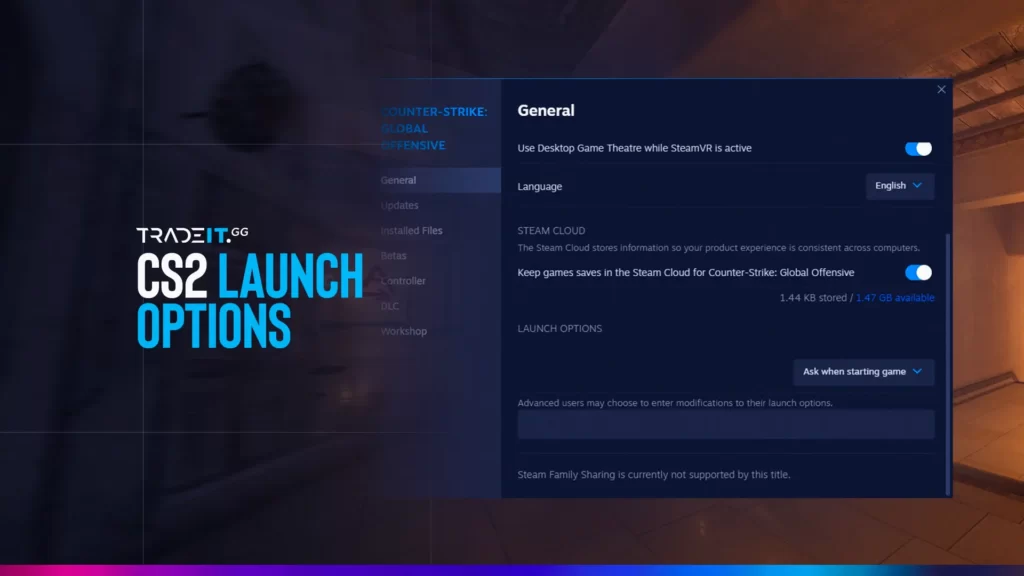
Launch options are special commands that tell CS2 how to start up. Think of them as giving your game specific instructions before it even launches. Here’s how to start:
Launch your Steam client and navigate to your game library where all your installed games are displayed.
Right-click on Counter-Strike 2 in your game list and select “Properties” from the dropdown menu.
In the Properties window, look for the “General” tab where the launch options field is visible.
Type your launch options, separating commands with spaces (e.g. -novid -console -tickrate 128 -high).
Close the Properties window to save your settings. The next time you start CS2, these options will apply automatically.
Many competitive players combine launch options with a custom autoexec configuration file to create a fully optimized setup.
I’ve found that this combination provides the most consistent performance across different maps and gameplay situations. If you haven’t created an autoexec file yet, check out my detailed CS2 autoexec guide to take your optimization to the next level.
CS2 Launch Options for FPS, Faster Loading, and More
After years of tweaking and testing various Counter-Strike 2 performance optimizations, I’ve compiled what I consider the most effective launch options for boosting FPS, reducing startup time, and enhancing overall gameplay.
Even players with high-end systems can benefit from these optimizations. I saw a 15% FPS improvement on my RTX 3080 system after implementing these settings.
Here are the essential CS2 launch options I recommend for enhancing performance while maintaining visual quality. Feel free to customize these based on your hardware specifications and preferences:
| Launch Option | Function | Performance Impact |
|---|---|---|
| -novid | Skips the intro videos when launching CS2, getting you to the menu faster | Loading Time: High Improvement |
| -tickrate 128 | Sets local server tickrate to 128 (matching competitive servers) | Responsiveness: Medium Improvement |
| -console | Enables the developer console for quick command access | Utility: High Improvement |
| -nojoy | Disables joystick support, freeing up memory resources | Memory Usage: Low Improvement |
| +fps_max 0 | Removes FPS cap, allowing maximum frame rate (or set specific limit) | Frame Rate: High Improvement |
| -high | Sets CS2 process to high priority, allocating more CPU resources | CPU Utilization: Medium Improvement |
| -fullscreen | Forces game to run in fullscreen mode for better performance | Frame Rate: Medium Improvement |
| +cl_forcepreload 1 | Preloads all models/maps, reducing in-game stuttering | Stuttering: High Improvement |
When comparing Counter-Strike 2 performance with and without these optimizations, the difference can be substantial, especially on mid-range hardware.
I experienced fewer FPS drops during smoke grenades and multiplayer engagements, which can be crucial in competitive matches where every millisecond counts.
-novid
Skips the Valve intro video when launching CS2, reducing startup time by several seconds. This is probably the most universally used launch option among players.
+fps_max 0
Removes the frame rate cap, allowing your system to render as many frames as possible. For competitive play, this maximizes responsiveness. For consistent frame timing, set to your monitor’s refresh rate.
-nojoy
Disables joystick/controller support, freeing up system resources. Unless you’re playing with a controller (which few CS2 players do), this option provides a small but worthwhile performance boost.
+cl_forcepreload 1
Forces preloading of all models and map data at launch instead of during gameplay. This increases initial load time but significantly reduces stuttering during matches, especially when encountering new areas or players.
Commonly Used Launch Options and Their Effects
Advanced CS2 Launch Options Used by Pro Players
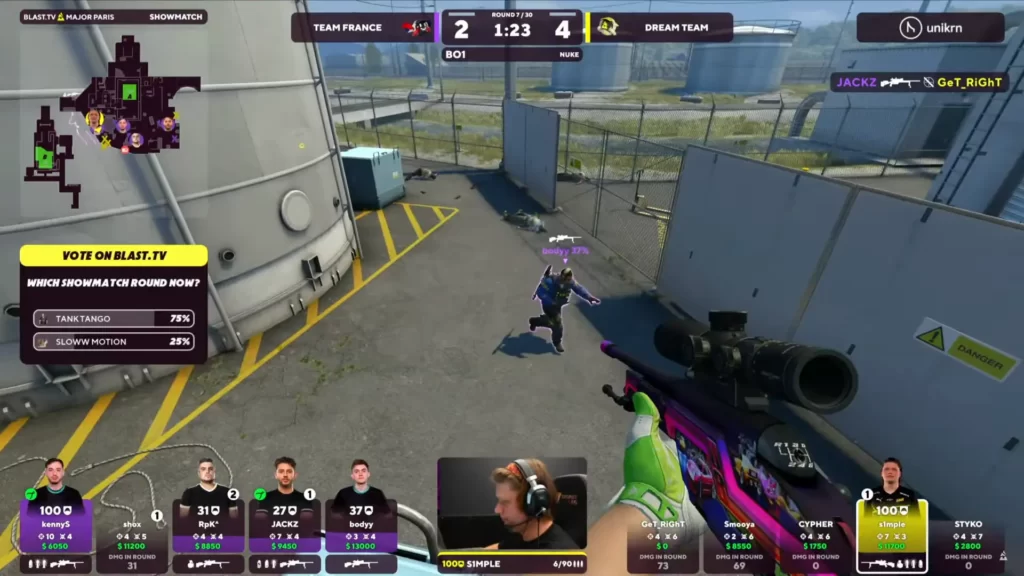
Professional CS2 players have developed highly specialized launch option configurations that give them every possible competitive advantage.
Many top players combine advanced launch options with CS2 FPS boost techniques to ensure they’re getting maximum performance during tournaments.
Pro players carefully manage memory usage to prevent performance degradation during long gaming sessions. Options like -limitvsconst and -softparticlesdefaultoff help maintain consistent frame rates in extended matches.
Minimizing input lag is crucial for professional players where milliseconds can determine the outcome of a round. Combining -high launch option with NVIDIA Reflex technology creates the most responsive gameplay experience possible.
Professional players optimize their network settings through launch options like +rate 786432 and +cl_interp_ratio 1 to ensure the best possible connection to game servers. This translates to more accurate hit registration.
Here are some of the more advanced launch options that professional players commonly use to gain a competitive edge:
| Pro Launch Option | Function | Used By |
|---|---|---|
| -d3d9ex | Enables DirectX 9Ex mode, reducing CPU usage and improving Alt+Tab speed | s1mple, NiKo, electronic |
| -softparticlesdefaultoff | Disables soft particles for slight performance improvement | ZywOo, device, Magisk |
| -limitvsconst | Limits vertex shaders to improve performance on some systems | Ropz, boombl4, Stewie2K |
| +r_dynamic 0 | Disables dynamic lighting for FPS stability during action | NAF, EliGE, Twistzz |
| +mat_queue_mode 2 | Forces multi-threaded mode for rendering | blameF, YEKINDAR, sh1ro |
| -threads [#] | Specifies number of CPU threads (match to your CPU) | m0NESY, KRIMZ, rain |
NVIDIA Reflex Low Latency Mode
If you’re playing Counter-Strike 2 on an NVIDIA GPU, Reflex Low Latency is one of the most impactful settings you can enable.
NVIDIA Reflex is designed to reduce system latency, which is the delay between your input (mouse/keyboard) and the action appearing on screen. It works by:
Synchronizes CPU and GPU workloads to reduce processing delays.
Prevents the GPU render queue from building up, lowering latency.
Delivers frames exactly when needed for smoother and faster response.
The result is a more responsive feel, especially in fast-paced games like CS2. This FPS is highly dependent on reaction time and precision. Even small delays can affect:
Improves precision when aiming quickly and tracking moving targets.
Makes peeking and counter-strafing feel more responsive and consistent.
Reduces delay between shots and server response for better hit timing.
Lower system latency means your actions are reflected on screen faster, which can give you a real competitive edge. For more NVIDIA-specific optimizations, check out my guide on the best NVIDIA settings for CS2.
In-Game Settings Tweaks
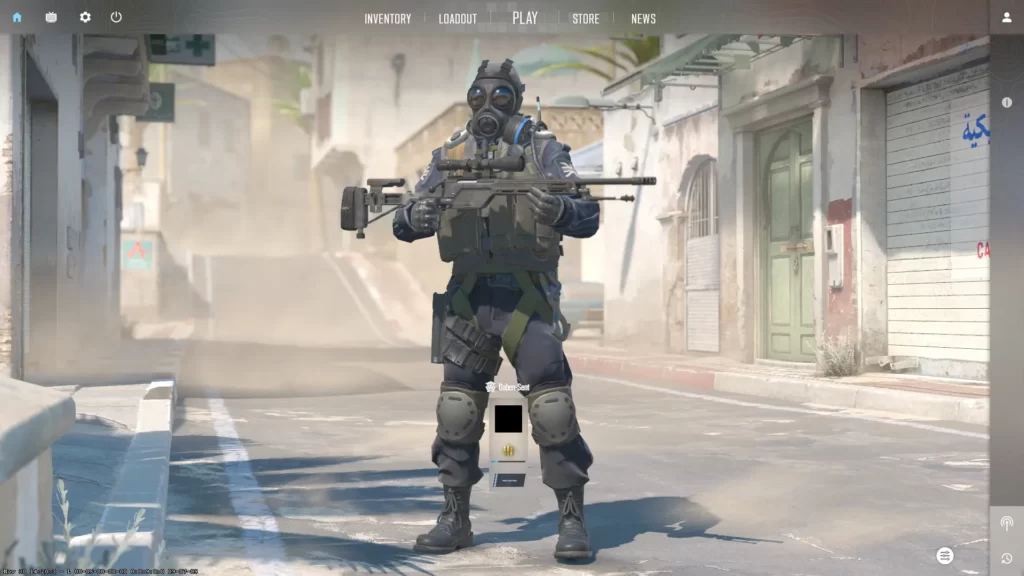
While launch options provide an excellent foundation for optimization, combining them with fine-tuned in-game settings creates the complete performance package. The most significant in-game settings that impact performance include:
Multicore Rendering
Always set to “Enabled” to allow CS2 to utilize multiple CPU cores. This setting dramatically improves performance on modern processors and works in conjunction with the thread-based launch options.
Shader Detail
Setting this to “Low” or “Medium” significantly reduces GPU load without substantially impacting visual clarity. This is especially beneficial during smoke grenades and molotovs, which are GPU-intensive effects.
Boost Player Contrast
Enable this option to make enemy players stand out more clearly against backgrounds. This isn’t just a visual preference—it can significantly improve your ability to spot enemies quickly in complex environments.
Global Shadow Quality
One of the most GPU-intensive settings. Reducing this to “Medium” provides a substantial FPS boost with minimal visual impact. Some competitive players use “Low” for maximum performance, though this can make shadow-based enemy detection harder.
Fine-tuning your CS2 mouse settings is equally important for competitive play. The perfect sensitivity combined with optimized launch options creates the foundation for consistent aim and reliable performance.
CS2 Audio Optimization
Don’t overlook audio settings when optimizing CS2. Using the right audio configuration can provide a significant competitive advantage through better positional awareness.
I recommend setting “Audio Output Configuration” to “Headphones” and enabling “Advanced 3D Audio Processing” in the audio settings. These options provide the most accurate spatial sound, allowing you to precisely locate enemy positions based on footsteps and other audio cues.
Additionally, consider adjusting individual volume levels: keep master volume around 40-60%, but raise the VOIP threshold to avoid missing callouts during intense firefights.
Optimizing Your CS2 Experience
To achieve the optimal CS2 experience, I recommend implementing this three-tier approach:
-novid -console -nojoy -tickrate 128 +fps_max 0 to establish your performance foundation.+cl_forcepreload 1 -high -d3d9ex +r_dynamic 0 based on your specific hardware capabilities.FAQs
How do I increase my FPS in CS2?
Lower video settings, close background apps, update drivers, and use launch options like -high +fps_max 0. Also, disable V-Sync and use the High Performance power plan.
How do I open launch options in CS2?
Right-click CS2 in Steam > Properties > General > Launch Options. Add your launch commands there, separated by spaces.
How do I set a custom resolution in CS2?
Use -w and -h launch options (e.g. -w 1280 -h 960), or change resolution from CS2 video settings for better compatibility.
What are the best launch options for low-end PCs?
Try: -novid -nojoy -limitvsconst -high +fps_max 0 +r_dynamic 0 +cl_forcepreload 1Also, Lower all in-game settings and use 4:3 resolution.
Do CS2 launch options affect all accounts on my computer?
No. Launch options are stored per Steam account. Each user must set them manually if using the same PC.
Can launch options cause VAC bans?
No. Launch options are allowed by Valve. They don’t affect game memory or trigger anti-cheat. Avoid using third-party mods, though.