
D0cC is a well-known Counter-Strike 2 player and streamer from the Netherlands, recognized for his sharp aim, clean mechanics, and consistent performance.
His settings are frequently studied by competitive CS2 players who want a setup that emphasizes precision, smooth tracking, and visual clarity.
Below is a detailed breakdown of d0cC’s CS2 configuration, covering sensitivity, crosshair, monitor and video options, as well as viewmodel and config choices.
Table of Contents
Sensitivity and Mouse Settings
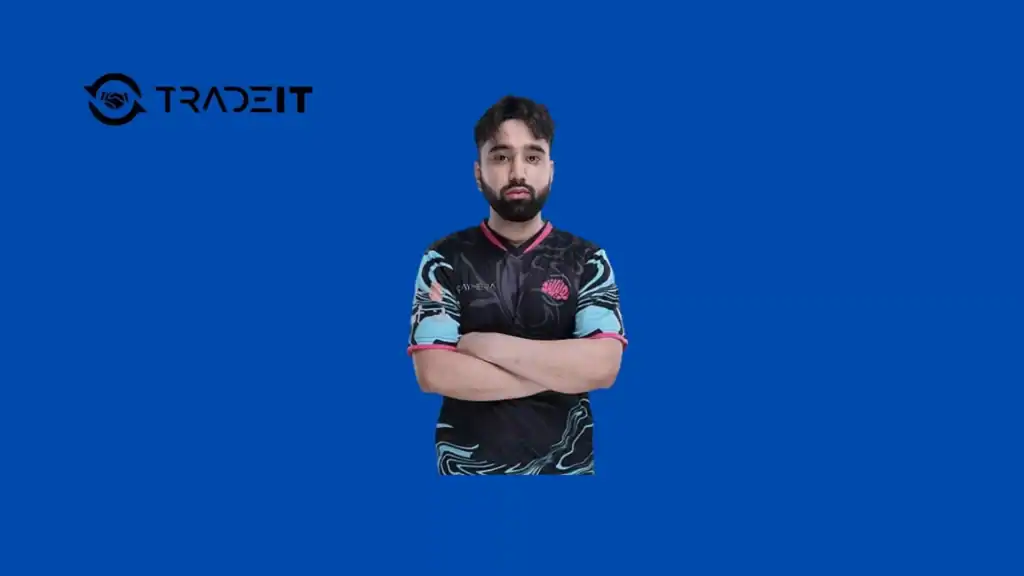
Mouse settings are one of the most important aspects of competitive CS2. D0cC uses a balanced setup that allows for accurate tracking while still enabling fast reactions during close-range fights.
His configuration avoids extremes, focusing instead on consistency and muscle memory.
| Setting | Value |
|---|---|
| DPI | 800 |
| In-Game Sensitivity | 1.0 |
| eDPI | 800 |
| Zoom Sensitivity | 1.0 |
| Polling Rate | 2000 Hz |
| Windows Sensitivity | 6 |
This setup results in a controlled eDPI that is popular among professional players. The high polling rate improves input responsiveness, which can be beneficial during fast flicks and micro-adjustments.
Crosshair Settings
D0cC uses a minimalistic static crosshair designed for accuracy and visibility. The crosshair is small, unobtrusive, and easy to track, especially during spray control and head-level crosshair placement.
| Setting | Value |
|---|---|
| Style | Classic Static |
| Follow Recoil | Disabled |
| Center Dot | Enabled |
| Length | 0.5 |
| Thickness | 0 |
| Gap | -3 |
| Outline | Enabled |
| Outline Thickness | 1 |
| Color | Yellow |
| Alpha | Enabled |
| Alpha Value | 255 |
| Sniper Width | 0 |
The small dot in the center helps with precise aim placement without blocking visibility, making this crosshair ideal for rifling and tapping.
Monitor and Video Settings
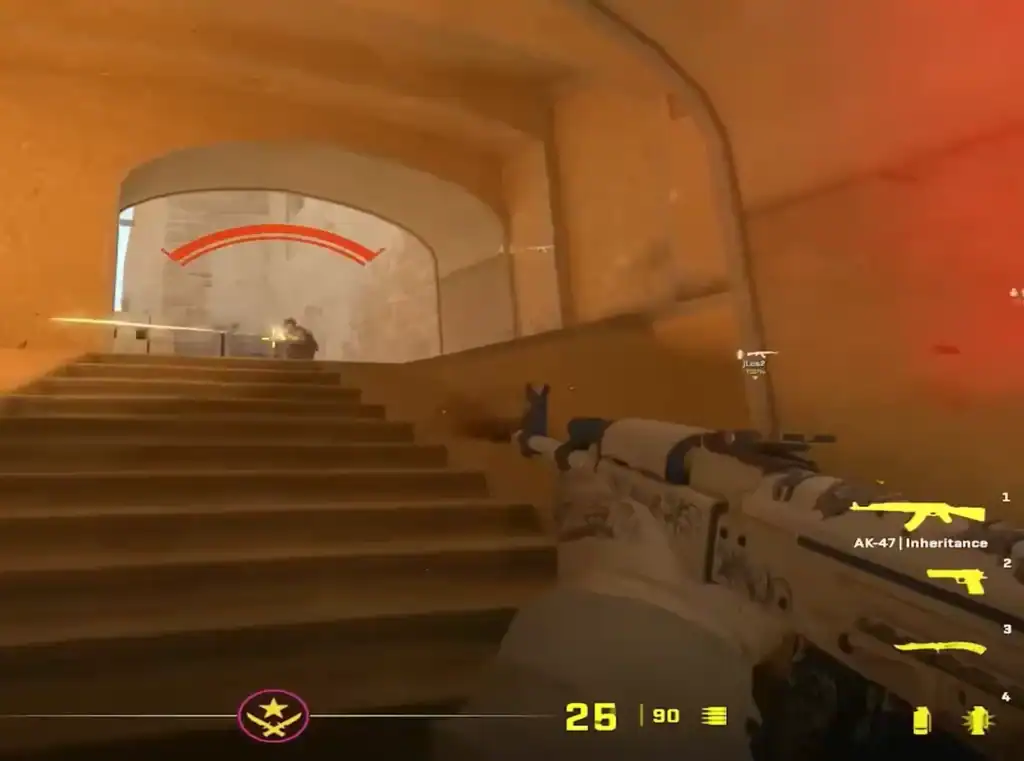
To maximize performance and enemy visibility, d0cC relies on competitive-focused monitor and video settings. These options reduce visual clutter and prioritize high frame rates.
Monitor Settings
| Setting | Value |
|---|---|
| Resolution | 1280×960 |
| Aspect Ratio | 4:3 |
| Scaling Mode | Stretched |
| Display Mode | Fullscreen |
| Brightness | 100% |
| Refresh Rate | 240Hz |
Using a stretched 4:3 resolution makes enemy models appear wider, which many professional players prefer for faster target recognition.
Advanced Video Settings
| Setting | Value |
|---|---|
| Boost Player Contrast | Enabled |
| V-Sync | Disabled |
| NVIDIA Reflex Low Latency | Enabled |
| G-Sync | Disabled |
| Max FPS | Unlimited |
| MSAA | 8x |
| Global Shadow Quality | Low |
| Dynamic Shadows | All |
| Model / Texture Detail | Low |
| Texture Filtering | Anisotropic 4x |
| Shader Detail | Low |
| Particle Detail | Low |
| Ambient Occlusion | Disabled |
| HDR | Quality |
| FidelityFX Super Resolution | Disabled |
These settings strike a balance between sharp visuals and high performance, ensuring smooth gameplay even during intense moments.
Viewmodel and Config Settings

Viewmodel adjustments affect how the weapon appears on screen and can influence comfort and visibility. D0cC uses a pushed-back viewmodel to keep more of the screen clear during fights.
| Setting | Value |
|---|---|
| Viewmodel FOV | 68 |
| Offset X | 2.5 |
| Offset Y | 0 |
| Offset Z | -1.5 |
| Viewmodel Preset | 2 |
D0cC does not rely on custom launch options, instead preferring to configure everything directly through in-game settings.
Summary
D0cC’s CS2 settings reflect a clear focus on precision, responsiveness, and competitive efficiency. His mouse sensitivity and polling rate support smooth aim control, while a clean static crosshair enhances consistency.
Combined with performance-oriented video settings and a stretched resolution, this setup provides an excellent foundation for serious CS2 players.
While copying pro settings won’t replace practice, d0cC’s configuration offers a strong starting point for players aiming to improve their competitive performance.
FAQs
1. What mouse sensitivity does d0cC use in CS2?
D0cC plays with 800 DPI and an in-game sensitivity of 1.0, resulting in an eDPI of 800. This provides a controlled and consistent feel that works well for both tracking and flicking.
2. Why does d0cC use a 4:3 stretched resolution?
The 4:3 stretched resolution makes enemy models appear wider on the screen, which can help with faster target acquisition and close-range engagements.
3. Does d0cC use mouse acceleration or special launch options?
No, mouse acceleration is disabled and d0cC does not use any custom launch options, relying entirely on in-game settings.
4. Is d0cC’s crosshair good for beginners?
Yes, the static crosshair with a center dot is simple and precise, making it a solid choice for beginners who want consistency without visual distractions.
5. Should I copy d0cC’s CS2 settings exactly?
D0cC’s settings are an excellent starting point, but players should adjust sensitivity, resolution, and crosshair elements to match their personal comfort and hardware.