Nikola “NiKo” Kovač is a professional CS2 rifler known for his precise aim and impactful plays.
His settings are finely tuned for competitive play, emphasizing accuracy, minimal distractions, and high responsiveness. Below is a detailed breakdown of his CS2 configuration.
Table of Contents
Mouse and Sensitivity Settings

| Setting | Value |
|---|---|
| DPI | 400 |
| Sensitivity | 1.85 |
| eDPI | 740 |
| Polling Rate | 1000 Hz |
| Mouse | Logitech G Pro X Superlight |
NiKo’s low DPI and moderate sensitivity allow for precise flick shots while maintaining the ability to perform fast 180° turns when necessary.
Crosshair Settings
| Setting | Value |
|---|---|
| Crosshair Style | Classic Static |
| Color | Cyan |
| Thickness | 1.5 |
| Outline | 1 |
| Gap | -2 |
| Dot | Disabled |
| Alpha | 255 |
The crosshair is highly visible on all map backgrounds and remains stable, providing consistent aiming reference without distractions.
Viewmodel Settings
| Setting | Value |
|---|---|
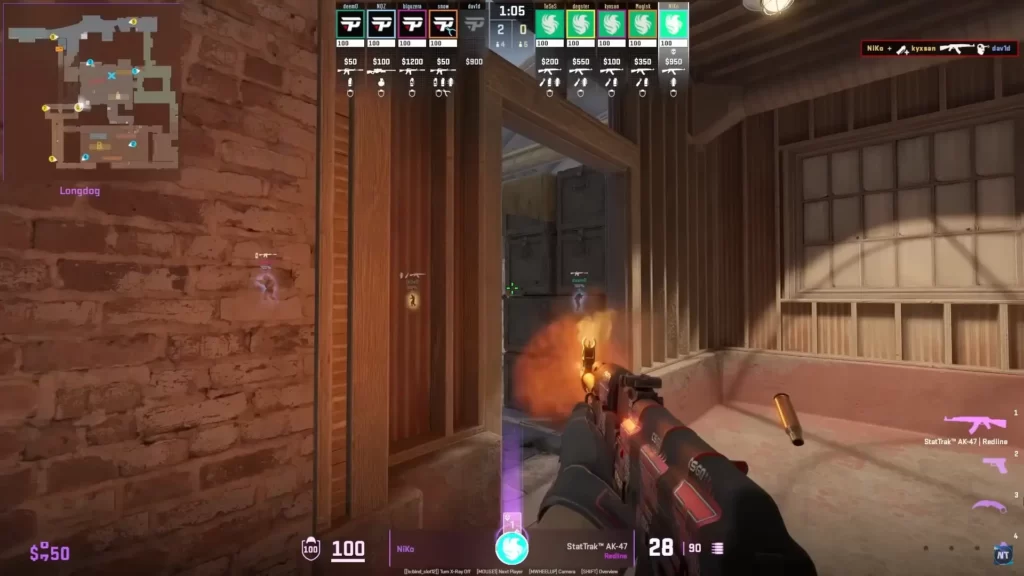
| Viewmodel FOV | 68 |
| Viewmodel Offset X | 2 |
| Viewmodel Offset Y | 2 |
| Viewmodel Offset Z | -2 |
| Viewmodel Recoil | Off |
These settings help NiKo maintain a clear line of sight on opponents while keeping his weapon model from obstructing his aim.
Video Settings
| Setting | Value |
|---|---|
| Resolution | 1920×1080 |
| Aspect Ratio | 16:9 |
| Display Mode | Fullscreen |
| Brightness | 80% |
| Texture Quality | Low |
| Shadow Quality | Low |
| Anti-Aliasing | None |
| Effects Detail | Low |
| Shader Detail | Low |
NiKo optimizes video settings to minimize input lag and maintain a high, consistent frame rate, which is crucial in competitive CS2 play.
Monitor and Display Preferences
| Setting | Value |
|---|---|
| Monitor | ASUS PG259QN |
| Refresh Rate | 360Hz |
| Response Time | 1 ms |
| Resolution | 1920×1080 |
A high refresh rate and low response time ensure NiKo sees enemy movements instantly and can react with precision.
Launch Options and Config Tweaks
| Setting | Value |
|---|---|
| -tickrate 128 | Enables high tick rate for server simulation |
| -novid | Skips intro video for faster startup |
| -nojoy | Disables joystick support to reduce input lag |
| -high | Runs CS2 at high priority |
| +fps_max 0 | Removes FPS cap to achieve maximum frame rate |
These launch options enhance game performance and reduce potential input delay.
Summary
NiKo’s CS2 setup focuses on accuracy, speed, and visibility, combining a low-DPI mouse with a moderate sensitivity and a clean, highly visible crosshair.
Video and monitor settings are optimized for maximum responsiveness, while config and launch options ensure smooth gameplay. Following similar principles can help aspiring players achieve a professional-level feel in CS2.
FAQs
What DPI and sensitivity does NiKo use for maximum precision in CS2?
NiKo uses a DPI of 400 and a sensitivity of 1.85, which provides a balance between fast movement and accurate aim.
Which crosshair type is best for emulating NiKo’s style?
A small, static crosshair with high visibility works best, allowing precise flick shots without distraction.
Why does NiKo keep his video settings low?
Low video settings minimize input lag and improve frame rate, giving a competitive edge in fast-paced matches.
What monitor and refresh rate does NiKo use?
He uses a 360Hz monitor with 1 ms response time to maximize responsiveness and visual clarity.
Do NiKo’s launch options improve performance?
Yes, options like -tickrate 128, -high, +fps_max 0 help reduce input lag and ensure smooth gameplay for competitive CS2.