You can test how skins look in CS2 before buying them, but not directly through an in-game preview mode. Instead, players use several reliable methods and this guide helps you to familiarize with them.
Table of Contents
Method 1: Steam Community Market Preview (Built-In)
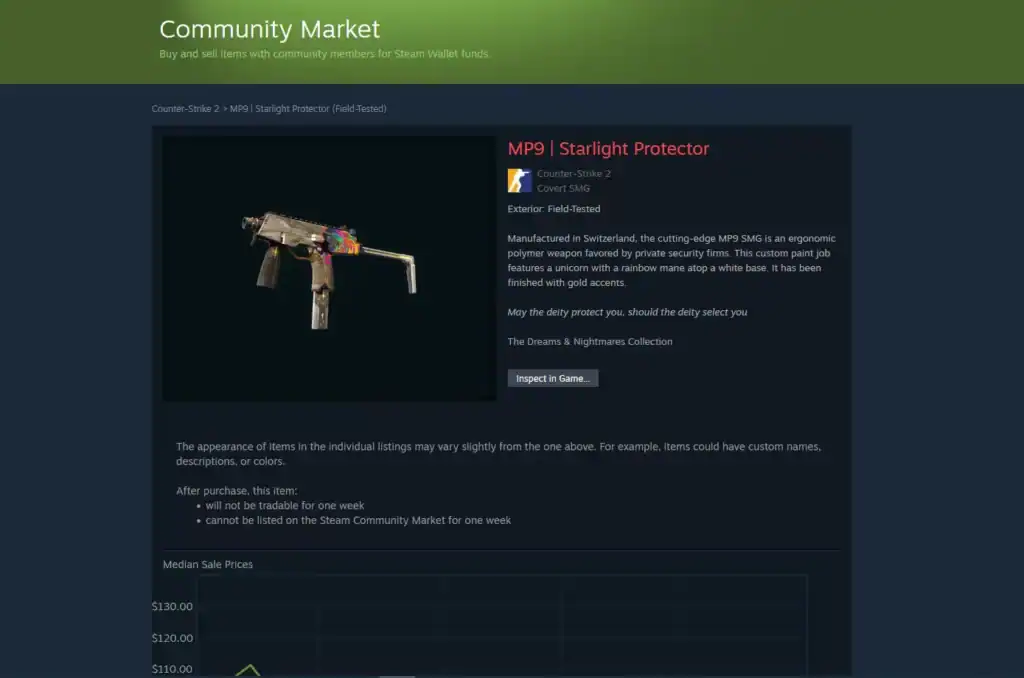
When browsing CS2 skins on the Steam Market, you can:
Move your mouse over the skin image to prepare for inspection.
Select the “Inspect in Game” option to open the skin in CS2.
CS2 opens a basic inspect view where you can spin, zoom, and watch animations of the skin.
Limitations:
You cannot fire or play with the inspected weapon in any official CS2 match.
Battlefield lighting and wear variations are only visible if you inspect the exact skin in-game.
Method 2: Inspect Through Trade Offers
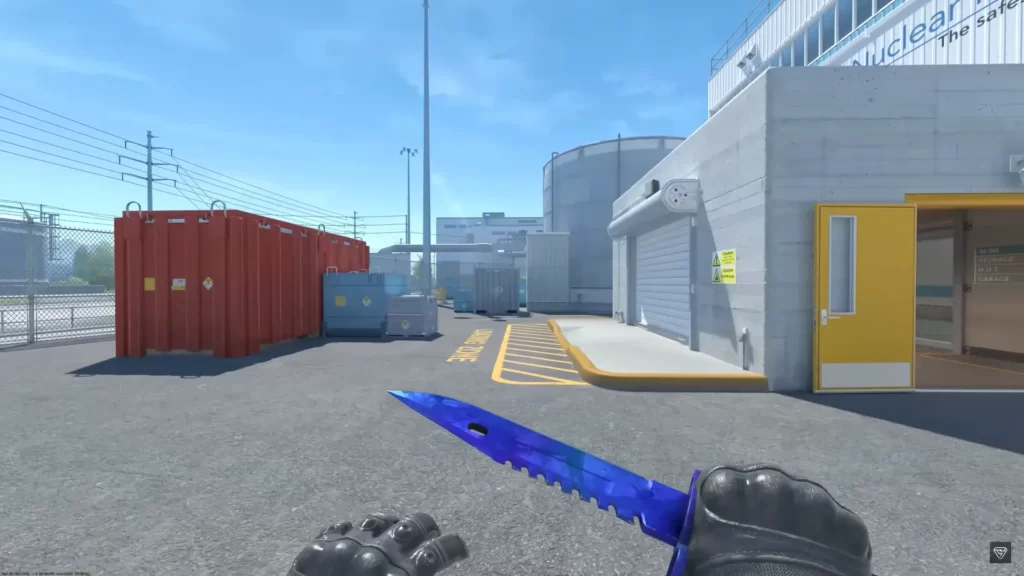
If someone has the skin:
Ask the other player to send a trade offer link that includes the item you want to inspect.
Use the Steam “Inspect in Game” button to view the item in CS2 before deciding to trade or buy.
This lets you preview that exact float, sticker placement, and pattern.
Best for:
Exotic knife skins with unique color phases and high collector value.
Skins with random blue and gold patterns, often highly sought after for their unique look.
Unique or limited skin patterns that increase desirability and market value.
Skins customized with stickers for personalized aesthetics and increased appeal.
Method 3: Third-Party Servers With !ws (Not Allowed on VAC Servers)
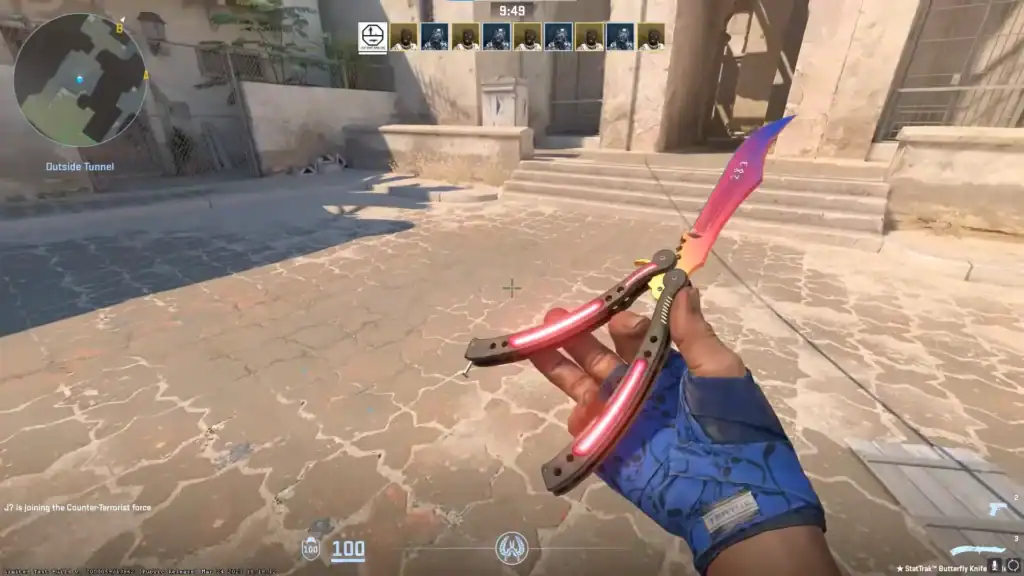
Some community servers let you equip any skin using !ws. Examples include:
Practice recoil control, flicks, and tracking in specialized aim maps.
Quick bombsite retake scenarios that sharpen reaction time and positioning.
Improve movement control through surfing ramps or climbing obstacle courses.
Important:
These are community-made plugins and are not supported or endorsed by Valve.
VAC-secure matchmaking does not allow any type of skin changer or plugin.
Installing actual skin changer software on your PC is dangerous and can result in bans.
Using !ws servers is safe as long as you don’t install any files or programs locally.
This is the best way to see how a skin looks while moving, shooting, inspecting, and swapping weapons.
What You Cannot Do
You can’t equip a skin in competitive, premier, or casual unless you actually own it.
CS2 does not include a built-in environment for testing skins you don’t own.
You cannot temporarily borrow skins through Valve systems unless using an official Store Trial.
Summary
You can preview CS2 skins in multiple ways, but the most effective real-game testing method is:
The safest and most reliable way to preview CS2 skins directly through Steam.
A popular but unofficial method for testing skins on custom servers.
FAQs
1. Can I test CS2 skins before purchasing them on the Steam Market?
Yes. Most skins can be previewed through the Inspect feature in Steam or directly inside CS2 using CS2 Inspect links. You can rotate, zoom, and view wear variations.
2. Why doesn’t the “Inspect in Game” button work for some items?
This usually happens when CS2 is not running, Steam is in offline mode, or the client hasn’t fully updated the market preview integration. Restarting CS2 and Steam typically fixes it.
3. Can I preview different float values before buying a skin?
Yes. Third-party sites provide float-based Inspect links, letting you see exact wear levels (Factory New, Minimal Wear, etc.) inside CS2 before committing to a purchase.
4. Is it safe to use third-party inspect links?
Inspect links themselves are safe. They only open CS2’s native preview. But make sure you get them from trusted trading platforms to avoid scam attempts or fake buy prompts.
5. Can I test how stickers or patterns look on a skin?
Yes. Inspect links allow you to view skins with their exact pattern index and applied stickers, so you can see the precise appearance of the item before buying.