You just got hyped to dive into some Counter-Strike 2 action, but instead, you’re hit with the dreaded black screen on launch. Been there, done that.
It’s frustrating, especially when you can hear the game running but can’t see a thing. Let’s break down how to fix CS2 black screen on launch.
Table of Contents
Ways of Fixing the CS2 Black Screen Issue
If you get a black screen when you launch CS2, try the following things:
1. Adjust Launch Options
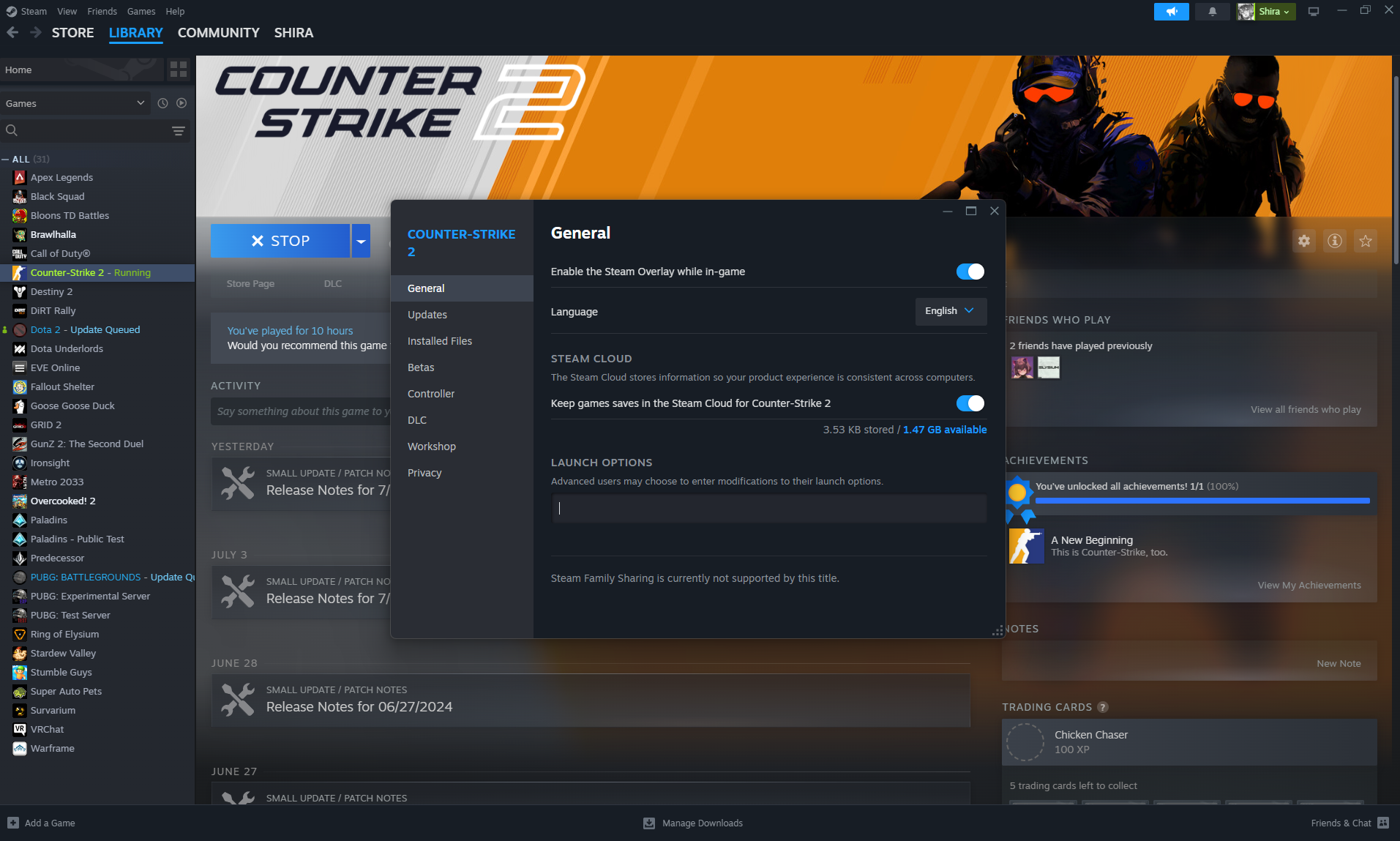
First things first, let’s tweak those CS2 launch options.
Launch Steam and navigate to your game library.
Right-click on Counter-Strike 2 and select “Properties”.
In the “General” tab, locate the “Launch Options” box.
Try adding the following:
-windowed -w 1920 -h 1080
Forces the game to launch in windowed mode using your native resolution.
-autoconfig
Resets all settings to default. Remove this option after fixing the issue.
2. Verify Game Files
Corrupted files might be the culprit.
In your Steam Library, right-click on Counter-Strike 2.
Select “Properties” → “Installed Files”.
Click “Verify integrity of game files”.
3. Disable Fullscreen Optimizations
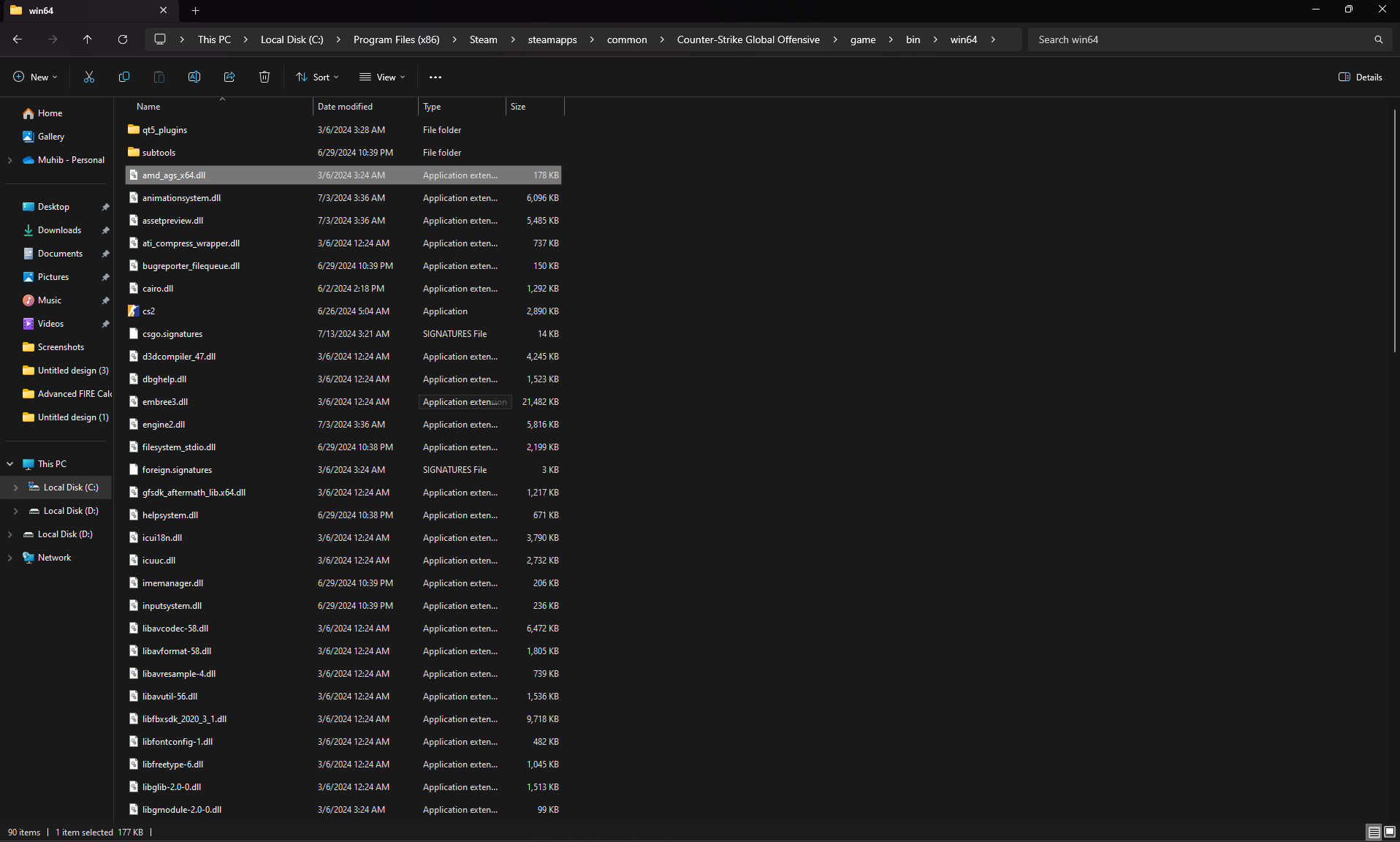
Fullscreen optimizations can sometimes cause conflicts.
Navigate to:
SteamLibrary\steamapps\common\Counter-Strike 2\game\bin\win64
Right-click cs2.exe and select “Properties”.
Open the “Compatibility” tab.
Check “Disable fullscreen optimizations”.
Click “Change high DPI settings” and enable “Override high DPI scaling behavior”.
Also Check: CS2 Rubberbanding – Best Fixes
4. Check GPU Drivers and Settings
Outdated or buggy GPU drivers can cause display issues.
Make sure your graphics drivers are up-to-date. Visit your GPU manufacturer’s website (NVIDIA, AMD, Intel) and install the latest version.
If you’re using tools like MSI Afterburner, monitor temperatures and settings. Disable overclocking if instability occurs.
5. The Alt + Tab Trick
Sometimes, a simple Alt + Tab can do wonders.
Start the game normally from your Steam Library.
When the black screen appears, press Alt + Tab to switch windows, then return to CS2.
Common CS2 Black Screen Scenarios in CS2
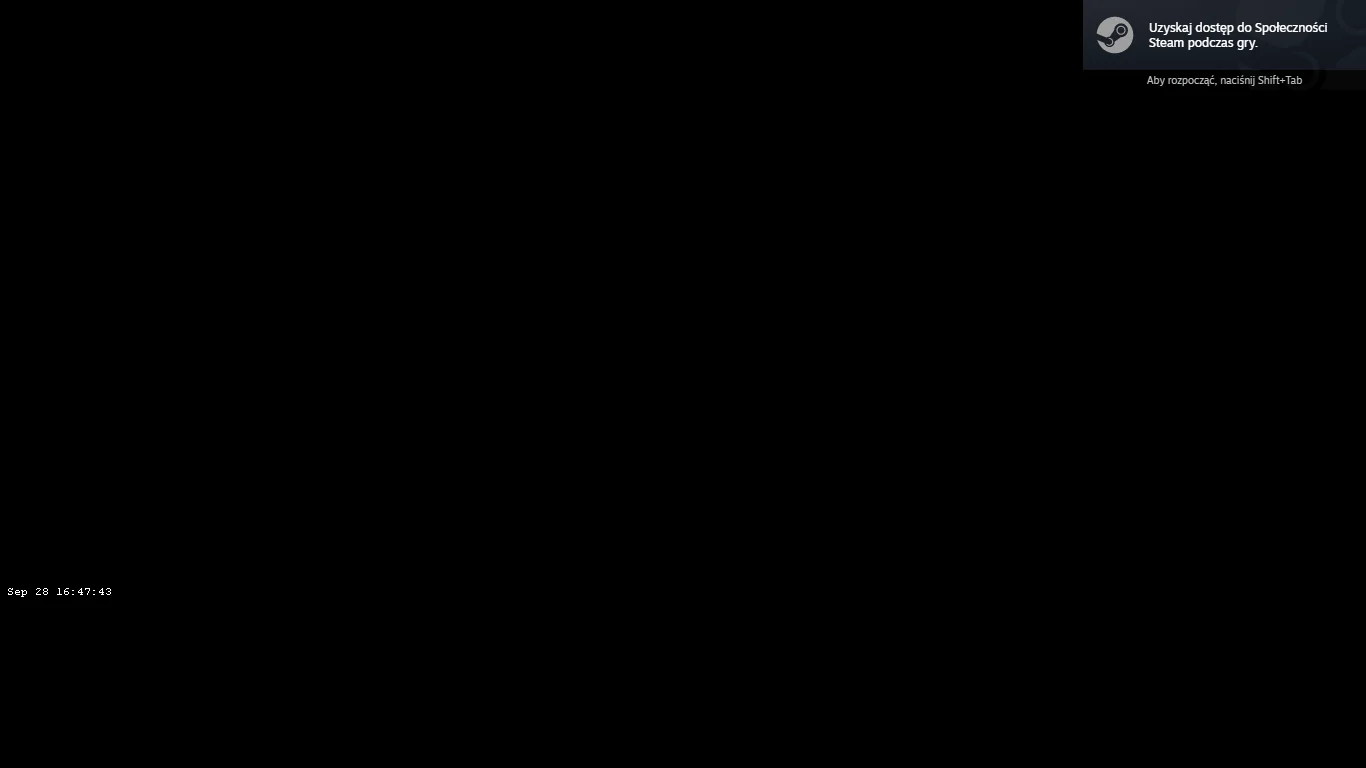
Not all black screen issues are the same. The timing of the problem usually tells you what’s causing it and how to fix it.
1. Black Screen with Audio
If you can hear menu sounds or in-game audio but see a black screen, the game is running, but the display isn’t rendering correctly. This is usually caused by a resolution mismatch, fullscreen issues, or GPU driver conflicts.
Common fixes:
-windowed
Launch the game in windowed mode to bypass fullscreen issues.
Press Alt + Tab to switch windows and refresh the game display.
Install the latest drivers or reinstall them to fix potential compatibility issues.
This is typically a display/output issue, not a game crash.
2. Black Screen Before Menu
If the screen goes black immediately on launch and never reaches the menu, the issue is more serious. This is usually caused by corrupted files, bad configs, or incompatible settings.
Common fixes:
Use Steam to verify integrity and repair any missing or corrupted files.
-autoconfig resets all in-game settings to default values.
Manually remove config files to force the game to regenerate fresh settings.
This points to a startup or configuration problem.
3. Black Screen After Update
If the issue appears right after a game update, it’s often due to new conflicts with drivers or settings. This is usually caused by outdated drivers or broken configs after patch changes.
Common fixes:
Install the latest drivers from NVIDIA, AMD, or Intel to ensure full compatibility.
Remove or clear custom launch options to eliminate conflicting settings.
Use Steam to check and repair any missing or corrupted CS2 files.
This is usually a compatibility issue introduced by the update, not your system alone.
Multi-Monitor and Laptop GPU Switching Issues
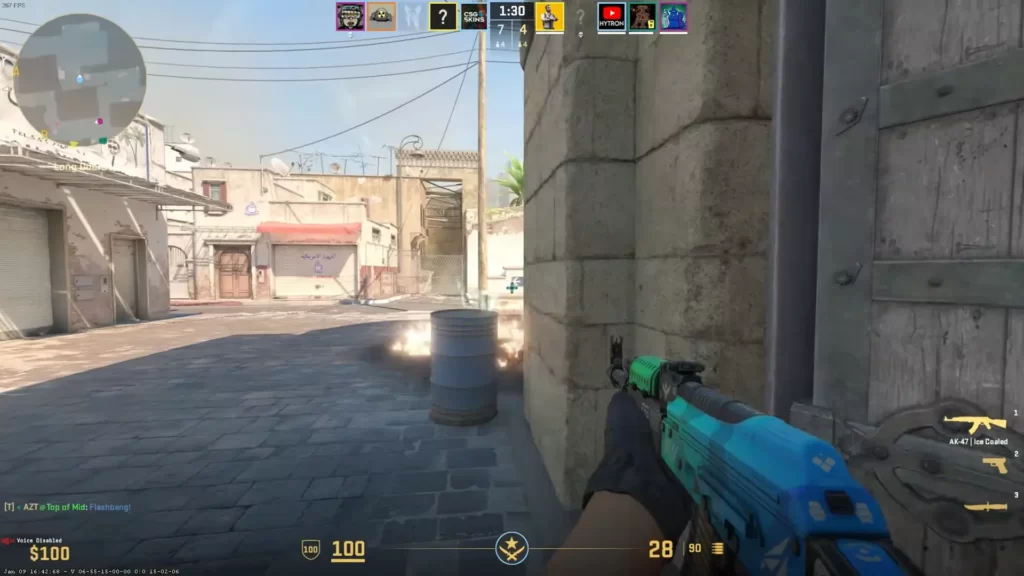
Black screens and launch issues often come from how the game interacts with multiple displays or switching GPUs, especially on laptops.
On multi-monitor setups, the game can sometimes open on the wrong screen or a display running a different resolution or refresh rate. This can cause a black screen, even though the game is still running.
The most reliable fix is to temporarily disable secondary monitors or force the game to run in windowed mode, then adjust display settings once it launches correctly.
On laptops, the issue is often related to GPU switching (integrated vs dedicated graphics). The game may accidentally launch on the integrated GPU instead of the dedicated NVIDIA or AMD card, leading to a black screen or severe performance issues.
Forcing the game to use the high-performance GPU through Windows graphics settings or the GPU control panel usually resolves this.
In both cases, the core problem is the same: CS2 rendering on the wrong display device or graphics processor, not the game failing to run.
Additional Tips To Fix CS2 Black Screen On Launch
Ensure your monitor and in-game resolution match. Use tools like CRU (Custom Resolution Utility) if needed.
If you use multiple displays, try disabling one to check if it resolves the issue.
Close unnecessary background apps that may interfere with the game.
Conclusion
Remember, every system is different, and what works for one might not work for another. Keep tweaking and trying different combinations until you find the CS2 fix that works for you.
FAQs
Why does CS2 show a black screen on launch?
This usually happens due to graphics driver issues, incorrect resolution settings, or corrupted game files. It can also be caused by conflicts with overlays or launch options.
How can I fix the black screen without reinstalling the game?
Start with quick fixes:
- Verify game files in Steam
- Update your GPU drivers
- Launch the game in windowed mode (
-windowed) - Disable overlays (Steam, Discord, etc.)
These solve most cases without needing a reinstall.
Can launch options fix the black screen issue?
Yes. Adding launch options like:
-windowed-w 1280 -h 720
can force the game to start in a safe resolution, helping bypass display-related problems.
Do graphics drivers cause this problem?
Very often. Outdated or corrupted GPU drivers are one of the main reasons for black screens. Updating (or clean reinstalling) your drivers can resolve the issue.
Should I reinstall CS2 if nothing works?
Only as a last resort. Before reinstalling, try:
- Deleting config files
- Verifying game files
- Updating Windows and drivers
If the issue persists after all that, a reinstall may fix corrupted data.