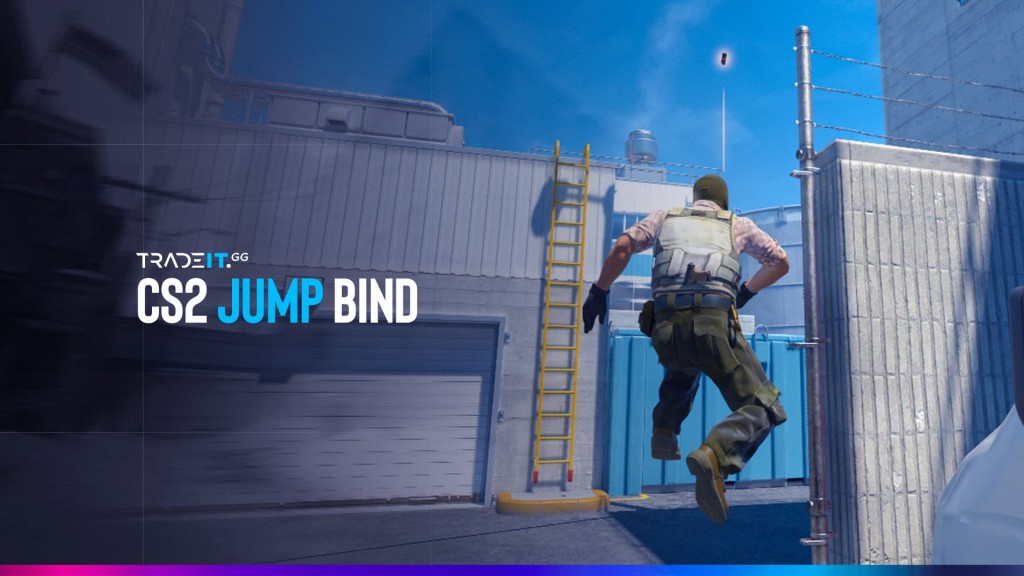
Mastering utility lineups in CS2 often comes down to one essential technique: the jump-throw. Whether you’re lining up smokes for site takes or long-range nades, consistency is everything.
This guide explains what the CS2 jump-throw bind is, why players use it, and how you can set it up instantly.
Table of Contents
How to Bind Jump to Scroll Wheel in CS2
Binding the jump function to the mouse scroll wheel in CS2 can be accomplished by two methods: using the in-game settings menu or console commands.
Players might prefer binding their jumps to the mouse scroll wheel over the default space bar because it provides smoother movement during gameplay.
Here is how to implement both methods.
Method 1: In-Game Settings (Easy)
The in-game settings menu provides an intuitive interface to bind jump to the scroll wheel.
Console commands, on the other hand, offer a more customizable setting. They allow players to bind jump to multiple keys, a feature not available through the in-game settings.
Launch CS2 and navigate to Settings > Keyboard/Mouse to access keybind options.
Find the Jump action in your keybind list and click on it to start rebinding.
Scroll your mouse wheel up or down to assign it as the jump key for jump-throw binds.
⚠️ Note: This overrides the default scroll wheel weapon-swap function.
Method 2: Console Commands (Advanced)
Console commands offer a more customizable way to bind jump to the scroll wheel in CS2. They are instructions that can be used in the game console to configure specific actions to specific keys or mouse buttons.
For more customization, use the console:
Go to Settings > Game tab > Enable Developer Console to allow command input.
Press the ~ (tilde) key during the game to bring up the developer console window.
Type the following commands in the console:
bind mwheelup +jump (jump on scroll up)
bind mwheeldown +jump (jump on scroll down)
Why use the console? You can bind multiple keys (e.g., keep the spacebar as a backup).
Console command bindings are available in CS2 competitive matchmaking modes, which let players customize their gameplay experience and improve their performance in competitive matches.
How to Set Up a CS2 Jump Throw Bind
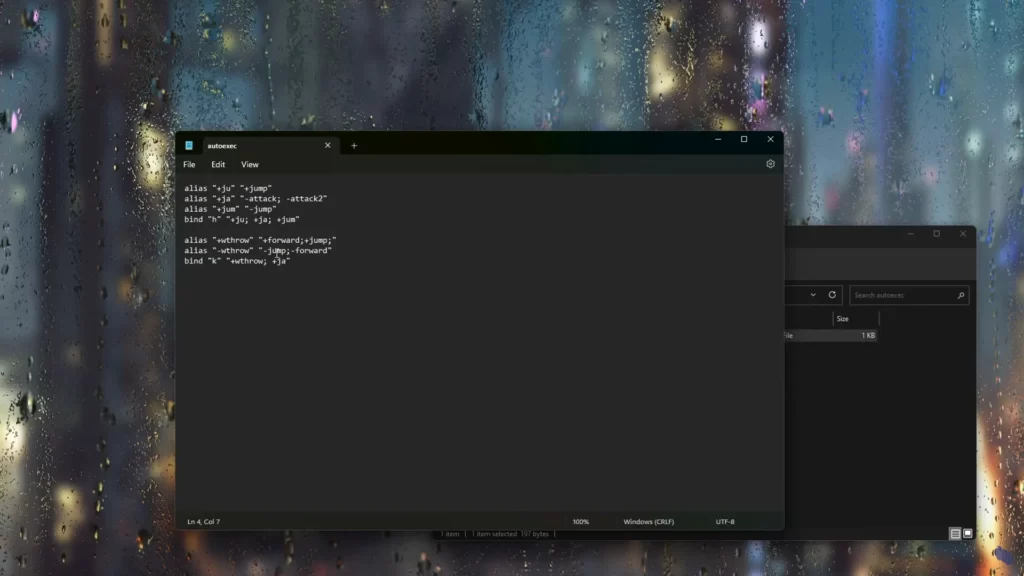
The jump-throw bind is a key assignment that allows players to toss a grenade at the apex of their jump, improving their precision and consistency.
To utilize a jump-throw bind, a player must first draw out a smoke and then press the key to which the bind is assigned.
A jump throw bind lets you throw grenades at the peak of your jump for perfect smokes/flashes. Here’s how:
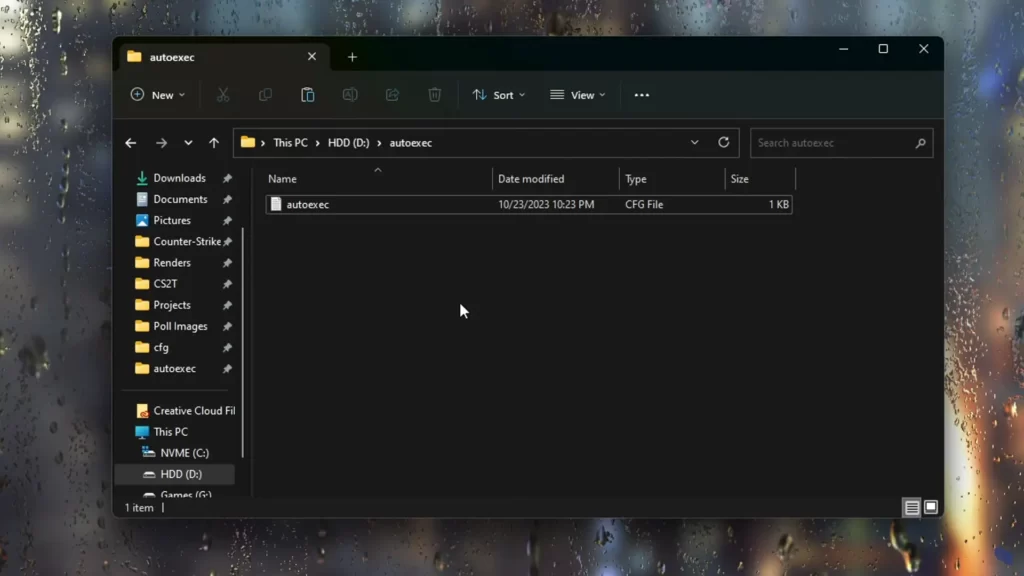
Navigate to Steam\steamapps\common\Counter-Strike Global Offensive\game\csgo\cfg on your PC.
Use Notepad to create a file named binds.cfg in the config folder.
Insert the following code (replace KEY with your preferred key, e.g., mouse3):
alias "+jt" "+jump; -attack"; alias "-jt" "-jump"; bind "KEY" "+jt";
In-game, open the console and type exec binds to load your jump-throw bind.
How to Bind Jump to Scroll Wheel CS2
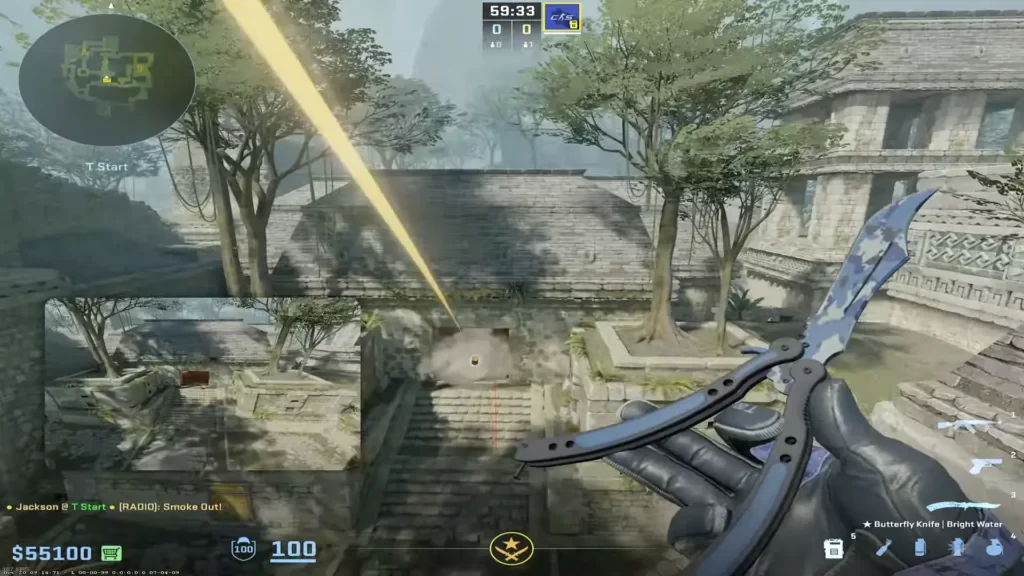
The mouse wheel jump bind is a key assignment that lets players perform jumps using their mouse’s scroll wheel, simplifying bunny hopping and improving movement.
Utilizing the mouse wheel jump bind in CS2 can facilitate smoother bunny hopping and augment visual-motor coordination, thereby improving gameplay.
In the same binds.cfg file, add this code:
Type bind mwheeldown +jump in the console to assign jump to scrolling your mouse wheel down.
Type bind mwheelup +jump in the console to assign jump to scrolling your mouse wheel up.
Why Bind Jump to Scroll Wheel?
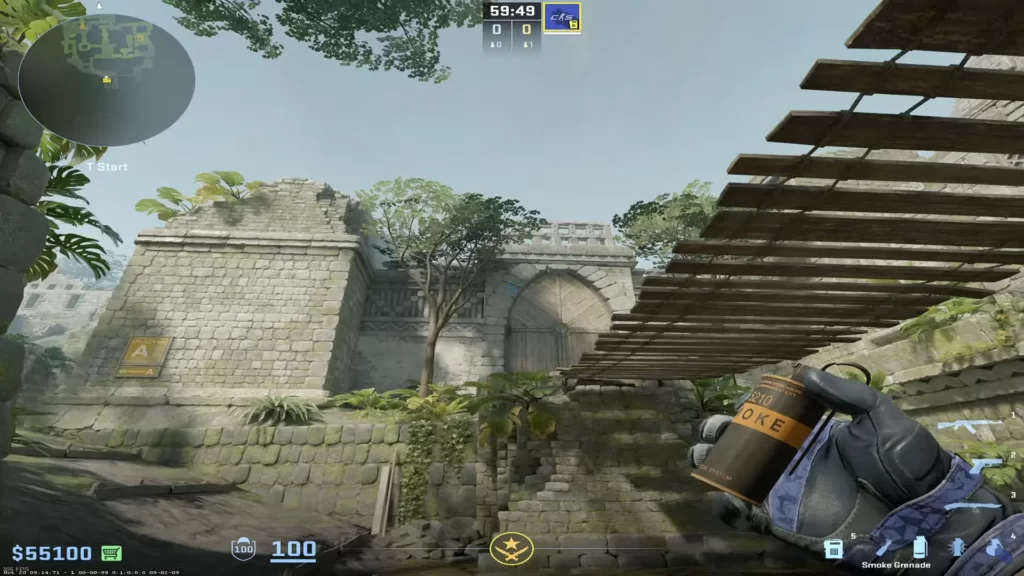
There are several advantages to binding jump to the mouse scroll wheel in CS2. These include enhanced bunny hopping, improved movement control, and easier navigation. Let’s examine these benefits in detail.
1. Better Bunny Hopping
Bunny hopping, also known as the “bunny hop” technique, is employed by CS2 players to increase their speed and maneuverability around the map. It requires precise timing and coordination to maintain momentum and achieve continuous hops.
Using the scroll wheel triggers jump inputs faster than pressing the spacebar, improving timing and consistency.
Keep your momentum while using jump-throws to achieve speedier rotations and smoother movement across the map.
By binding the jump command to the scroll wheel, players can execute consecutive jumps without needing to time their key presses, resulting in faster and smoother bunny-hopping movements.
2. Smoother Movement
Binding jump to the bind scroll wheel allows players to execute jumps more quickly and precisely, enabling them to dodge incoming bullets or navigate through tight spaces with greater control.
Players can combine the scroll wheel to jump with strafing movements to perform advanced techniques like bunny hopping, making them harder to hit.
Use rapid jumps to evade enemy fire more effectively, increasing your survivability in intense fights.
Pair jump-throws with strafing movements to perform advanced tricks and unpredictable maneuvers.
Related: Best Mouse for CS2 – TOP 5
3. Grenade Accuracy
Jump-throw binds remove timing guesswork, automatically releasing your grenade at the peak of your jump for perfect consistency.
Ensure your smoke grenades land perfectly on maps like Mirage, Inferno, or Overpass—essential for consistent lineups.
Used by pros to block vision or flash enemies with pixel-perfect precision, giving you an edge in competitive play.
mouse4) for quick access mid-round.
Related: Best CS2 Mouse Settings for Competitive Play
Essential Commands Table
| Command | Description | Usage / Notes |
|---|---|---|
bind "KEY" "+jump" | Binds jump action to a key or mouse button. | Replace KEY with your preferred key or mouse button (e.g., mouse3). |
alias "+jt" "+jump; -attack" | Creates a jump-throw alias. | Part of the jump-throw bind script for grenades. |
alias "-jt" "-jump" | Ends the jump-throw alias action. | Used together with +jt in the binds.cfg file. |
exec binds | Executes your custom binds.cfg file in-game. | Activates your jump-throw bind after typing in the console. |
sv_cheats 1 | Enables cheat commands on your server or local game. | Required to enable grenade trajectory visualization and other test commands. |
sv_grenade_trajectory 1 | Displays the flight path of thrown grenades. | Works only when sv_cheats 1 is enabled; essential for lining up smokes and flashes. |
Summary
Binding jump to the mouse scroll wheel in CS2 offers a range of advantages, including enhanced bunny hopping, improved movement control, and easier navigation.
Whether you prefer using the in-game settings menu or console commands, mastering this skill can give you a competitive edge in the game.
FAQs
1. What is a jump-throw bind in CS2?
A jump-throw bind is a single key or alias setup that lets you jump and release a grenade at the exact same tick, ensuring perfectly consistent utility lineups.
2. Is a jump-throw bind allowed in CS2?
Yes. Valve explicitly allows bind combinations that perform multiple actions as long as they are achievable by human input. Jump-throws fall under this category and are safe to use.
3. Do I need a jump-throw bind for all grenade lineups?
Not always. Some lineups work while standing or walking, but long-distance smokes, especially those thrown over buildings or precise angles, are far more reliable with a jump-throw.
4. Why doesn’t my jump-throw bind work in CS2?
Common causes include using outdated CS:GO commands, typos in your bind, command conflicts, or having jump/release actions bound to other keys. Re-enter the full alias script and restart CS2.
5. Does the jump-throw bind work on all servers?
Yes, it works on official matchmaking, Premier, and community servers. As long as the server allows standard binds (almost all do), your jump-throw alias will function normally.