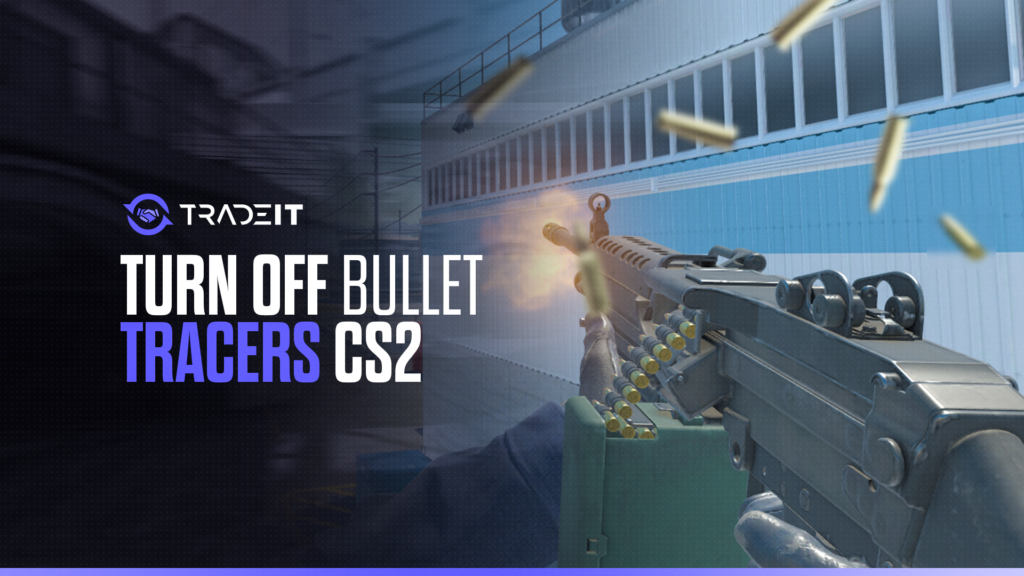

To turn off bullet tracers in CS2, open the developer console and enter r_drawtracers_firstperson 0. This disables the bright first-person tracer lines from your own shots. It does not require sv_cheats 1, and it works in regular CS2 modes such as Premier and matchmaking because it is a client-side visual setting.
To turn tracers back on, use r_drawtracers_firstperson 1. The full setup covers the quick command, the autoexec method, a toggle bind, and the difference between tracers, impact markers, and decals.
Turn off bullet tracers instantly
Copy the command below, open the CS2 developer console, paste it, and press Enter. This changes your own first-person bullet tracers only.
r_drawtracers_firstperson 0
No sv_cheats needed for Premier or matchmaking.
r_drawtracers_firstperson 1
Use this if you want the default first-person tracer effect back.
What Are Bullet Tracers in CS2?
Bullet tracers are the glowing lines or light trails that appear when you fire your weapon. In CS2, the setting controlled by r_drawtracers_firstperson affects the tracers from your own weapon in first-person view.
That means this command does not remove every bullet-related visual in the game. It does not remove blood, bullet holes, wall marks, or practice impact squares. It also does not stop you from seeing important enemy fire information.
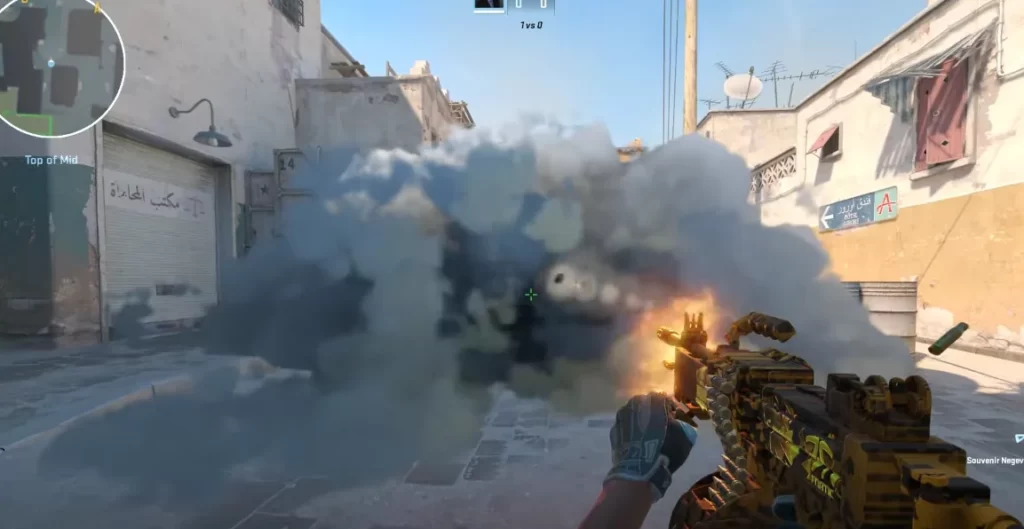
Tracers, impacts, and decals are different
A lot of CS2 guides use these terms interchangeably, but they control different visuals.
| Visual | What it changes | Command | Premier / matchmaking? |
|---|---|---|---|
| Bullet tracers | Light trails from your own first-person shots. | r_drawtracers_firstperson 0/1 |
Yes |
| Impact markers | Practice squares showing where bullets land. | sv_showimpacts 1 |
Practice only |
| Decals | Blood, bullet holes, and surface marks. | Legacy or private-server decal commands | Restricted / inconsistent |
Use r_drawtracers_firstperson 0 for a cleaner first-person spray view.
Use sv_showimpacts 1 only when practicing bullet impact locations.
How to Turn Off Bullet Tracers in CS2
Follow these steps:
- Open CS2.
- Open the developer console with
~. - Enter
r_drawtracers_firstperson 0. - Press Enter.
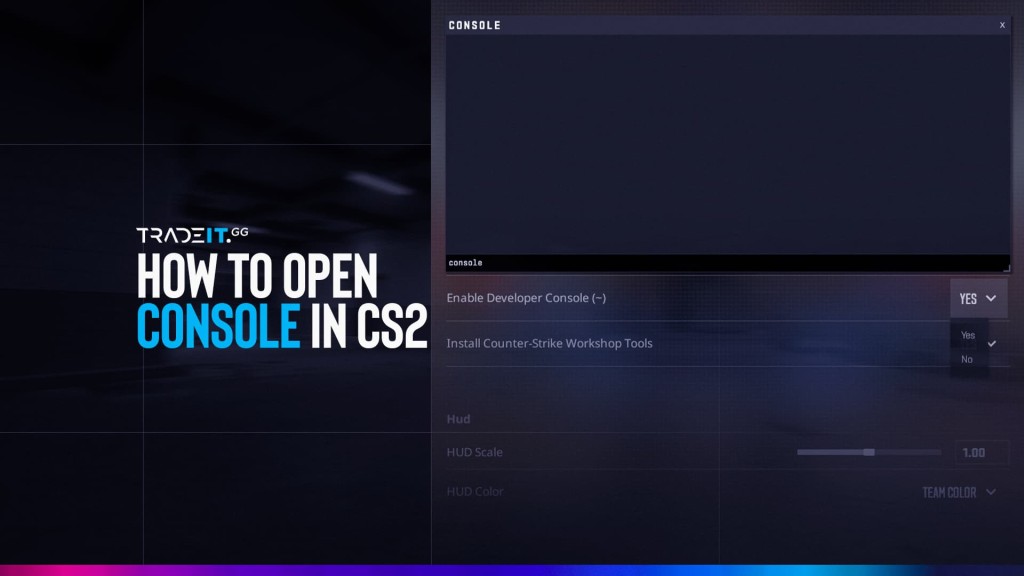
Your first-person bullet tracers should now be disabled. If the console does not open, enable it first by going to Settings > Game > Enable Developer Console (~) and setting it to Yes. For a full walkthrough, use the console setup guide.
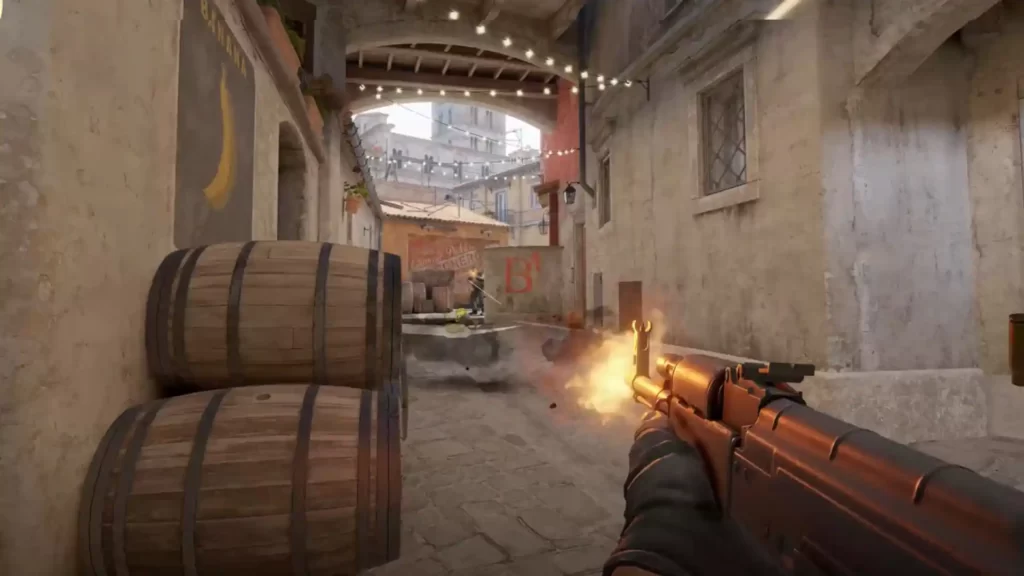
Where does this command work?
Pick your CS2 setup and see which command applies.
For more visual and practice settings, keep the console command reference nearby.
How to Turn Bullet Tracers Back On
To show bullet tracers again, open the console and enter:
r_drawtracers_firstperson 1You do not need sv_cheats 1 to turn tracers back on. This is the same client-side setting, just set to the default enabled value.
You may also see true/false values used in some configs:
r_drawtracers_firstperson false
r_drawtracers_firstperson true
For most players, 0 and 1 are clearer because they match the format used by most CS2 command references.
Make the Change Permanent with autoexec.cfg
If your tracer setting resets after restarting CS2, add it to your autoexec.cfg. This forces CS2 to apply the command every time the game launches.
autoexec.cfg setup checklist
Use this if your tracer setting resets after restarting CS2.
-
Open your CS2 config folder:
Steam\steamapps\common\Counter-Strike Global Offensive\game\csgo\cfg -
Create or open
autoexec.cfg. -
Add the tracer command:
r_drawtracers_firstperson 0 -
Add this to CS2 Launch Options in Steam:
+exec autoexec.cfg
Keep the file name exactly autoexec.cfg. Avoid saving it as autoexec.cfg.txt.
A simple autoexec.cfg can look like this:
// CS2 visual settings
r_drawtracers_firstperson 0

// Optional: keep console available
con_enable 1
Bind the Tracer Command to a Key (Toggle On/Off)
If you like testing both settings, bind tracers to a key. The most reliable one-key version is:
bind "T" "toggle r_drawtracers_firstperson 0 1"Now pressing T switches your first-person tracers off and on. You can replace T with any unused key.
Create a one-key tracer toggle
Pick a key or type your own, then copy the generated console command.
bind "T" "toggle r_drawtracers_firstperson 0 1"
Avoid binding this to movement, reload, weapon swap, or utility keys unless you already know your config well.
If you prefer two separate keys, use this:
bind "F7" "r_drawtracers_firstperson 0"
bind "F8" "r_drawtracers_firstperson 1"
Should You Disable Bullet Tracers? (Pros and Cons)
Turning off bullet tracers is mostly personal preference. Some players like the cleaner view. Others prefer the visual feedback during sprays.
Tracers on vs tracers off
Best for feedback
Useful if you are learning spray patterns or want a stronger visual cue for where your bullets are going.
Best for clarity
Useful if bright bullet trails pull your eyes away from the crosshair, enemy model, or recoil control.
Could turning off tracers improve FPS?
Enter your current average FPS to estimate a small 2-5% range. This is not guaranteed; treat it as a visual-effect estimate.
For most players, this command is better framed as a visual clarity tweak than a full performance fix.
If you are new to CS2, try a few deathmatch sessions with tracers on and off. If tracers help you learn recoil, keep them on. If they pull your eyes away from the crosshair, turn them off.
You should not expect a huge FPS boost from this command alone. Some players may see a small gain, especially on low-end systems, but it is better to treat this as a visual clarity tweak rather than a full performance fix.
For more competitive improvements, pair this with better crosshair, radar, and positioning habits. The ranking fundamentals and radar setup pages fit naturally with this kind of config cleanup.
Clean screen, ugly gun?
Once your view is dialed in, browse the CS2 store on Tradeit for an AK, M4, or AWP skin.
Related Commands: Impact Markers and Decals
Bullet tracers are not the same as bullet impacts or decals. These are the related commands people usually confuse with tracer settings.
r_cleardecals: Clear Blood and Bullet Holes
Decals are visual marks left on surfaces, such as blood splatter, bullet holes, and wall marks. In CS:GO, many players used r_cleardecals to clear some of these marks.
In CS2, do not treat r_cleardecals as a reliable live-match fix. Decal-clearing behavior is restricted or inconsistent in official play, and players should not expect to freely bind a key to remove blood and bullet holes mid-round in Premier or matchmaking.
For practical purposes, use r_drawtracers_firstperson 0 if you want a cleaner first-person spray view. Do not confuse that with removing blood, bullet holes, or other surface marks.
sv_showimpacts: Show Bullet Impact Markers (Practice Only)
If you want to see exactly where bullets land during practice, use:
sv_showimpacts 1This shows impact markers instead of normal tracer trails. Use it for recoil practice, wallbang testing, and learning spray behavior on a private server or practice setup. It is not the same as first-person tracers, and it is not something you should rely on in Premier or matchmaking.
Use sv_showimpacts only for practice
Impact markers are not the same as bullet tracers. Use them for recoil practice, wallbang testing, or private-server analysis.
sv_cheats 1
sv_showimpacts 1
Red and blue markers show practice impact information. They are useful for training, but they are not the same visual as first-person bullet tracers.
To turn impact markers off, use:
sv_showimpacts 0You can also adjust how long markers stay visible with:
sv_showimpacts_time 10
Ready to trade CS2 skins?
Trade, buy, or sell CS2 skins on Tradeit anytime.
FAQ
Does disabling bullet tracers count as cheating?
r_drawtracers_firstperson 0 is a normal client-side visual setting.
Can I still see enemy bullet tracers if I disable my own?
Do you need sv_cheats to disable tracers in CS2?
r_drawtracers_firstperson 0 to turn them off and r_drawtracers_firstperson 1 to turn them back on.
Why do my tracer settings reset after restarting CS2?
autoexec.cfg for persistence.
Does turning off tracers actually improve FPS?
Can I disable bullet tracers without using the console?
Does r_drawtracers_firstperson work in Premier or FACEIT?