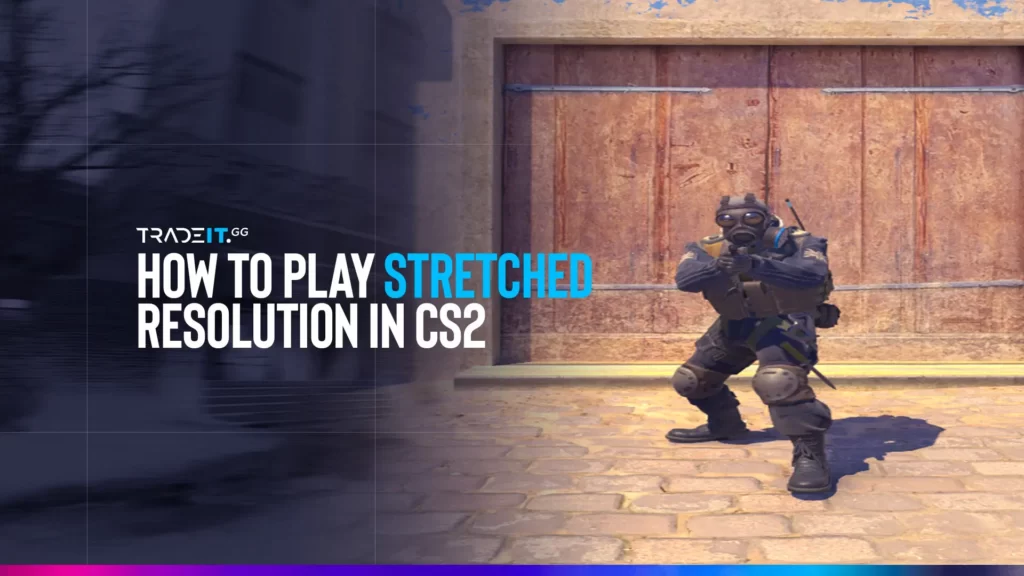
Struggling to spot and hit targets? Learning how to play with stretched resolution in CS2 might be the solution.
This practical guide will navigate you through setting up your game to utilize stretched resolution, ensuring your enemies appear larger and easier to target, with tailored advice for both NVIDIA and AMD users.
Table of Contents
Understanding Stretched Resolution
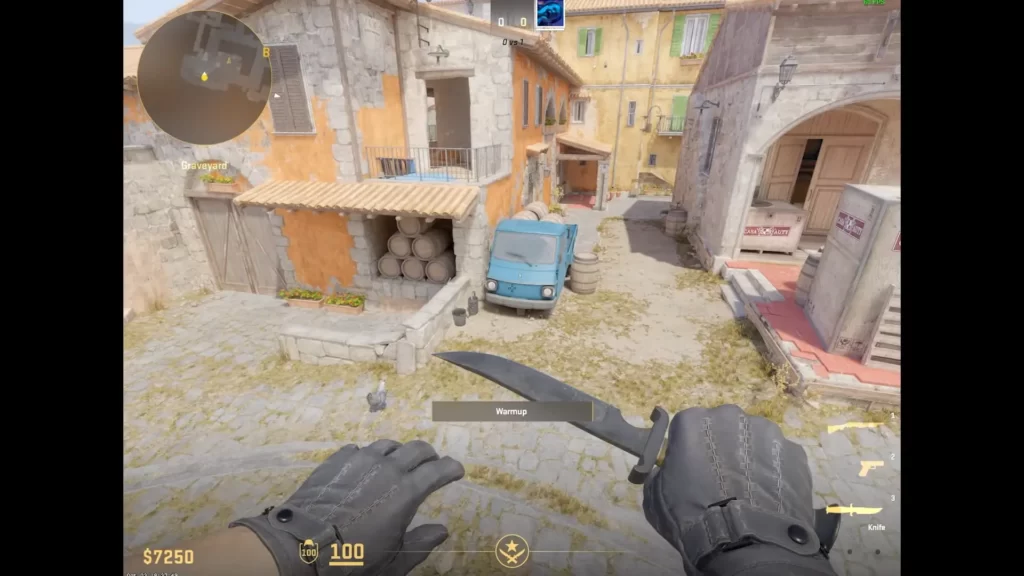
Adjusting the default aspect ratio of CS2 from its native setting to a stretched one, typically 4:3, introduces a game-changing strategy known as stretched resolution.
This modification, performed using the full screen mode for gameplay, changes the game’s appearance on your screen.
This change can significantly impact gameplay by making player models appear wider and easier to hit, which aids in recoil control.
The key here is to find the exact resolution that complements your gameplay style. Some players may prefer a wider field of view, while others may want larger enemy models.
It’s all about finding that perfect balance that provides you with the best possible advantage in the game.
Pros and Cons of Using a Stretched Resolution in CS2
If you want to play CS2 using a stretched resolution, here’s what you should know:
Pros
Enemies appear slightly wider, making tracking and aiming feel easier for some players.
Lower resolution can increase FPS, especially on weaker systems.
Reduced horizontal view helps some players concentrate on crosshair placement.
Many long-time players prefer it due to its similarity to older Counter-Strike titles.
Cons
You see less horizontally, which can hurt awareness in wide-angle fights.
UI and models can look stretched or unnatural compared to native resolution.
Harder to spot enemies holding off-angles or wide map positions.
No universal advantage—effectiveness depends entirely on player comfort.
Setting Up Stretched Resolution in CS2
To reap the numerous benefits of stretched resolution, it must be set up correctly. The first thing you need to do is this:
Start :contentReference[oaicite:0]{index=0} and reach the main menu.
Go to Settings → Video tab.
Change aspect ratio to Normal 4:3 for stretched resolution.
Click Apply Changes in the bottom-right corner.
If black bars appear, the setup is complete. If not, adjust scaling in your GPU control panel (NVIDIA or AMD settings).
What NVIDIA graphics card users need to do
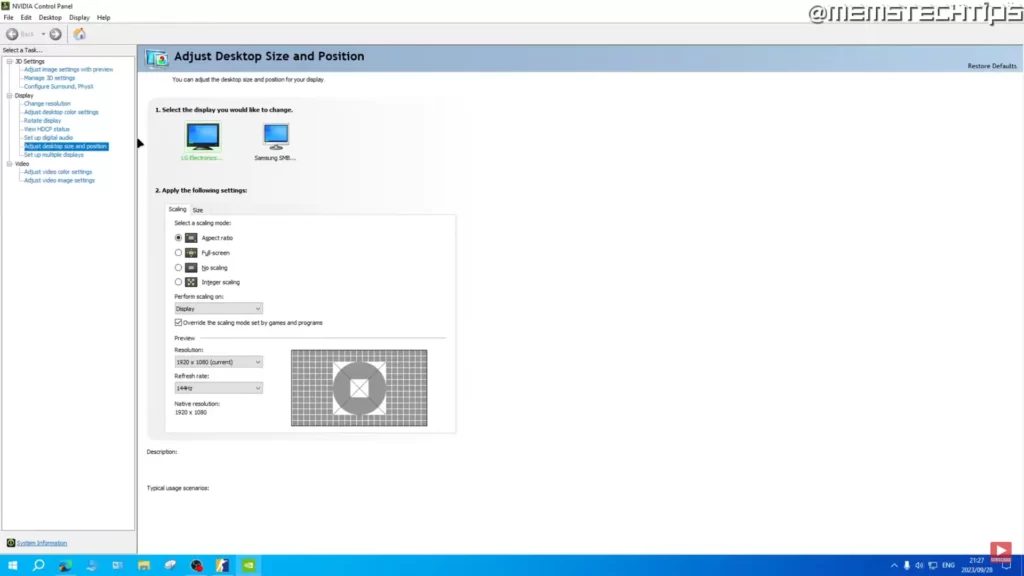
Launch the NVIDIA Control Panel from your desktop or system tray.
Navigate to Display → Adjust desktop size and position.
Under “Select a scaling mode,” choose Aspect Ratio.
Set “Perform scaling on” to Display.
Check Override the scaling mode set by games and programs, then click Apply.
If you prefer no black bars, change Scaling Mode to Full-screen instead of Aspect Ratio.
What AMD Radeon users need to do
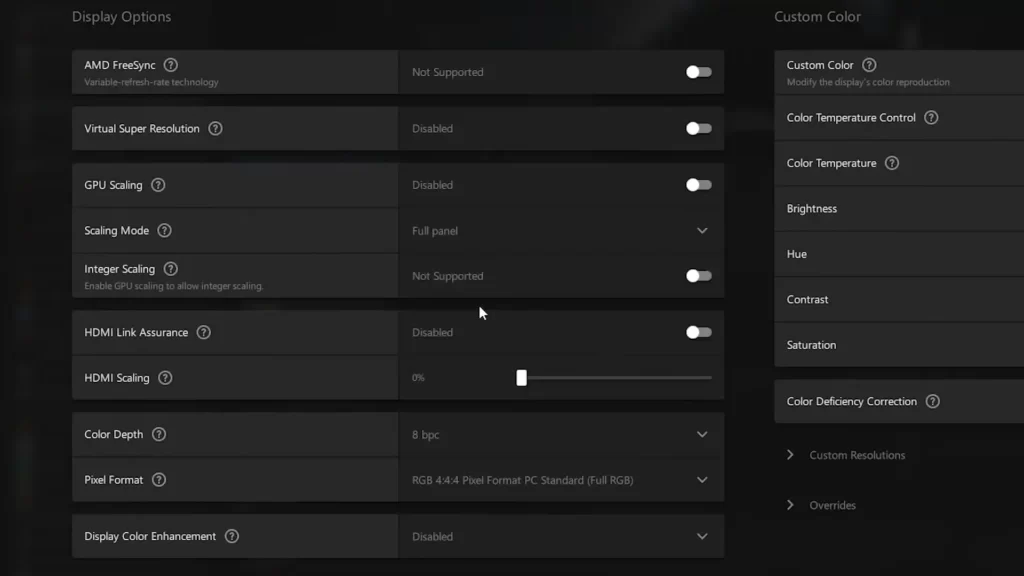
Launch AMD Radeon Software from your desktop or system tray.
Open the Create menu and select the Display tab.
Find Scaling Mode and set it to Full Panel.
Go to Custom Resolutions, accept the EULA, and create your desired resolution.
Turn on GPU Scaling, then select your custom resolution inside :contentReference[oaicite:0]{index=0}.
This will stretch the resolution across your entire screen, providing you with the CS2 stretched resolution experience.
A Comparison Between 4:3 Stretched, 4:3 Black Bars, and 16:9 Native in CS2
Each resolution style changes how you perceive the game, how much you see, and even how comfortable aiming feels. Here’s a practical breakdown of the three most common setups.
4:3 Stretched Resolution
Enemies appear visually larger, making them easier to track in fights.
You lose side visibility compared to widescreen setups.
Can increase FPS on lower-end systems due to reduced rendering load.
4:3 Black Bars
Keeps original proportions intact for a cleaner look.
Side borders reduce usable screen space but preserve aspect ratio.
Same gameplay feel as stretched but without distortion.
16:9 Native Resolution
Full horizontal field of view gives better map awareness.
Enemy movement and spacing appear exactly as intended.
Slightly more demanding on performance compared to 4:3 setups.
Quick Summary
Bigger targets, less vision
Same vision trade-off, cleaner visuals
Full awareness, most realistic view
Of course, customizing your CS2 experience shouldn’t stop here. The game offers plenty of useful settings that you can tweak for your benefit.
Summary
In this guide, you’ve learned how to start using stretched resolution in CS2. From understanding the concept and benefits of stretched resolution to setting it up for different graphics cards, you now have the knowledge to customize this part of your gaming experience.
FAQs
What is stretched resolution in CS2?
Stretched resolution is a display setup where the game uses a 4:3 aspect ratio (or similar) but expands it to fill a widescreen monitor. This makes models appear wider and can improve visibility for some players.
Does stretched resolution give an advantage?
It can offer a perceived advantage, such as larger-looking enemy models and improved focus. However, it does not increase actual hitbox size or game mechanics—it’s mainly a visual and preference-based setting.
How do I enable stretched resolution in CS2?
You typically:
Restart the game if needed to apply changes properly
Set your resolution to 4:3 (e.g., 1280×960 or 1024×768) in video settings
Adjust your GPU scaling settings (NVIDIA or AMD control panel) to “Full-screen” scaling
Why do some players prefer stretched resolution?
Many players like it because it:
Can feel smoother on lower-end PCs due to lower resolution load
Makes enemy models appear wider
Reduces horizontal field of view, keeping focus more centered
Are there any downsides to stretched resolution?
Yes, a few:
Not ideal for long-range spotting or utility usage accuracy
Reduced horizontal visibility (less peripheral awareness)
UI and HUD can look distorted