Steam is one of the most popular platforms for PC gaming, offering a vast library of games, frequent sales, and community features.
Sometimes, you may need to change your country or region on Steam, whether because you’ve moved to a new country, want to purchase games at local prices, or are troubleshooting regional restrictions.
This guide explains how to change your Steam country or region safely and what you need to consider.
Table of Contents
Why You Might Need to Change Your Country on Steam

There are several reasons players update their country settings:
Your billing information and local currency may no longer match your account, requiring an update to your Steam country settings.
Games often cost different amounts in different regions, and Steam requires the correct country for accurate pricing.
Certain games, DLCs, or promotions may only be available in specific regions, making country updates necessary.
Changing your country ensures your Steam Store reflects accurate pricing and content.
Steps to Change Your Country and Region on Steam
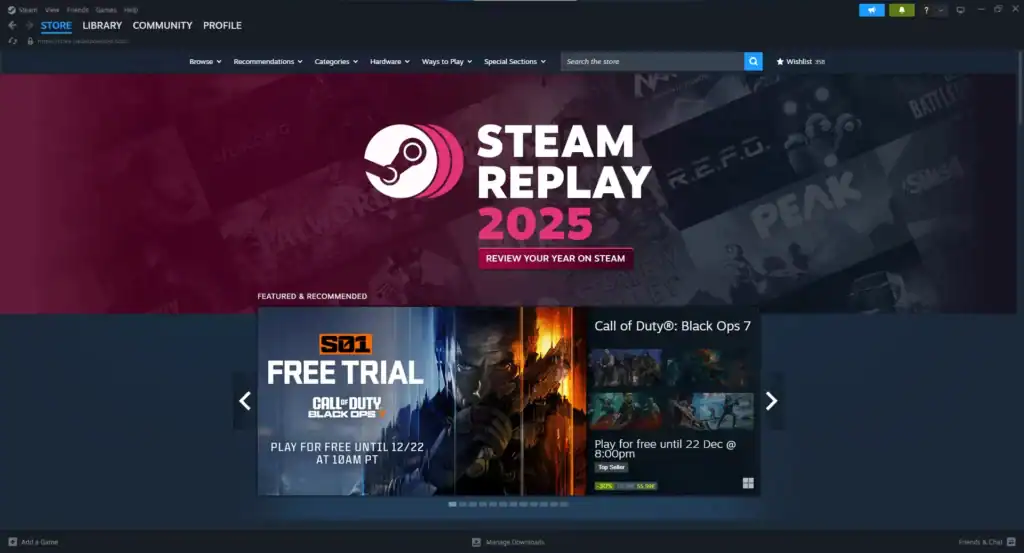
To change your country or region on Steam, follow these steps:
Step 1: Open Steam and Log In
Start by launching the Steam client on your computer or opening the Steam website in your browser. Make sure you are logged into the account you want to update.
Step 2: Navigate to Account Details
Click on your profile name in the top-right corner of the Steam client to access account options.
From the dropdown menu, choose Account Details to view and edit your Steam account information.
This page contains your account settings, including your current country and currency.
Step 3: Change Your Store Country
Navigate to the Store & Purchase History section in your account settings to access purchase options.
Click on Update store country to change your Steam region and local pricing.
Steam will show your current country and allow you to select a new one. You must be physically located in the new country or have a local payment method from that region to complete the change.
Things to Consider Before Changing Your Region
Steam requires a payment method issued in the country you’re switching to. Credit/debit cards, PayPal, or local payment options usually work.
You cannot change countries if you have remaining Steam Wallet funds. Spend your balance first to avoid restrictions.
Some games may not be available in your new country. Check Steam’s store page for regional availability before switching.
If traveling temporarily, Steam may allow purchases in that country, but your account region will remain the original.
Conclusion
Changing your Steam country or region is straightforward, but it requires careful attention to payment methods and regional restrictions. Following these steps ensures that you can purchase games, access local content, and enjoy Steam without interruptions.
FAQs
1. Can I change my Steam country without moving?
Steam requires proof of a local payment method, so changing the country without actually being in that region is usually restricted. VPNs are not recommended as they violate Steam’s Terms of Service.
2. Does changing my country affect my games?
No, your library remains intact. Only the store pricing, currency, and regional availability change.
3. How often can I change my Steam region?
Steam does not explicitly limit region changes, but frequent changes may trigger account verification.
4. What if I have a Steam Wallet balance?
You must spend all funds before changing your country, as leftover balance may be locked.
5. Can I change the language after changing the country?
Yes, Steam allows you to change the interface language separately in Settings → Interface.