A good CS2 radar setup helps you read the round faster. It shows teammate positions, bomb location, map control, rotations, and enemy information without forcing you to stare away from the crosshair.
The best CS2 radar settings for most players are:
cl_hud_radar_scale 1.15cl_radar_scale 0.45cl_radar_always_centered 0cl_radar_rotate 1cl_radar_icon_scale_min 0.65cl_radar_square_with_scoreboard 0
This setup gives you a larger radar, more map visibility, readable teammate icons, and a consistent round radar shape. You can still adjust the values based on your monitor size, resolution, and personal comfort.
In this guide, you’ll find the best CS2 radar commands, what each command does, how to apply them in the console, and ready-to-copy radar configs for different playstyles.
Pair these radar commands with Tradeit’s full CS2 settings guide for FPS, mouse, audio, crosshair, and launch options.
View Best CS2 SettingsBest CS2 Radar Settings Answer
Use this radar setup if you want a balanced competitive radar:
cl_hud_radar_scale 1.15
cl_radar_scale 0.45
cl_radar_always_centered 0
cl_radar_rotate 1
cl_radar_icon_scale_min 0.65
cl_radar_square_with_scoreboard 0
This setup works well for most players because it keeps the radar large enough to read, zoomed out enough to show more map information, and clean enough to avoid blocking your HUD.
Why These Settings Work
cl_hud_radar_scale 1.15makes the radar easier to read.cl_radar_scale 0.45shows more of the map.cl_radar_always_centered 0helps reveal more surrounding map space.cl_radar_rotate 1keeps the radar aligned with your view.cl_radar_icon_scale_min 0.65keeps player icons readable.cl_radar_square_with_scoreboard 0Keeps the radar shape consistent when checking the scoreboard.
Start with the balanced config above, play two or three matches, then adjust only one radar setting at a time.
How to Enable the Developer Console
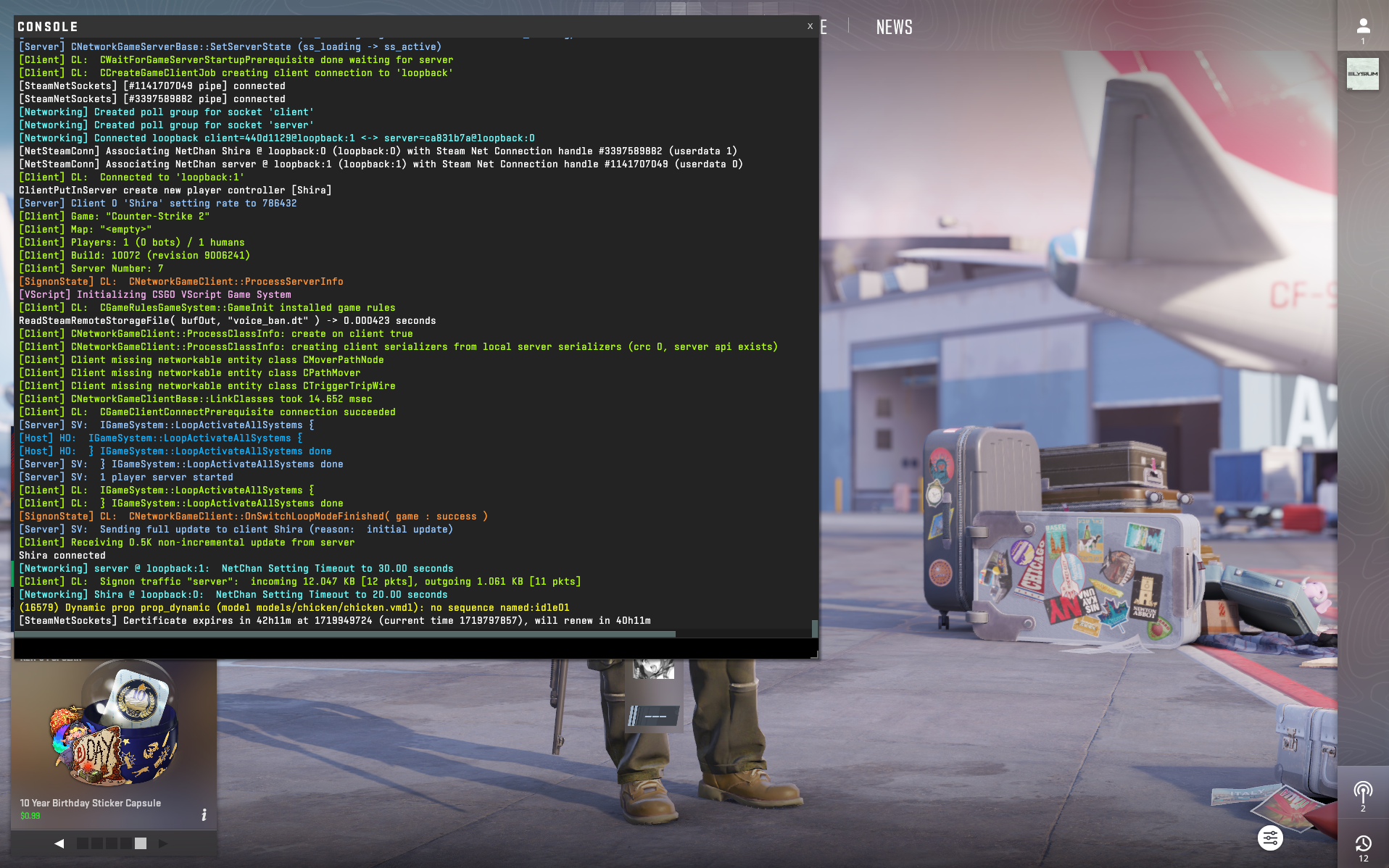
Before using CS2 radar commands, make sure the developer console is enabled.
From the main menu, click the gear icon to open the CS2 settings menu.
Open the Game tab and look for the developer console option.
Set “Enable Developer Console” to Yes, then press the console key in-game.
- What Key Opens the CS2 Console? On most keyboards, the console opens with the
~key. If that does not work, check your keyboard layout and CS2 keybind settings. - Should You Use Console or Autoexec? Use the console for quick testing. Use a
autoexec.cfgfile if you want the same radar settings to load every time you open CS2.
If you want a deeper command list, check our CS2 console commands guide.
Best CS2 Radar Commands
| Command | Recommended Value | Value Range | What It Does |
|---|---|---|---|
| cl_hud_radar_scale | 1.10 to 1.20 | 0.8 to 1.3 | Changes the radar size on your HUD. Higher values make the radar easier to read. |
| cl_radar_scale | 0.40 to 0.50 | 0.25 to 1 | Controls how zoomed in or out the radar is. Lower values show more of the map. |
| cl_radar_always_centered | 0 | 0 or 1 | When set to 0, your radar shows more map area instead of keeping you locked in the center. |
| cl_radar_rotate | 1 | 0 or 1 | When set to 1, the radar rotates with your player view. This feels natural for most players. |
| cl_radar_icon_scale_min | 0.60 to 0.70 | 0.4 to 1 | Controls the minimum size of icons on the radar. Higher values make teammates and bomb icons easier to see. |
| cl_radar_square_with_scoreboard | 0 | 0 or 1 | Controls whether the radar changes to square when opening the scoreboard. |
Radar Scale
This command controls how zoomed in or out your radar is. Adjust it based on your preference for a broader or more detailed view.
cl_radar_scale
0.25 to 1
0.4 to 0.6
cl_radar_scale 0.5
Recommendation: A value around 0.5 provides a balanced view, giving enough detail without losing sight of the bigger picture.
HUD Radar Scale
This adjusts the size of the radar on your HUD.
cl_hud_radar_scale
0.8 to 1.3
1.1 to 1.3
cl_hud_radar_scale 1.15
Recommendation: Setting this around 1.2 enlarges the radar enough to see details without overwhelming your HUD.
Centered Radar
Decide whether your player icon is always centered on the radar.
cl_radar_always_centered
0 (not centered) or 1 (centered)
0
cl_radar_always_centered 0
Recommendation: Turning this off (0) allows you to see more of the map when you’re near the edges, providing better situational awareness.
Rotating Radar
Control whether the radar rotates with your character.
cl_radar_rotate
0 (static) or 1 (rotating)
1
cl_radar_rotate 1
Recommendation: Keeping it rotating (1) aligns the radar with your point of view, making it easier to navigate.
Icon Scale
Adjust the size of the icons on your radar for better visibility.
cl_radar_icon_scale_min
0.4 to 1
0.6 to 0.7
cl_radar_icon_scale_min 0.7
Recommendation: A value around 0.7 makes icons visible without being too intrusive.
Square Radar with Scoreboard
Toggle whether the radar changes shape when viewing the scoreboard.
cl_radar_square_with_scoreboard
0 (keep round) or 1 (switch to square)
0
cl_radar_square_with_scoreboard 0
Recommendation: Keeping the radar round (0) maintains consistency and avoids unnecessary changes when you check the scoreboard.
How to Apply CS2 Radar Commands
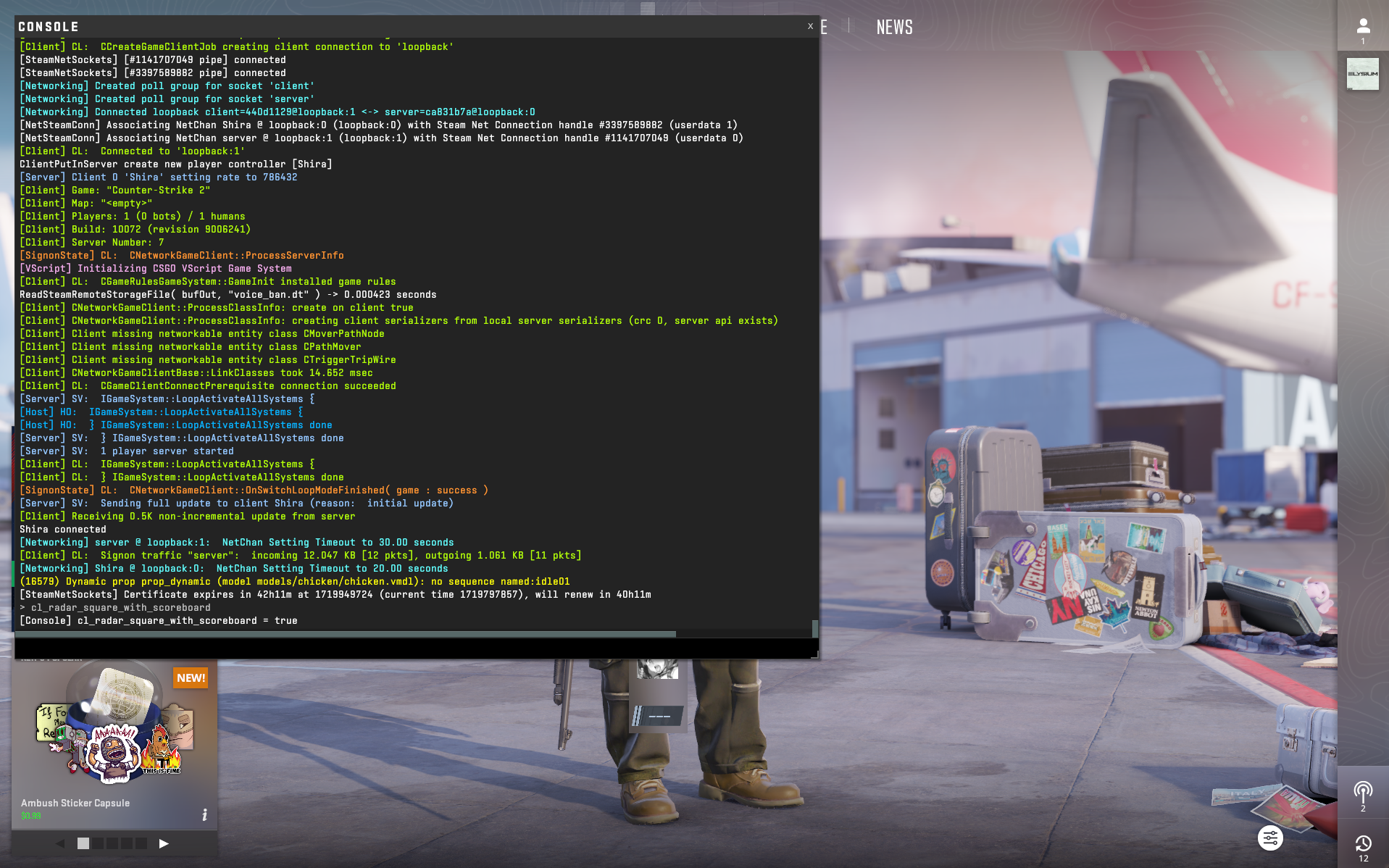
You can apply CS2 radar commands in two ways: directly through the console or automatically through your autoexec.cfg file.
Press the console key in CS2 after enabling the developer console in Game Settings.
Type or paste a radar command, then press Enter to apply it instantly.
Add the commands to your autoexec file if you want the settings to load every time.
Console Method
Use this method for quick testing. Example:
cl_radar_scale 0.45
Autoexec Method
Use this if you want your radar settings to load every time CS2 starts.
cl_hud_radar_scale 1.15
cl_radar_scale 0.45
cl_radar_always_centered 0
cl_radar_rotate 1
cl_radar_icon_scale_min 0.65
cl_radar_square_with_scoreboard 0
If you want to test these settings while learning smokes, utility, or practice servers, pair this with our CS2 practice commands guide.
CS2 Radar Configs for Different Playstyles
Balanced Competitive Radar
Best for most players
cl_hud_radar_scale 1.15
cl_radar_scale 0.45
cl_radar_rotate 1
cl_radar_always_centered 0
cl_radar_icon_scale_min 0.65
cl_radar_square_with_scoreboard 0
H3: Larger Radar for New Players
Best if you often miss teammate positions, bomb location, or map control.
cl_hud_radar_scale 1.25
cl_radar_scale 0.50
cl_radar_rotate 1
cl_radar_always_centered 0
cl_radar_icon_scale_min 0.75
cl_radar_square_with_scoreboard 0
H3: Zoomed-Out Radar for Map Awareness
Best if you want to see more of the map and already understand callouts.
cl_hud_radar_scale 1.15
cl_radar_scale 0.35
cl_radar_rotate 1
cl_radar_always_centered 0
cl_radar_icon_scale_min 0.65
cl_radar_square_with_scoreboard 0
H4: Which Config Should You Use?
Start with the balanced competitive radar. Move to the larger radar if you struggle to read icons. Move to the zoomed-out version if you already have strong map knowledge and want more information at a glance.
Radar settings help with awareness, but FPS, audio, mouse, crosshair, and launch options matter too.
Read Best CS2 SettingsCommon CS2 Radar Mistakes
A very zoomed-in radar can hide useful map information, teammate positions, and rotations.
If icons are too small, you may miss the bomb, teammate positions, or quick enemy info from callouts.
Give one setup a few matches before adjusting again. Constant changes make the radar harder to trust.
Radar size feels different on 4:3, 16:9, stretched, and native resolutions. Adjust based on what you actually use.
If the radar changes shape when opening the scoreboard and distracts you, keep square scoreboard mode disabled.
A radar setup that feels good on Dust 2 may feel different on Nuke, Ancient, or Vertigo.
Final Takeaway
The best CS2 radar settings are the ones that give you more information without cluttering the screen.
For most players, the best starting setup is:
cl_hud_radar_scale 1.15cl_radar_scale 0.45cl_radar_always_centered 0cl_radar_rotate 1cl_radar_icon_scale_min 0.65cl_radar_square_with_scoreboard 0
Use this setup first, then adjust slowly based on your resolution, map pool, and comfort. A better radar will not replace aim or game sense, but it can help you rotate faster, read teammate positions, track the bomb, and avoid missing important map information.
FAQs
What are the best CS2 radar settings?
The best CS2 radar settings for most players are cl_hud_radar_scale 1.15, cl_radar_scale 0.45, cl_radar_always_centered 0, cl_radar_rotate 1, cl_radar_icon_scale_min 0.65, and cl_radar_square_with_scoreboard 0.
What radar scale is best for CS2?
A radar scale around 0.4 to 0.5 It’s a good starting point. It shows more of the map without making the radar icons too small.
Should I use a rotating radar in CS2?
Most players can start with cl_radar_rotate 1 it because it keeps the radar aligned with their view. Static radar can still work if you prefer fixed map orientation for callouts.
Should radar always be centered in CS2?
For competitive play, cl_radar_always_centered 0 It is usually better because it shows more of the map around you instead of keeping your player icon locked in the center.
Do CS2 radar settings affect FPS?
No. Radar settings are visual HUD settings and should not meaningfully affect FPS or performance.
How do I apply CS2 radar commands?
Enable the developer console, open it in-game, paste the command, and press Enter. For permanent settings, add the commands to your autoexec.cfg.
What is the best radar setup for beginners?
Beginners should use a slightly larger radar, such as cl_hud_radar_scale 1.25, cl_radar_scale 0.5, and cl_radar_icon_scale_min 0.75, so teammate and bomb icons are easier to read.